
Jumps
flowchart TD
  start["<b>Start</b><br>Navigator: Where to, Captain?"]
  earth["<b>Earth</b><br>Navigator: Earth it is sir."]
  star["<b>SecondStar</b><br>Navigator: Can you be more specific?"]
  done["<b>Done</b><br>Navigator: Being a Navigator sure is hard work!"]
  start -->|"-#gt; Captain: I want to go back to earth!<br>#lt;#lt;jump Earth#gt;#gt;"| earth
  start -->|"-#gt; Captain: Second star to the left!<br>#lt;#lt;jump SecondStar#gt;#gt;"| star
  earth -->|"#lt;#lt;jump Done#gt;#gt;"| done
  star -->|"#lt;#lt;jump Done#gt;#gt;"| done
The <<jump>> command lets you move the dialogue between nodes. It is used by writing << then the word jump, a space, and then the full title of the node you want to jump the narrative to, then another >>.
To jump to a node with the title Rescue_the_Kitten , for example, you would write the line <<jump Rescue_the_Kitten>>.
Jump commands should always be placed on their own line, indented as appropriate.
Using the Jump Command
For example, consider the following conversation, which could be structured inside one node, using nested options, or split over several nodes using options and jump commands. The before version is inside a single node, and works fine, but the after version is structured across multiple nodes, and is easier to make sense of.
title: Start
---
Navigator: Where to, Captain?

-> Captain: I want to go back to earth!
    Navigator: Earth it is sir.
    Navigator: This jump will take us 10 hours.
    Navigator: Permission to jump, sir?
    -> Captain: Granted, let's go!
        Navigator: On it, sir.
    -> Captain: Not yet. Just wait a moment.
        Navigator: Standing by, sir.
-> Captain: Second star to the left!
    Navigator: Can you be more specific?
    -> Captain: I cannot, no.
        Navigator: Right away, sir.
    -> Captain: ... that one *gestures*
        Navigator: Very good, sir.

Navigator: Being a Navigator sure is hard work!
===title: Start
---
Navigator: Where to, Captain?
-> Captain: I want to go back to earth!
<<jump Earth>>
-> Captain: Second star to the left!
<<jump SecondStar>>
Navigator: Being a Navigator sure is hard work!
title: Earth
Navigator: Earth it is sir.
Navigator: This jump will take us 10 hours.
Navigator: Permission to jump, sir?
-> Captain: Granted, let's go!
Navigator: On it, sir.
-> Captain: Not yet. Just wait a moment.
Navigator: Standing by, sir.
<<jump Done>>
title: SecondStar
Navigator: Can you be more specific?
-> Captain: I cannot, no.
Navigator: Right away, sir.
-> Captain: … that one gestures
Navigator: Very good, sir.
<<jump Done>>
title: Done
Navigator: Being a Navigator sure is hard work!
===
Separating dialogue segments into nodes can aid in writing neater files that are easier to edit as they grow.
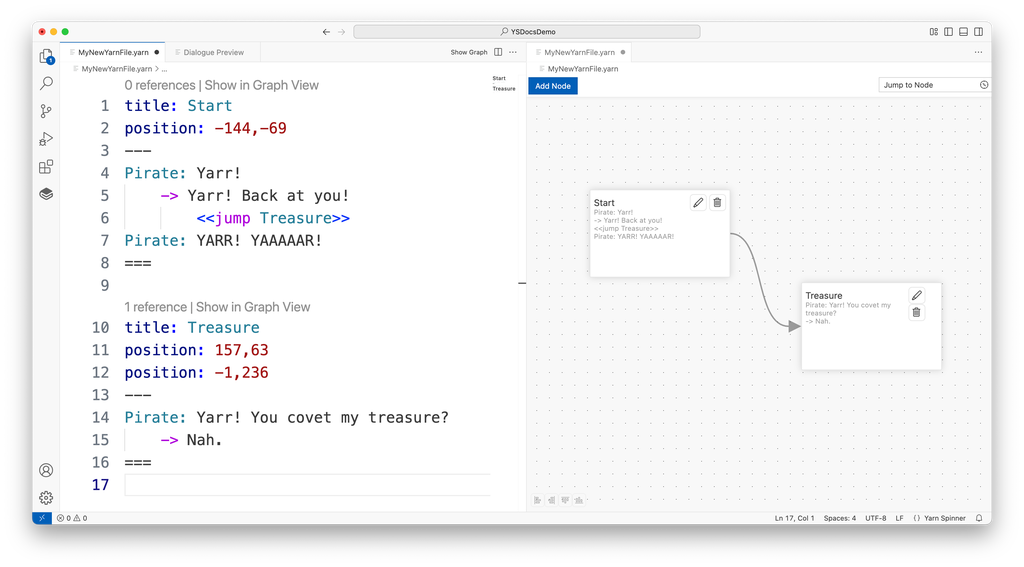
When you use <<jump>> command, they’ll be shown in the Graph View in Yarn Spinner for Visual Studio Code as an line with an arrow leading to the node that’s being jumped to:
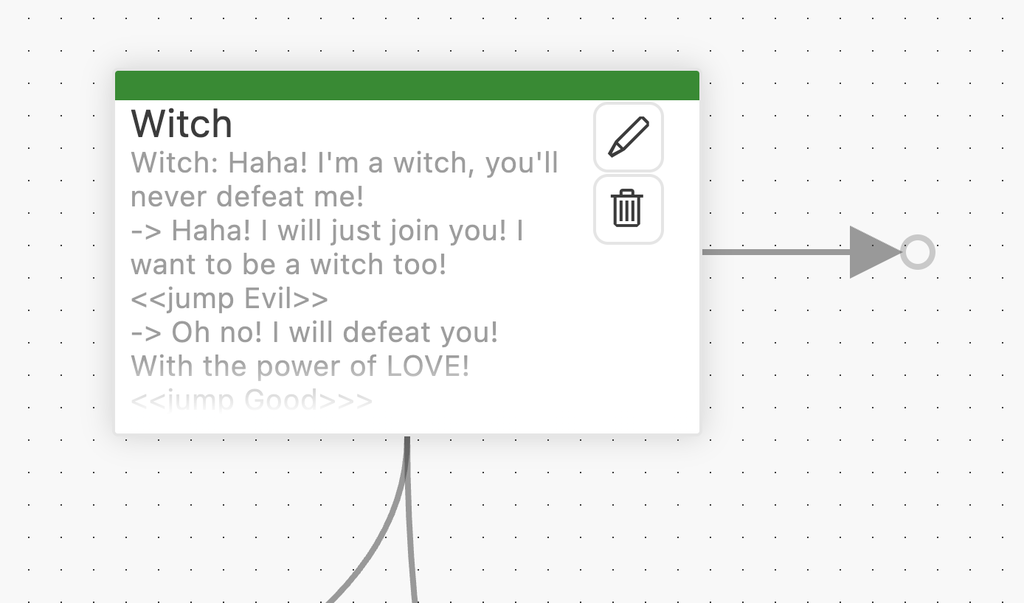
If you use the <<jump>> command to jump to a node that’s in a different .yarn file, it will be visualised as a line leading to a small circle:
Write some Jump Commands
Spread your story out over the nodes in a sensible manner.
<<jump>> command to move between nodes in your storySpecify the name of the node you want to jump to inside each <<jump>> command.
Play through it, and check that the jumps behave as you’d expect.
Next up, learn about the Jump Command’s close relative, the Detour Command.