
Back in the Beginner’s Guide, you learned the basics of Yarn Spinner Scripting.
While Try Yarn Spinner is good for the basics, and for experimenting, when you start creating more complex narratives, you need an editor like Yarn Spinner for Visual Studio Code.
Yarn Spinner for Visual Studio Code
Yarn Spinner for Visual Studio Code is an extension for the free text editor, Visual Studio Code (“VS Code”).
Yarn Spinner for Visual Studio Code gives you syntax highlighting for Yarn Spinner Scripts, as well as a graph view that displays the nodes, and relationships between the nodes, and other features that we’ll explore as we learn to write Yarn Spinner Scripts using Visual Studio Code.
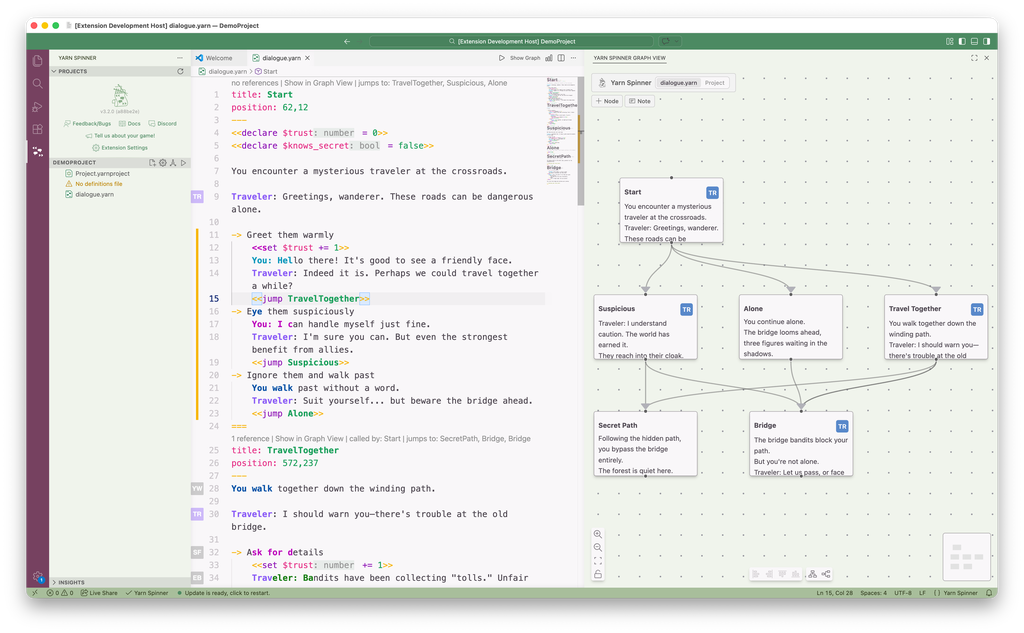
Visual Studio Code is a free, open source code editor for Windows, macOS, and Linux. It supports extensions, which add features to it. The Yarn Spinner Extension is one of these.
If you’ve never used VS Code before, head to their official website and install it for your operating system and platform before continuing.
secretlab.yarn-spinner, or click here and hit the install button, and you’ll be ready to go.Don’t be too alarmed by the AI-powered nonsense Microsoft will try and sell you. You can disable most of the AI “features” in VSCode.
Installing Yarn Spinner for Visual Studio Code
To install VS Code and Yarn Spinner for Visual Studio Code:
Download Visual Studio Code for your operating system from https://code.visualstudio.com/, and install it. If you already have VS Code, skip this step.
To do this, select the blocks symbol from the left-hand sidebar, or press Command+Shift+X on macOS, or Control+Shift+X on Windows or Linux.
With the Extensions view open, type “Yarn Spinner” into the search field.
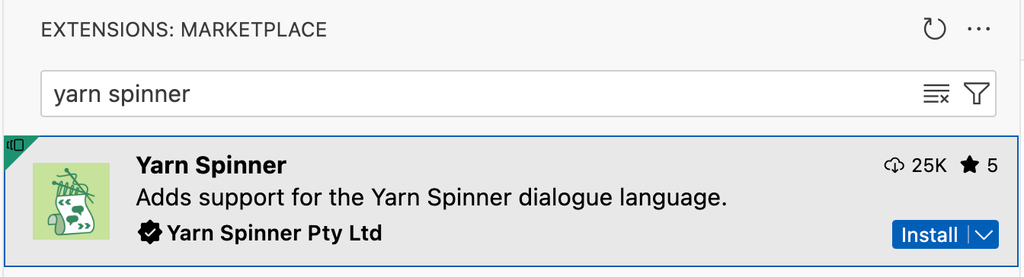
Once the results have loaded, look for the verified Yarn Spinner extension and click “Install” next to it.
The extension is now installed. You’re ready to write and edit Yarn Spinner Scripts in Visual Studio Code.