
try.yarnspinner.dev
Try Yarn Spinner is our browser-based tool for writing and playing Yarn Spinner Scripts. You don’t need to install anything. It’s a good place to try out the things you learn in these docs with scripts of your own.
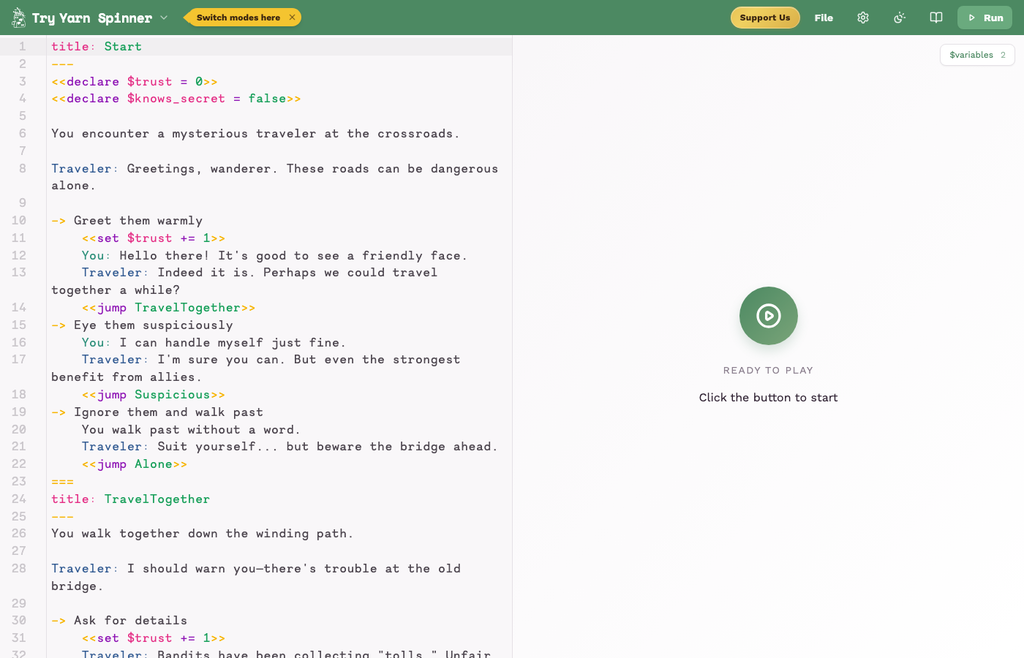
Writing and playing
The left side of Try Yarn Spinner is the editor, where you write your script. The right side is the player.
Press Run, in the top-right corner, to play your script in the player. Press Stop to stop it.
If your script has an error, the editor marks the line the error is on, and you can’t run the script until you fix it.
The $variables button, at the top of the player, shows your script’s variables and their values while it plays.
Try Yarn Spinner starts playing from the node called Start. To start from a different node, choose it from Start Node in the settings menu (the cog).
Saving and sharing
Try Yarn Spinner keeps your script in your browser, so it’s still there when you come back.
The File menu has everything else:
| Item | What it does |
|---|---|
| New | Starts a new, empty script. |
| Open from Disk | Opens a .yarn file from your computer. |
| Open from Gist | Opens a script from a GitHub Gist. |
| Samples | Opens one of our sample scripts. This replaces your current script. |
| Download Script | Saves your script as a .yarn file. |
| Download Web Player | Saves a web page that plays your script, which you can share or put online. |
| Share Link | Copies a link that opens your script in Try Yarn Spinner. Very long scripts are too long to share as a link. |
Settings
The settings menu (the cog) changes how your script plays:
- Start Node chooses the node to start from.
- Saliency Strategy chooses how line groups and node groups pick what to run. See Saliency.
- Effects changes the text speed, how unavailable options are shown, and whether variable changes are shown as the script plays.