
Your First Script
In Yarn, everything is built from nodes and lines. Let’s write a script step by step using Try Yarn Spinner — no installation needed.
Create a Start node
Open Try Yarn Spinner, copy this in, then press Run:
title: Start
---
Narrator: Hi, I'm the narrator for the documentation!
===
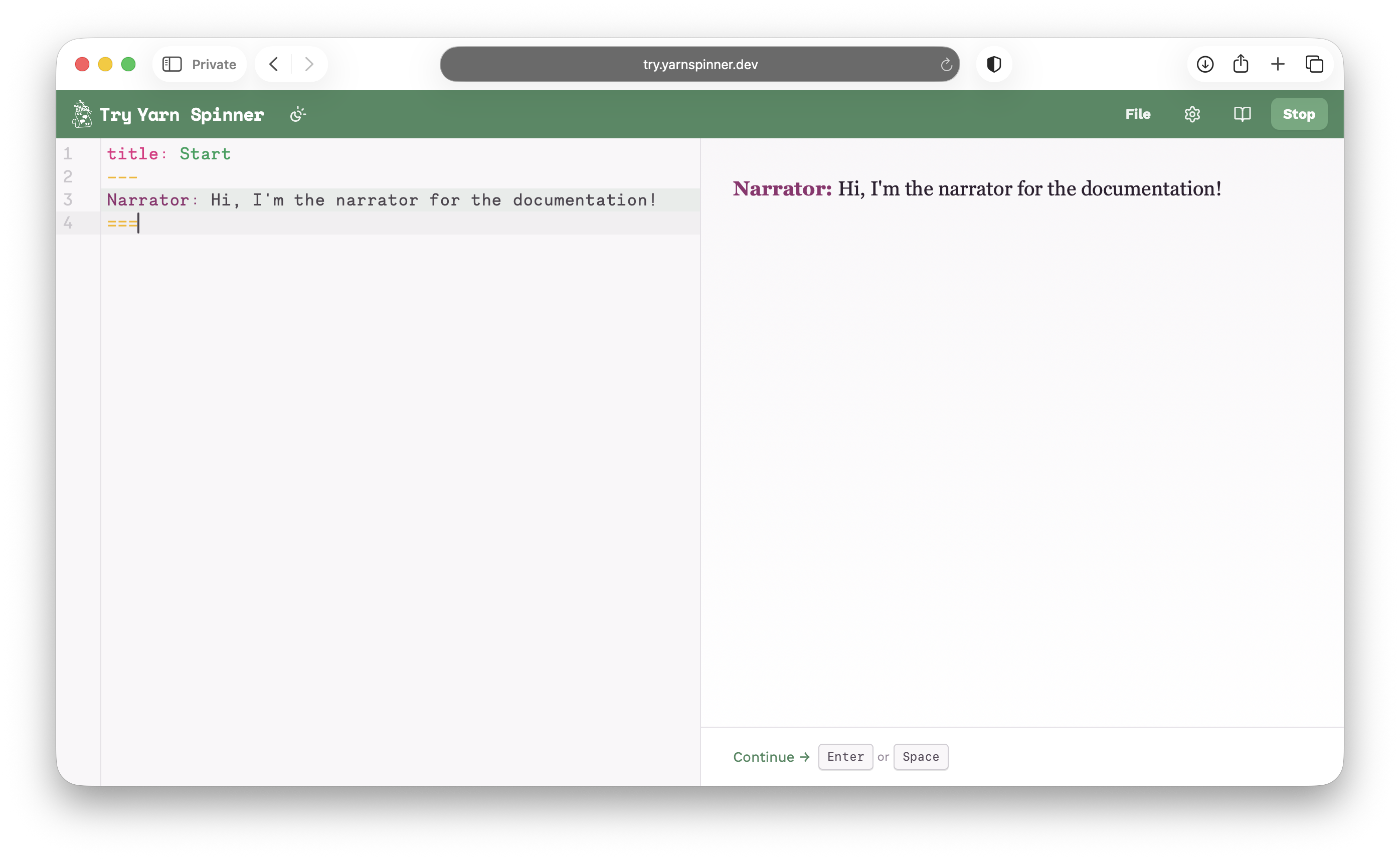
Line 1
The header — every node starts with a
title and a value. In Try Yarn Spinner, the first node must be called Start.Line 2
The separator — marks the end of the header and the beginning of the body.
Line 3
A line of dialogue. Lines can contain whatever text you want.
Line 4
The node ending — closes this node.
Your first node — a single line of dialogue
In your own games, the first node can be named whatever you like.
Add more nodes
Add these two new nodes below the first one:
title: Adventure
---
Narrator: We're going to go on an adventure!
===
title: Cave
Narrator: Let's look inside the spooky cave…
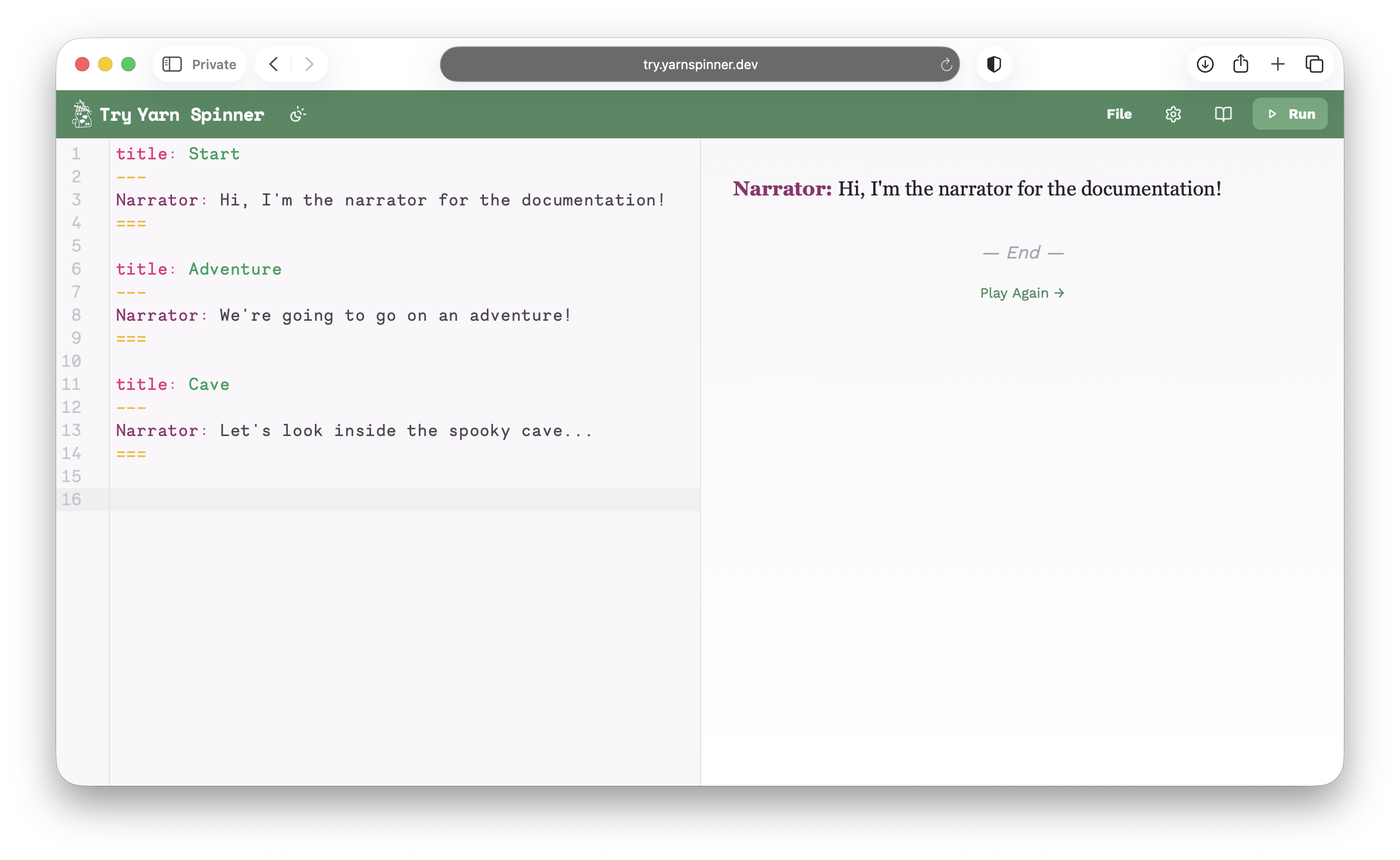
Press Run — you’ll notice nothing has changed! That’s because there’s no path from Start to these new nodes yet.
Connect nodes with a jump
Update your Start node to include a jump command:
title: Start
---
Narrator: Hi, I'm the narrator for the documentation!
<<jump Adventure>>
===
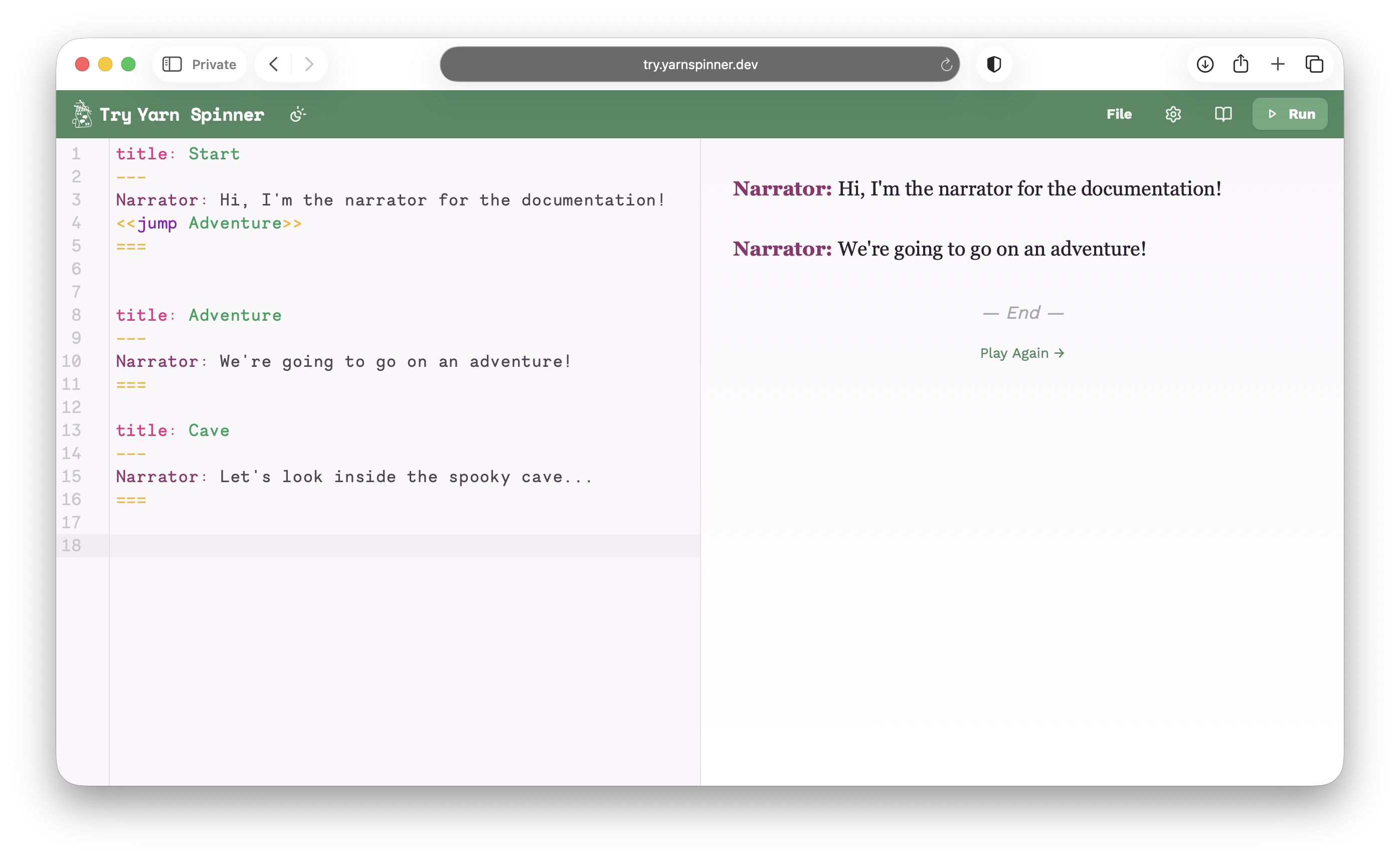
Line 4
A jump command — all commands are wrapped in
<< and >>. The jump keyword tells the runner to continue in a different node, in this case Adventure.Updated Start node with a jump command
Press Run again. Now the story continues into the Adventure node after the first line!
Give the player choices
Update your Adventure node to offer the player options:
title: Adventure
---
Narrator: We're going to go on an adventure!
-> OK! Let's go!
    <<jump Cave>>
-> I don't want to go on an adventure...
    Narrator: Oh, OK then.
===
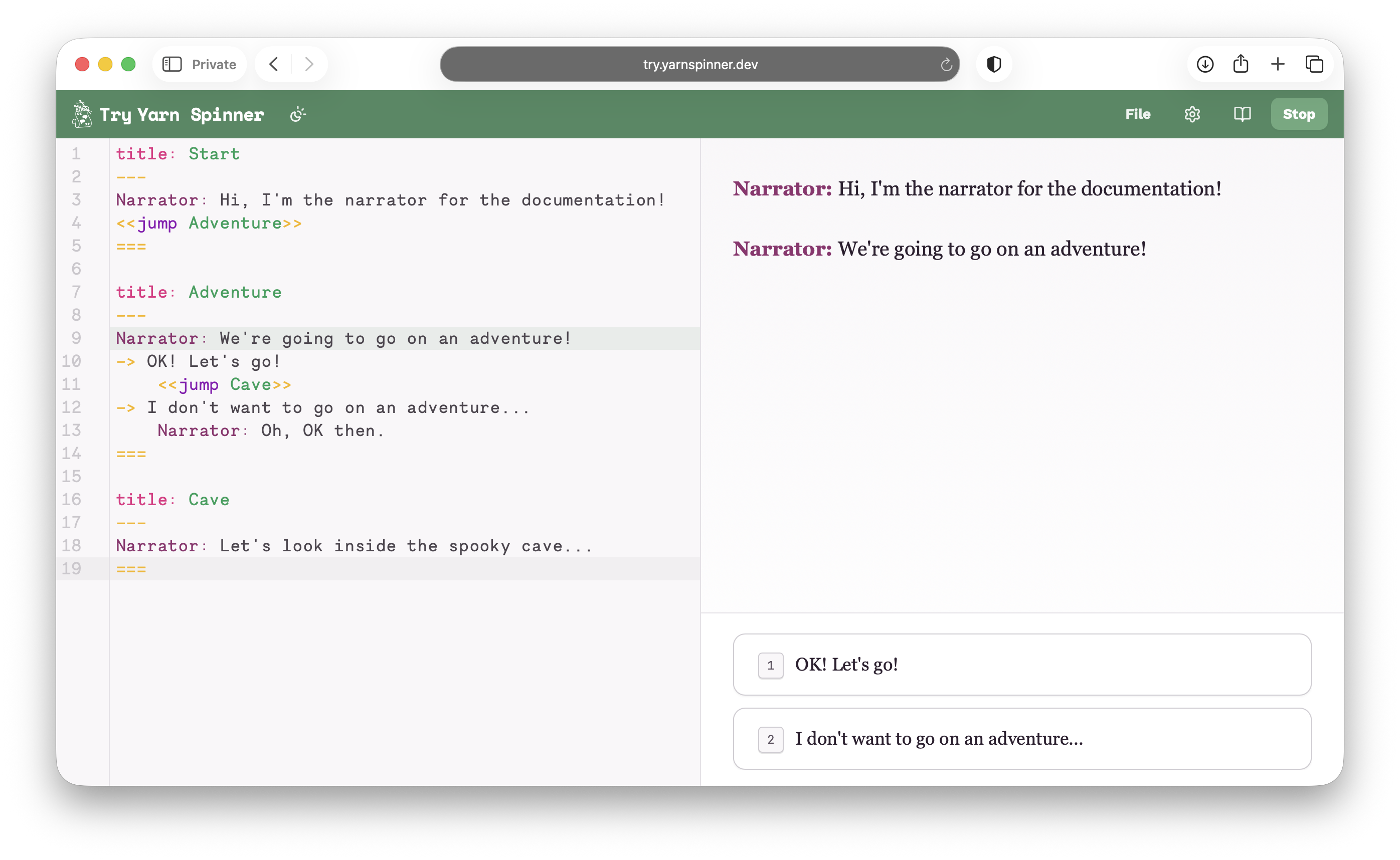
Lines 4 & 6
Options start with
->. All options at the same level are presented together as choices.Line 5
Indented content after an option only runs if that option is chosen. Here, picking this option jumps to the
Cave node.Line 7
This indented line only runs if the player picks the second option. Since there’s no jump, the node ends after this line.
Adventure node with player choices
You did it!
You just wrote a branching Yarn Spinner script with:
- Nodes — self-contained blocks of dialogue
- Lines — text that gets displayed to the player
- Jump commands — connections between nodes
- Options — choices that let the player shape the story
That’s the foundation of everything in Yarn Spinner. Here’s the complete script — hit play to try it:
title: Start
---
Narrator: Hi, I'm the narrator for the documentation!
<<jump Adventure>>
===
title: Adventure
Narrator: We're going to go on an adventure!
-> OK! Let's go!
<<jump Cave>>
-> I don't want to go on an adventure…
Narrator: Oh, OK then.
title: Cave
Narrator: Let's look inside the spooky cave…