
Voice-Over
The Voice Over Presenter plays a recorded audio clip for each line. It doesn’t show any text, so most games use it alongside a Line Presenter, which shows the line as a subtitle while the clip plays.
Adding a Voice Over Presenter
- Open the Actor that has your Dialogue Runner. In the Components panel, click Add, and search for Yarn Voice Over Presenter.
- Select the Dialogue Runner, and add the Voice Over Presenter to its Dialogue Presenters list, next to your Line Presenter.
- Tell Yarn Spinner which Sound asset goes with each line. See Finding each line’s clip.
The Voice Over Presenter plays clips through an Audio Component. When the game starts, it makes its own, attached to the Actor’s root component. The one it makes plays in 2D, so the clips sound the same wherever the player is.
To choose the Audio Component’s settings yourself, add an Audio Component to the Actor, and set it as the Voice Over Presenter’s Audio Component from your Actor’s Event BeginPlay, with the Set Audio Component node. Audio Component isn’t in the Details panel. Using your own lets you send voice-over to its own Sound Class with its own volume, or give it an Attenuation so the voice comes from where the character is standing.
Finding each line’s clip
The Voice Over Presenter doesn’t look for clips itself. It asks the Dialogue Runner’s Asset Provider for the Sound asset that goes with each line. If your Dialogue Runner has no Asset Provider set, it uses a Yarn Project Asset Provider, which finds each line’s clip from a tag on the line.
Give each line an #audio: tag with the path to its Sound asset. Give every line an ID with a #line: tag too:
Tom: Uh.. hello? #line:tutorial-tom-01 #audio:/Game/Audio/Dialogue/tutorial-tom-01
Tom: Is anyone there? #line:tutorial-tom-02 #audio:/Game/Audio/Dialogue/tutorial-tom-02
Anne: Hi there! #line:tutorial-anne-01 #audio:/Game/Audio/Dialogue/tutorial-anne-01The path starts with /Game/, which is your project’s Content folder. To get an asset’s path, right-click it in the Content Browser and choose Copy Reference. To use a tag other than audio, change the Yarn Project Asset Provider’s Metadata Prefix. See Line and Asset Providers.
#line: tag still get an ID, but it’s made from the line’s position in the script, and changes when you edit the script. Tag your lines before you record or name any audio.A shadow line with no #audio: tag of its own plays the clip of the line it shadows.
When a node starts, the Voice Over Presenter asks the Asset Provider to start loading the clips for the lines in it, so each clip is ready before its line runs.
Naming your audio files
If you’d rather name each clip after its line ID than tag every line, override how the Voice Over Presenter finds clips. Get Voice Over Clip is called for each line, and returns the Sound asset to play.
To do the same in Blueprints, make a Blueprint class whose parent is Yarn Voice Over Presenter, and override the Get Voice Over Clip function. For example, give the Blueprint a Map variable from String to Sound Base, fill it in with each line ID and its clip, and return the result of Find with the line’s Raw Line’s Line ID.
This Voice Over Presenter looks in a folder for a clip named after each line’s ID, without the line: part. If there isn’t one, it falls back to the usual #audio: tag:
#pragma once

#include "CoreMinimal.h"
#include "YarnVoiceOverPresenter.h"
#include "FolderVoiceOverPresenter.generated.h"

UCLASS(ClassGroup = (Custom), meta = (BlueprintSpawnableComponent))
class UFolderVoiceOverPresenter : public UYarnVoiceOverPresenter
{
	GENERATED_BODY()

public:
	UPROPERTY(EditAnywhere, Category = "Voice Over")
	FString Folder = TEXT("/Game/Audio/Dialogue");

	virtual USoundBase* GetVoiceOverClip_Implementation(const FYarnLocalizedLine& Line) override;
};#include "FolderVoiceOverPresenter.h"
#include "Sound/SoundBase.h"
USoundBase* UFolderVoiceOverPresenter::GetVoiceOverClip_Implementation(const FYarnLocalizedLine& Line)
{
const FString& LineID = Line.ShadowSourceLineID.IsEmpty() ? Line.RawLine.LineID : Line.ShadowSourceLineID;
FString Name = LineID;
Name.RemoveFromStart(TEXT("line:"));
const FString Path = FString::Printf(TEXT("%s/%s.%s"), *Folder, *Name, *Name);
if (USoundBase* Clip = LoadObject<USoundBase>(nullptr, *Path, nullptr, LOAD_NoWarn | LOAD_Quiet))
{
return Clip;
}
return Super::GetVoiceOverClip_Implementation(Line);
}line:, so line:tutorial-tom-01 becomes tutorial-tom-01.#audio: tag.Add Folder Voice Over Presenter to your Actor in place of the Yarn Voice Over Presenter, and put the clips in its Folder:
/Game/Audio/Dialogue/tutorial-tom-01
/Game/Audio/Dialogue/tutorial-tom-02
/Game/Audio/Dialogue/tutorial-anne-01Audio in more than one language
If your game has voice-over in more than one language, give each language its own folder of clips, and pick the folder from the language the Dialogue Runner is using. In the example above, replace the path with one that includes the locale code, like /Game/Audio/Dialogue/de/tutorial-tom-01:
FString Locale = TEXT("en");
if (UYarnDialogueRunner* Runner = GetDialogueRunner())
{
	if (UYarnBuiltinLineProvider* Provider = Cast<UYarnBuiltinLineProvider>(Runner->LineProvider))
	{
		Locale = Provider->GetLocaleCode();
	}
}

const FString Path = FString::Printf(TEXT("%s/%s/%s.%s"), *Folder, *Locale, *Name, *Name);For this, include YarnDialogueRunner.h and YarnLocalization.h in the .cpp file. When the game’s language changes with Set Locale Code, the next line plays in the new language. See Localising Your Game for the text side of translation.
When the line ends
By default, when a line’s clip finishes, the Voice Over Presenter tells the Dialogue Runner it’s done, and asks for the line to end. If the Voice Over Presenter is the only Presenter showing the line, the dialogue then moves on without the player pressing anything. Presenters you write can end the line at the same moment, by checking Is Next Content Requested. See Building Your Own Presenter. The Line Presenter doesn’t check it, so with a Line Presenter, the line stays on screen until the player continues.
If the player continues before the clip has finished, the clip fades out over Fade Out Time On Interrupt seconds, 0.05 by default, and the next line starts.
To leave a gap around each clip, use Wait Time Before Start, the seconds to wait before the clip starts, and Wait Time After Complete, the seconds to wait after it finishes before ending the line.
To make the Voice Over Presenter leave the line to the player and the other Presenters, turn off End Line When Voice Over Complete. It then finishes with the line when the player continues.
If a line has no clip, the Voice Over Presenter logs a warning in the Output Log, and the line carries on without audio.
Events
| Event | When it fires |
|---|---|
| On Voice Over Started | A line’s clip has started playing. |
| On Voice Over Complete | A line’s clip has finished, or has faded out because the player continued. |
To use them in Blueprints, select the Voice Over Presenter’s component, and click + next to the event in the Events section of the Details panel. For example, to animate a character’s mouth while they speak, start the animation on On Voice Over Started and stop it on On Voice Over Complete.
Settings
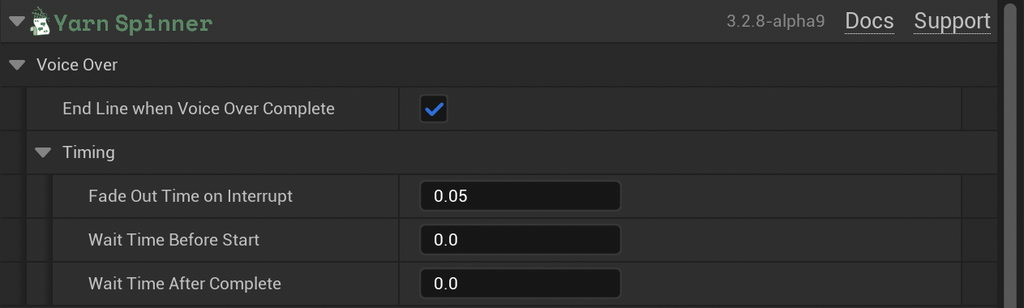
| Setting | Default | What it does |
|---|---|---|
| End Line When Voice Over Complete | On | Asks for the line to end when its clip finishes. |
| Fade Out Time On Interrupt | 0.05 | Seconds to fade the clip out when the player continues early. 0 stops it immediately. |
| Wait Time Before Start | 0 | Seconds to wait before playing the clip. |
| Wait Time After Complete | 0 | Seconds to wait after the clip finishes before ending the line. |
| Audio Component | Made for you | The Audio Component that plays the clips. Set it from Blueprints or C++. |