
Markup
Markup is tags in square brackets that you put in your lines, like [b]this[/b]. Yarn Spinner for Unreal Engine uses them to change the words, pause the typewriter, or run your own code as the line types out.
Markup comes in two kinds:
- Markup that changes the text. It’s applied before the line is shown. Tags that pick words, like
[plural], work this way, and so does any marker processor you write. - Markup that does something while the line types out. It marks a point in the line, and runs when the typewriter reaches it.
[pause/]works this way.
What the Line Presenter shows
The Line Presenter shows each line as plain text, in a Text Block. Before the line reaches any Presenter, Yarn Spinner removes its markup tags and keeps a list of the attributes, with where each one starts and how long it is. Tags like [b] or [wave] are removed, and their text is shown without formatting.
The markup is still part of the line, so your own code can use it. Every Presenter gets it in the line’s Text Markup, as a list of Attributes. Each attribute has a Name, a Position and a Length in the line’s text, and any Properties you gave the tag. See Running code partway through a line.
To show square brackets in a line, put a backslash before each one: \[like this\]. To show a whole run of text without treating any of it as markup, wrap it in [nomarkup]:
Rosa: The label says [nomarkup][DO NOT TOUCH][/nomarkup].Changing the words
These tags are replaced with different words, depending on a value. They’re self-closing: they end in /] and have no closing tag. They work with any Presenter, with no setup.
[select] picks one of several options by name:
<<declare $mood = "happy">>
Rosa: I'm [select value={$mood} happy="glad" sad="sorry"/] you came.[plural] picks the right word for a number. % is replaced with the number:
<<declare $coins = 3>>
Rosa: You have [plural value={$coins} one="% coin" other="% coins"/].[ordinal] does the same for positions, like 1st, 2nd and 3rd:
<<declare $visits = 2>>
Rosa: It's your [ordinal value={$visits} one="%st" two="%nd" few="%rd" other="%th"/] visit.[plural] and [ordinal] follow the rules of the line’s language, using Unreal’s own plural rules for that culture, so you only need to give the forms that language uses. English uses one and other for plurals, and one, two, few and other for ordinals. If a line has no form for the number, Yarn Spinner uses other.
Pausing partway through a line
[pause/] stops the typewriter for a moment. Every Line Presenter handles it, with no setup:
Rosa: The lamp went out, and then [pause/]I heard footsteps.
Rosa: Somebody was on the stairs. [pause=0.5/]Somebody heavy.On its own, [pause/] waits for 1 second. Give it a number to wait that many seconds, like [pause=0.5/]. To give the time in milliseconds instead, use ms, like [pause ms=500/]. If the player hurries the line during a pause, the pause ends.
[pause=500/] is seconds, so it waits for 500 seconds. Use [pause ms=500/] for half a second.A self-closing tag removes the space that comes after it. Put the space before the tag instead: then [pause/]I heard, not then[pause/] I heard.
Pauses only happen while the typewriter is running. With the Line Presenter’s Typewriter Mode set to Instant, the whole line appears at once and [pause/] does nothing. See Typewriter and Effects for more on how text appears.
The pause comes from a Yarn Pause Event Processor in the Line Presenter’s Action Markup Handlers list. Every Line Presenter starts with one. Its settings:
| Setting | Default | What it does |
|---|---|---|
| Default Pause Duration | 1.0 | Seconds to wait for a [pause/] with no number. |
| Pause Marker Name | pause | The tag name it looks for. |
If you remove it from the list, [pause/] stops working.
Running code partway through a line
Markup can trigger your own code when the typewriter reaches a certain point in a line, like changing a character’s expression, playing a sound, or shaking the screen. To do this, add an action markup handler to the Line Presenter’s Action Markup Handlers list.
Select the Line Presenter’s component, and find Action Markup Handlers in the Markup section of the Details panel. Click + to add an entry, then pick the kind of handler from the entry’s drop-down. Each handler’s own settings appear under its entry.
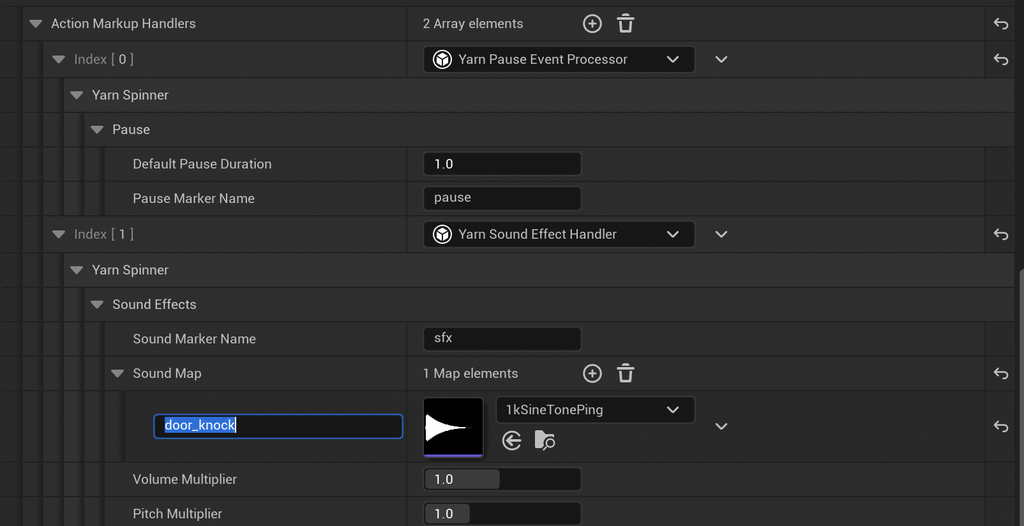
Yarn Spinner comes with three handlers:
| Handler | What it does |
|---|---|
| Yarn Pause Event Processor | Pauses the typewriter at [pause/]. See Pausing partway through a line. |
| Yarn Sound Effect Handler | Plays a sound at [sfx name="door_knock"/]. See Playing sounds. |
| Yarn Markup Event Handler | Fires an event when the typewriter reaches any tag in its Attributes To Watch list. Its events can be bound from C++. |
Playing sounds
The Yarn Sound Effect Handler plays a sound when the typewriter reaches an [sfx/] tag. Give the tag the sound’s name:
Rosa: Did you hear that? [sfx name="door_knock"/]Someone's at the door.Add the handler to the Line Presenter’s Action Markup Handlers list, and fill in its settings:
| Setting | Default | What it does |
|---|---|---|
| Sound Marker Name | sfx | The tag name it looks for. |
| Sound Map | Empty | Each sound’s name, and the Sound asset to play for it. |
| Volume Multiplier | 1.0 | The volume of every sound it plays. |
| Pitch Multiplier | 1.0 | The pitch of every sound it plays. |
The sounds play in 2D. The handler starts loading the sounds a line needs as soon as the line arrives, so they’re ready by the time the typewriter reaches them.
Writing your own handler
This handler shakes the dialogue box wherever a line has [shake_box/]:
To write a handler without C++, make a Blueprint whose parent class is Yarn Blueprint Action Markup Handler:
- In the Content Browser, click Add, choose Blueprint Class, open All Classes, and pick Yarn Blueprint Action Markup Handler. Name it
BP_ShakeBoxHandler. - Add a variable called Positions, an array of Integer.
- Override On Prepare For Line. Clear Positions, then loop over Parse Result’s Attributes. For each attribute whose Name is
shake_box, add its Position to Positions. - Override On Character Will Appear. If Positions contains Character Index, remove it, call a custom event that runs the Yarn Shake node on the Line Presenter’s Line Container, and return the shake’s duration. Otherwise, return 0.
- Compile, then pick BP_ShakeBoxHandler in an entry of the Line Presenter’s Action Markup Handlers list.
Yarn Shake runs over several frames, so it can only go in the Event Graph, not inside a function like On Character Will Appear. That’s why step 4 calls a custom event to start it. To get the Line Container, cast Presenter to Yarn Line Presenter.
These Blueprint functions help when reading markup:
| Node | What it does |
|---|---|
| Get Attributes At Position | Every attribute that covers a character. |
| Get Self Closing Attributes At Position | Every self-closing tag, like [sfx/], at a character. |
| Is At Range Start | Whether a character is where a named tag, like [wave], starts. |
| Is At Range End | Whether a character is where a named tag ends. |
| Get Float Property, Get Int Property, Get Bool Property | A property from an attribute, like volume from [sfx volume=2/], or a default value if it isn’t there. |
#pragma once

#include "CoreMinimal.h"
#include "YarnActionMarkupHandler.h"
#include "ShakeBoxHandler.generated.h"

UCLASS()
class UShakeBoxHandler : public UYarnActionMarkupHandler
{
	GENERATED_BODY()

public:
	UPROPERTY(EditAnywhere, Category = "Shake")
	float Strength = 12.0f;

	UPROPERTY(EditAnywhere, Category = "Shake")
	float Duration = 0.4f;

	virtual void OnPrepareForLine(UYarnDialoguePresenter* Presenter, const FYarnMarkupParseResult& ParseResult) override;

	virtual float OnCharacterWillAppear(UYarnDialoguePresenter* Presenter, int32 CharacterIndex, const FYarnMarkupParseResult& ParseResult, const FYarnLineCancellationToken& CancellationToken) override;

private:
	TArray<int32> Positions;
};#include "ShakeBoxHandler.h"
#include "YarnEffects.h"
#include "YarnLinePresenter.h"
void UShakeBoxHandler::OnPrepareForLine(UYarnDialoguePresenter* Presenter, const FYarnMarkupParseResult& ParseResult)
{
Positions.Empty();
for (const FYarnMarkupAttribute& Attribute : ParseResult.FindAttributesByName(TEXT("shake_box")))
{
Positions.Add(Attribute.Position);
}
}
float UShakeBoxHandler::OnCharacterWillAppear(UYarnDialoguePresenter* Presenter, int32 CharacterIndex, const FYarnMarkupParseResult& ParseResult, const FYarnLineCancellationToken& CancellationToken)
{
UYarnLinePresenter* LinePresenter = Cast<UYarnLinePresenter>(Presenter);
if (!LinePresenter || !Positions.Contains(CharacterIndex))
{
return 0.0f;
}
Positions.Remove(CharacterIndex);
UYarnShakeEffect* Shake = UYarnShakeEffect::YarnShake(LinePresenter->LineContainer, Strength, Duration, 20.0f, CancellationToken);
Shake->RegisterWithGameInstance(LinePresenter);
Shake->Activate();
return Duration;
}OnPrepareForLine is called when a line arrives, before any of it is shown. Look through the line’s markup, and remember the position of each [shake_box/].OnCharacterWillAppear is called before each character appears. It returns how many seconds the typewriter waits before showing the character.[shake_box/] here, return 0, so the typewriter carries on without waiting.CancellationToken stops the shake early if the player hurries the line.Build your project, then select the Line Presenter’s component, add an entry to Action Markup Handlers, and pick Shake Box Handler. Its Strength and Duration appear under the entry.
An action markup handler can override any of these functions. Write only the ones you need:
| Function | When it’s called |
|---|---|
OnPrepareForLine(Presenter, ParseResult) | A line has arrived, before any of it is shown. |
OnLineDisplayBegin(Presenter, ParseResult) | Before the first character appears. |
OnCharacterWillAppear(Presenter, CharacterIndex, ParseResult, CancellationToken) | Before each character appears. Return a number of seconds to make the typewriter wait. |
OnLineDisplayComplete(Presenter) | The whole line is showing. |
OnLineWillDismiss(Presenter) | The line is about to leave the screen. |
Presenter is the Line Presenter the handler is on. ParseResult is the line’s text and markup. CharacterIndex is the position in ParseResult.Text, the same as each attribute’s Position. OnCharacterWillAppear isn’t called when Typewriter Mode is Instant.
If the player hurries the line while the typewriter is waiting, the wait ends and the rest of the line appears. For anything of your own that takes a while, check CancellationToken.IsHurryUpRequested() and finish early.
Writing your own text-changing markup
A marker processor gets the text inside a tag before the line reaches any Presenter, and can change it however you like. Its output replaces the tag, and the tag is removed from the line’s attributes.
Because the Line Presenter shows plain text, a marker processor is most useful with a Presenter of your own that shows the line in a Rich Text Block. A Rich Text Block formats text with tags like <Whisper>text</>, where Whisper is the name of a row in its Text Style Set data table. See Building Your Own Presenter.
This marker processor turns [whisper]text[/whisper] into <Whisper>text</>:
#pragma once

#include "CoreMinimal.h"
#include "Components/ActorComponent.h"
#include "YarnMarkup.h"
#include "WhisperMarkupProcessor.generated.h"

UCLASS(ClassGroup = (Custom), meta = (BlueprintSpawnableComponent))
class UWhisperMarkupProcessor : public UActorComponent, public IYarnMarkupProcessor
{
	GENERATED_BODY()

public:
	virtual void BeginPlay() override;

	virtual FYarnMarkupReplacementResult ProcessMarkup_Implementation(
		const FYarnMarkupAttribute& Attribute,
		FString& Text,
		TArray<FYarnMarkupAttribute>& ChildAttributes,
		const FString& LocaleCode) override;
};#include "WhisperMarkupProcessor.h"
#include "YarnDialogueRunner.h"
#include "YarnLocalization.h"
void UWhisperMarkupProcessor::BeginPlay()
{
Super::BeginPlay();
UYarnDialogueRunner* Runner = GetOwner()->FindComponentByClass<UYarnDialogueRunner>();
if (!Runner->LineProvider)
{
Runner->LineProvider = NewObject<UYarnBuiltinLineProvider>(Runner);
}
Runner->LineProvider->RegisterMarkerProcessor(TEXT("whisper"), this);
}
FYarnMarkupReplacementResult UWhisperMarkupProcessor::ProcessMarkup_Implementation(
const FYarnMarkupAttribute& Attribute,
FString& Text,
TArray<FYarnMarkupAttribute>& ChildAttributes,
const FString& LocaleCode)
{
Text = TEXT("<Whisper>") + Text + TEXT("</>");
return FYarnMarkupReplacementResult();
}whisper tag.ProcessMarkup is called for each [whisper] in a line, before the line reaches any Presenter. Text holds the text inside the tag.Text.Diagnostics are logged as warnings in the Output Log.To use it, add the Whisper Markup Processor component to the Actor that has your Dialogue Runner. Then give your Rich Text Block a Text Style Set with a row called Whisper, styled the way you want whispers to look.
Rosa: [whisper]Don't tell the others.[/whisper]Marker processors work inside the Dialogue Runner’s Line Provider, so the changed text shows up everywhere the line’s text is used, including options.
Register your processors before dialogue starts. If the Dialogue Runner’s Auto Start is on, it can start dialogue before your processor’s component has registered. In that case, turn Auto Start off, and call Start Dialogue from your Actor’s Event BeginPlay.
To handle more than one tag with the same processor, call RegisterMarkerProcessor once for each tag name. Attribute is the tag itself: its name is in Attribute.Name, and any values you gave it, such as [whisper volume=2], are in Attribute.Properties. To read one as text, use Attribute.GetProperty(TEXT("volume")).
A Blueprint can be a marker processor too. Add the Yarn Markup Processor interface in the Blueprint’s Class Settings, and implement Process Markup. Register it with the Register Marker Processor node, on the Dialogue Runner’s Line Provider. Deregister Marker Processor removes it.
Markup palettes
Yarn Spinner also has a ready-made marker processor, the Yarn Palette Markup Processor component, which applies a Yarn Rich Text Palette. A palette is a list of tag names, each with the text to put before and after the tag’s text. Its Custom Markers take any start and end text, so you can use them for Rich Text Block tags:
UYarnRichTextPalette* Palette = NewObject<UYarnRichTextPalette>(this);

FYarnRichTextMarker Happy;
Happy.MarkerName = TEXT("happy");
Happy.StartTag = TEXT("<Happy>");
Happy.EndTag = TEXT("</>");
Palette->CustomMarkers.Add(Happy);

UYarnPaletteMarkupProcessor* PaletteProcessor = FindComponentByClass<UYarnPaletteMarkupProcessor>();
PaletteProcessor->Palette = Palette;

UYarnDialogueRunner* Runner = FindComponentByClass<UYarnDialogueRunner>();
Runner->LineProvider->RegisterMarkerProcessor(TEXT("happy"), PaletteProcessor);Register the processor once for each tag in the palette. A palette’s Basic Styles produce tags like <b> and <color=#FFD700FF>, which a Rich Text Block doesn’t read, so use Custom Markers for Rich Text Block styles.