
Typewriter and Effects
The Line Presenter uses a typewriter to put each line’s text on screen. You choose one of the typewriters that come with Yarn Spinner. The widget effects in Yarn Effects work from any Blueprint or C++ code.
The built-in typewriters
The Line Presenter’s Typewriter Mode chooses one of three built-in typewriters: Instant, By Letter or By Word. The Line Presenter page explains what each one does and how to set its speed.
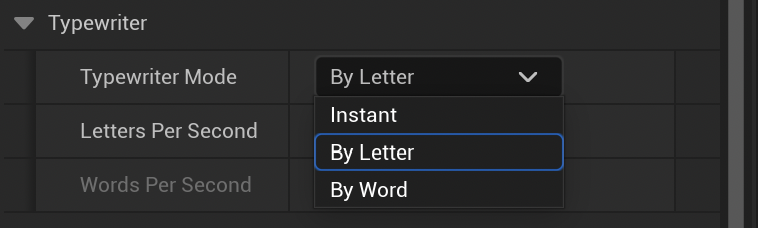
Whichever you choose, when the player presses the Line Advancer’s Advance Key while a line is still typing out, the rest of the line appears at once. See Line Advancer.
The By Letter and By Word typewriters use the game’s time, so they slow down with time dilation, and stop typing while the game is paused.
Pausing partway through a line
To make the typewriter stop for a moment in the middle of a line, put [pause/] where you want it to stop:
Rosa: The lamp went out, and then [pause/]I heard footsteps.
Rosa: Somebody was on the stairs. [pause=0.5/]Somebody heavy.Put the space before [pause/], not after it. A tag like this one removes the space that follows it, so then[pause/] I would show as “thenI”.
On its own, [pause/] waits for 1 second. Give it a number to wait that many seconds, like [pause=0.5/] or [pause duration=0.5/]. To give the time in milliseconds, use ms, like [pause ms=500/].
[pause=500/] means milliseconds. In Yarn Spinner for Unreal Engine, it means seconds, so [pause=500/] waits more than eight minutes. Use [pause ms=500/] instead.Pauses work with the By Letter and By Word typewriters. The Instant typewriter shows the whole line at once, and skips any pauses. If the player hurries up the line during a pause, the pause ends and the rest of the line appears.
The Line Presenter handles [pause] with the Yarn Pause Event Processor in its Action Markup Handlers list. It’s there by default. Its Default Pause Duration sets how long [pause/] waits on its own, and its Pause Marker Name sets the name of the tag, pause by default.
To make your own markup that does something while a line types out, see Markup.
Your own typewriter
The Line Presenter only has the three built-in typewriters. If none of them does what you want, you can run your own code for each character as it appears, with an action markup handler like the one in Effects below, or write a Presenter of your own. See Building Your Own Presenter.
Effects
Yarn Effects is a set of small animations for UMG widgets, which you can use from any Blueprint without adding anything to your Level. In Blueprints, each one is a node with an On Finished pin, which fires when the animation has finished:
| Node | What it does |
|---|---|
| Yarn Fade Widget (Widget, From, To, Duration, Cancellation Token) | Fades a widget’s render opacity between any two levels, from 0 to 1. |
| Yarn Fade Widget In (Widget, Duration, Cancellation Token) | Fades a widget in, from transparent to fully visible. |
| Yarn Fade Widget Out (Widget, Duration, Cancellation Token) | Fades a widget out. |
| Yarn Shake (Widget, Strength, Duration, Frequency, Cancellation Token) | Shakes a widget from side to side, then puts it back. Strength is how far it moves, in Slate units, and Frequency is how many times a second it changes direction. The shake gets smaller as it goes. |
| Yarn Punch Scale (Widget, Strength, Duration, Cancellation Token) | Quickly grows a widget and shrinks it back again. Strength is how far past its size it grows, so 0.2 grows it by a fifth. |
Duration is in seconds. If it’s 0, the effect happens at once. If Cancellation Token is cancelled, or asks to hurry up, the effect jumps straight to its end, and On Finished still fires. Leave Cancellation Token unconnected for an effect that always runs to the end, or connect it to Get Current Cancellation Token on the Dialogue Runner, so the effect ends when the player hurries up the current line.
The effects run on Unreal’s real time, not the game’s, so they carry on while the game is paused, and aren’t affected by time dilation.
Yarn Effects also has three nodes that change a widget at once, without animating: Set Widget Opacity, Set Widget Scale and Set Widget Offset.
In C++, each effect is a class with a static function of the same name that sets it up. Call Activate() on it to start it, and RegisterWithGameInstance() to keep it alive until it finishes:
#include "YarnEffects.h"

UYarnFadeWidgetEffect* Fade = UYarnFadeWidgetEffect::YarnFadeWidgetOut(DialogueBox, 0.5f, FYarnLineCancellationToken());
Fade->RegisterWithGameInstance(this);
Fade->Activate();To run your own code when it finishes, bind a UFUNCTION to its OnFinished delegate with AddDynamic() before calling Activate().
Shaking the dialogue box partway through a line
To shake the dialogue box partway through a line, use markup. This action markup handler shakes the Line Presenter’s Line Container wherever a line has [shake_box/] in it, and the typewriter waits for the shake to finish before carrying on:
#pragma once

#include "CoreMinimal.h"
#include "YarnActionMarkupHandler.h"
#include "ShakeBoxHandler.generated.h"

UCLASS()
class UShakeBoxHandler : public UYarnActionMarkupHandler
{
	GENERATED_BODY()

public:
	UPROPERTY(EditAnywhere)
	float Strength = 12.0f;

	UPROPERTY(EditAnywhere)
	float Duration = 0.4f;

	virtual void OnPrepareForLine(UYarnDialoguePresenter* Presenter, const FYarnMarkupParseResult& ParseResult) override;
	virtual float OnCharacterWillAppear(UYarnDialoguePresenter* Presenter, int32 CharacterIndex, const FYarnMarkupParseResult& ParseResult, const FYarnLineCancellationToken& CancellationToken) override;

private:
	TArray<int32> Positions;
};#include "ShakeBoxHandler.h"
#include "YarnEffects.h"
#include "YarnLinePresenter.h"
void UShakeBoxHandler::OnPrepareForLine(UYarnDialoguePresenter* Presenter, const FYarnMarkupParseResult& ParseResult)
{
Positions.Reset();
for (const FYarnMarkupAttribute& Attribute : ParseResult.Attributes)
{
if (Attribute.Name == TEXT("shake_box"))
{
Positions.Add(Attribute.Position);
}
}
}
float UShakeBoxHandler::OnCharacterWillAppear(UYarnDialoguePresenter* Presenter, int32 CharacterIndex, const FYarnMarkupParseResult& ParseResult, const FYarnLineCancellationToken& CancellationToken)
{
UYarnLinePresenter* LinePresenter = Cast<UYarnLinePresenter>(Presenter);
if (!LinePresenter || Positions.Remove(CharacterIndex) == 0)
{
return 0.0f;
}
UYarnShakeEffect* Shake = UYarnShakeEffect::YarnShake(LinePresenter->LineContainer, Strength, Duration, 20.0f, CancellationToken);
Shake->RegisterWithGameInstance(LinePresenter);
Shake->Activate();
return Duration;
}OnPrepareForLine is called when a line arrives, before any of it is shown. Look through the line’s markup, and record the position of each [shake_box/].OnCharacterWillAppear is called immediately before each character appears.[shake_box/] here, return 0 so the typewriter carries on without waiting. Removing the position means the shake only happens once.Rosa: Wait. Did you hear that?
Rosa: The lamp, it's flickering [shake_box/]again!To use it, select the YarnLinePresenter component, click + next to Action Markup Handlers under Markup in the Details panel, and choose Shake Box Handler for the new entry. Keep the Yarn Pause Event Processor that’s already there. Its Strength and Duration appear underneath, where you can change them. See Markup for more on action markup handlers.
A Command can also start an effect. To make the dialogue wait until the effect has finished, make the Command blocking: give its function a Boolean return value and return true, then call Complete Blocking Command on the Dialogue Runner from the effect’s On Finished pin. See Commands.