
Options Presenter
The Options Presenter (Yarn Options Presenter) shows your options as buttons. When the player picks one, it tells the Dialogue Runner which option was picked, and the dialogue carries on from there.
If you followed Adding Presenters, you already have one.
Where the buttons go
The Options Presenter needs two things: a Widget Blueprint to make each button from, and a panel in your dialogue widget to put the buttons in.
Each time the dialogue reaches some options, the Options Presenter makes a widget for each one from Option Widget Class, and adds it to Options Container. Once the player has picked, the buttons are hidden, and they’re reused for the next set of options. Leave the container empty in the Designer.
To set it up:
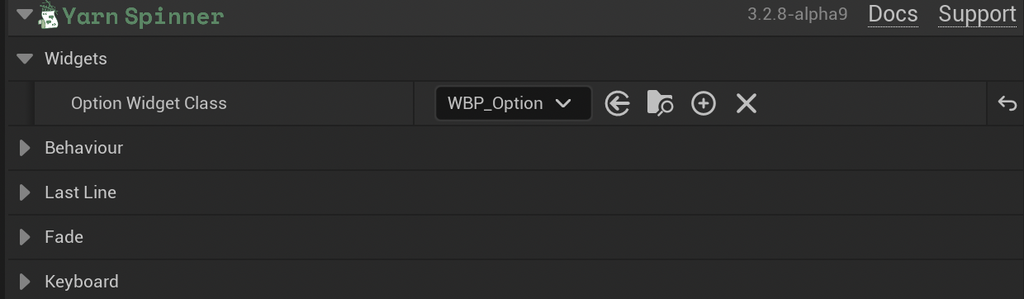
- Make a Widget Blueprint for the buttons, as described in Making the option widget, and set the Options Presenter’s Option Widget Class to it in the Details panel, under Yarn Spinner > Widgets.
- In your dialogue widget, such as the
WBP_Dialoguefrom the Line Presenter page, add an empty Vertical Box namedOptionsBox, and turn on Is Variable. To fade the options in and out, put it inside another panel, such as a Border namedOptionsPanel, and turn on Is Variable for that too. - In the Actor’s Begin Play, after creating the widget, add Set Options Container and Set Fade Widget nodes on the
YarnOptionsPresenter, and connect them toOptionsBoxandOptionsPanel.
Like the Line Presenter’s widgets, Options Container and Fade Widget aren’t in the Details panel, because your widgets only exist once the game is running. In C++, set them in the same place as the Line Presenter’s widgets in ADialogueActor::BeginPlay(), before StartDialogue():
OptionsPresenter->OptionsContainer = Cast<UPanelWidget>(Widget->GetWidgetFromName(TEXT("OptionsBox")));
OptionsPresenter->FadeWidget = Widget->GetWidgetFromName(TEXT("OptionsPanel"));UPanelWidget needs #include "Components/PanelWidget.h".
The Options Presenter hides Options Container when the dialogue starts, and shows it when options arrive, so there’s no need to hide it yourself once the dialogue is running.
Making the option widget
Each button is a Widget Blueprint whose parent class is Yarn Option Widget:
- In the Content Browser, choose . In the dialog that opens, expand All Classes, search for Yarn Option Widget, and select it. Name it
WBP_Option. - Open it, and in the Designer, add a Button named
OptionButton, with a Text Block (Text in the Palette) namedOptionTextinside it. - Style the button and text however you like.
- Set the Options Presenter’s Option Widget Class to
WBP_Option.
The names matter. Yarn Option Widget looks for a Button named OptionButton and a Text Block named OptionText, and the Widget Blueprint doesn’t compile without them.
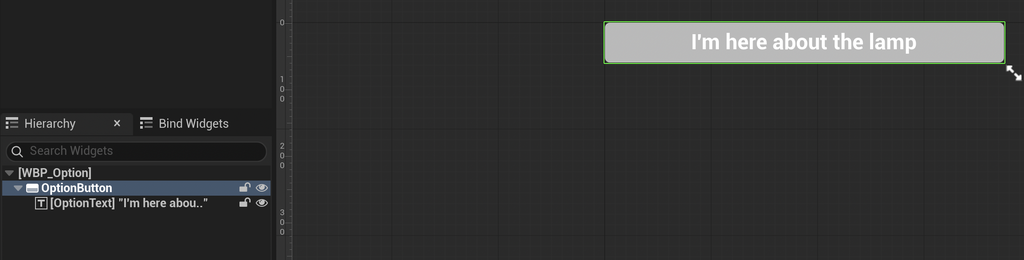
By default, Yarn Option Widget puts the option’s text in OptionText, turns off OptionButton when the option is unavailable, and tells the Options Presenter when the player clicks the button. The option’s text never includes the character’s name.
To change how the button looks as it’s highlighted, or when it’s unavailable, override these events in WBP_Option, from Functions > Override in the My Blueprint panel:
| Event | When it’s called |
|---|---|
| Setup Option | The button is about to show an option. Passes the option and its index. By default, sets the text and turns the button on or off. |
| Set Option Unavailable | The option can’t be chosen. By default, turns the button off. |
| On Option Selected | The option has been highlighted, by the keyboard or when the options appear. By default, gives the button keyboard focus. |
| On Option Deselected | The option is no longer highlighted. |
To keep the default behaviour, add a call to the parent function, such as Parent: Setup Option, in your override. Your Blueprint can also read Option Index, Is Available and Is Selected.
In C++, make a subclass of UYarnOptionWidget, and make your Widget Blueprint’s parent class that subclass. This one colours the highlighted option’s text:
#pragma once

#include "CoreMinimal.h"
#include "YarnOptionsPresenter.h"
#include "HighlightOptionWidget.generated.h"

UCLASS()
class UHighlightOptionWidget : public UYarnOptionWidget
{
	GENERATED_BODY()

public:
	UPROPERTY(EditAnywhere)
	FLinearColor HighlightColor = FLinearColor(1.0f, 0.8f, 0.3f, 1.0f);

	virtual void OnOptionSelected_Implementation() override
	{
		Super::OnOptionSelected_Implementation();
		OptionText->SetColorAndOpacity(FSlateColor(HighlightColor));
	}

	virtual void OnOptionDeselected_Implementation() override
	{
		Super::OnOptionDeselected_Implementation();
		OptionText->SetColorAndOpacity(FSlateColor(FLinearColor::White));
	}
};UYarnOptionWidget is declared in YarnOptionsPresenter.h.Picking an option
When the options appear, the first one the player can choose is highlighted. The player can:
- click an option,
- move between options with Navigate Up Key and Navigate Down Key, Up and Down by default, or W and S, and choose the highlighted one with Confirm Key, Enter by default, or Space Bar.
The highlight wraps around from the last option to the first, and skips options the player can’t choose. The keys are read from the first Player Controller, and only while the options are fully faded in. Each key setting can be any key Unreal knows, including gamepad buttons. Turn off Enable Keyboard Navigation to use only the mouse.
Use Fade Effect, under Fade, fades the options in when they appear and out once the player has picked. It’s on by default, but it only works when Fade Widget is set. Fade In Duration and Fade Out Duration set how long each fade takes, in seconds. The Line Advancer’s Option Hurry Up Key skips the fade in. See Line Advancer.
Options the player can’t choose
An option with a condition is unavailable when the condition is false. In this example, the second option is only available if $has_key is true:
Rosa: Are you here about the lighthouse?
-> Yes. I heard the lamp went out.
-> I can open the door for you. <<if $has_key>>
-> No, I'm just passing through.By default, the Options Presenter doesn’t show unavailable options at all. Turn on Show Unavailable Options, under Behaviour, to show them as buttons that can’t be pressed.
Strikethrough Unavailable, which is on by default, wraps the text of an unavailable option in <s> and </s>. A plain Text Block shows these tags as they are, so turn Strikethrough Unavailable off unless your option widget’s Setup Option handles them.
If every option is unavailable, the Options Presenter shows nothing, logs a warning, and the dialogue carries on after the options, as if none had been picked. This happens whatever the Dialogue Runner’s Allow Option Fallthrough is set to. See Options.
Showing the last line
The Line Presenter leaves the last line on screen while options are showing. To show it somewhere else as well, such as above the options in their own panel, turn on Show Last Line, under Last Line, and give the Options Presenter a Text Block for it.
The Last Line settings appear in the Details panel, but like the other widget settings, you set them from Blueprints or C++ while the game runs:
- Last Line Text Widget is the Text Block for the last line’s text.
- Last Line Container is shown when there’s a last line to show.
- Last Line Character Name Widget is the Text Block for the speaker’s name.
- Last Line Character Name Container is hidden when the last line has no speaker.
The speaker’s name only appears in its own Text Block when you set both Last Line Character Name Widget and Last Line Character Name Container. If you don’t set Last Line Character Name Widget, the name stays at the start of the last line’s text, like Rosa: Are you here about the lighthouse?.
Shortening the last line
A long line can take up too much space above the options. Put [lastline/] in the line where you want the shortened version to start:
Rosa: I've been keeping this light for thirty years, and I've never once let it go out. [lastline/]So, will you help me fix it?
-> Yes.
-> No.The Line Presenter shows the whole line. Above the options, the Options Presenter shows only what comes after [lastline/], with “…” in front: “…So, will you help me fix it?”
Time limits
The Options Presenter waits until the player picks an option. To give the player a limited time to choose, you need a Presenter of your own. See Building Your Own Presenter.
To show the option the player picked as a line of dialogue, turn on Run Selected Option as Line on the Dialogue Runner. See Options.
Events and functions
| Event | When it’s called |
|---|---|
| On Option Selected BP | The player picked an option, before the options fade out. Passes Option Index, the option’s position in your Yarn Script, starting at 0. |
| On Options Display Complete | The options have appeared, after any fade in. |
| On Options Dismissed | The options have gone, after any fade out, and when the dialogue ends. |
To build your own controls for picking options, call these functions on the Options Presenter:
| Function | What it does |
|---|---|
| Select Next Option | Moves the highlight to the next option the player can choose. |
| Select Previous Option | Moves the highlight to the previous option the player can choose. |
| Select Option by Index | Moves the highlight to the option at Option Index. |
| Confirm Selected Option | Picks the highlighted option. |
| Get Selected Option Index | The index of the highlighted option, or -1 if there isn’t one. |
| Are Options Visible | True while options are on screen and can be picked. |
Settings
| Setting | Default | What it does |
|---|---|---|
| Option Widget Class | none | The Widget Blueprint each button is made from. Its parent class has to be Yarn Option Widget. |
| Options Container | none | The panel the buttons are added to. Set it while the game runs. |
| Fade Widget | none | The widget that’s faded in and out. Set it while the game runs. |
| Show Unavailable Options | Off | Shows options the player can’t choose, as buttons that can’t be pressed. |
| Strikethrough Unavailable | On | Wraps the text of unavailable options in <s> tags. Only editable when Show Unavailable Options is on. |
| Show Last Line | Off | Shows the line before the options. |
| Last Line Text Widget | none | The Text Block for the last line’s text. |
| Last Line Container | none | Shown when there’s a last line to show. |
| Last Line Character Name Widget | none | The Text Block for the last line’s speaker. |
| Last Line Character Name Container | none | Hidden when the last line has no speaker. |
| Use Fade Effect | On | Fades Fade Widget in and out. |
| Fade In Duration | 0.25 | Seconds to fade in. |
| Fade Out Duration | 0.1 | Seconds to fade out. |
| Enable Keyboard Navigation | On | Lets the player highlight and pick options with keys. |
| Navigate Up Key | Up | Highlights the previous option. |
| Navigate Up Key Alt | W | A second key that does the same. |
| Navigate Down Key | Down | Highlights the next option. |
| Navigate Down Key Alt | S | A second key that does the same. |
| Confirm Key | Enter | Picks the highlighted option. |
| Confirm Key Alt | Space Bar | A second key that does the same. |
The Details panel also shows the Auto Advance section every Presenter has. The Options Presenter doesn’t use it.