
Line Presenter
The Line Presenter (Yarn Line Presenter) shows your dialogue one line at a time. It puts the speaker’s name in one Text Block and the line’s text in another, types the text out, and waits until it’s told to move on before handing control back to the Dialogue Runner.
The Line Presenter doesn’t listen for input itself. A separate component, the Line Advancer, listens for the player’s key presses and tells the Dialogue Runner to finish the line or move on.
If you followed Adding Presenters, you already have both.
The widgets it uses
The Line Presenter is a component, and doesn’t make any UI of its own. It puts each line into Text Blocks in a Widget Blueprint that you make. To make one:
- In the Content Browser, choose , pick User Widget, and name it
WBP_Dialogue. - Open it, and in the Designer, add a panel for the dialogue box, such as a Border named
DialogueBox, anchored along the bottom of the screen. - Inside it, add a Vertical Box with two Text Blocks (Text in the Palette):
CharacterNamefor the speaker’s name, andLineTextfor the line’s text. Turn on Auto Wrap Text forLineText, under Wrapping in the Details panel. - Turn on Is Variable for
DialogueBox,CharacterNameandLineText, so you can get them from your Blueprints.
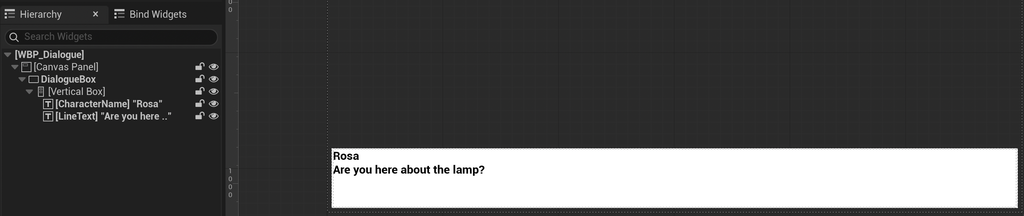
The Line Presenter has four widget settings:
| Setting | What it’s for |
|---|---|
| Line Text Widget | The Text Block that shows the line’s text. |
| Character Name Widget | The Text Block that shows the speaker’s name. |
| Character Name Container | A widget that’s shown when a line has a speaker, and hidden when it doesn’t, such as a name plate around the Character Name Widget. If you don’t set it, the Character Name Widget itself is shown and hidden. |
| Line Container | The widget that’s shown when a line starts, and hidden when the dialogue starts and ends. |
These aren’t in the Details panel. Your widgets only exist once the game is running, so you set them from Blueprints or C++ after you create the widget.
In the Event Graph of the Actor with the Line Presenter:
- From Event BeginPlay, add a Create Widget node, set its Class to
WBP_Dialogue, and connect Get Player Controller to Owning Player. - Add an Add to Viewport node, with its Target connected to the new widget.
- Drag in the
YarnLinePresentercomponent, and add Set Line Text Widget, Set Character Name Widget and Set Line Container nodes. Connect them toLineText,CharacterNameandDialogueBox, which you get from the new widget. - Finish with Start Dialogue on the
YarnDialogueRunner.
In C++, find the widgets by name with GetWidgetFromName(). This Actor has the Dialogue Runner and all three components from Adding Presenters:
#pragma once

#include "CoreMinimal.h"
#include "GameFramework/Actor.h"
#include "DialogueActor.generated.h"

class UUserWidget;
class UYarnDialogueRunner;
class UYarnLineAdvancer;
class UYarnLinePresenter;
class UYarnOptionsPresenter;

UCLASS()
class ADialogueActor : public AActor
{
	GENERATED_BODY()

public:
	ADialogueActor();

protected:
	virtual void BeginPlay() override;

	UPROPERTY(EditAnywhere)
	TSubclassOf<UUserWidget> DialogueWidgetClass;

	UPROPERTY(VisibleAnywhere)
	TObjectPtr<UYarnDialogueRunner> DialogueRunner;

	UPROPERTY(VisibleAnywhere)
	TObjectPtr<UYarnLinePresenter> LinePresenter;

	UPROPERTY(VisibleAnywhere)
	TObjectPtr<UYarnOptionsPresenter> OptionsPresenter;

	UPROPERTY(VisibleAnywhere)
	TObjectPtr<UYarnLineAdvancer> LineAdvancer;
};#include "DialogueActor.h"
#include "Blueprint/UserWidget.h"
#include "Components/TextBlock.h"
#include "GameFramework/PlayerController.h"
#include "YarnDialogueRunner.h"
#include "YarnLineAdvancer.h"
#include "YarnLinePresenter.h"
#include "YarnOptionsPresenter.h"
ADialogueActor::ADialogueActor()
{
DialogueRunner = CreateDefaultSubobject<UYarnDialogueRunner>(TEXT("YarnDialogueRunner"));
LinePresenter = CreateDefaultSubobject<UYarnLinePresenter>(TEXT("YarnLinePresenter"));
OptionsPresenter = CreateDefaultSubobject<UYarnOptionsPresenter>(TEXT("YarnOptionsPresenter"));
LineAdvancer = CreateDefaultSubobject<UYarnLineAdvancer>(TEXT("YarnLineAdvancer"));
}
void ADialogueActor::BeginPlay()
{
DialogueRunner->DialoguePresenters.Add(LinePresenter);
DialogueRunner->DialoguePresenters.Add(OptionsPresenter);
DialogueRunner->DialoguePresenters.Add(LineAdvancer);
Super::BeginPlay();
APlayerController* PlayerController = GetWorld()->GetFirstPlayerController();
UUserWidget* Widget = CreateWidget<UUserWidget>(PlayerController, DialogueWidgetClass);
Widget->AddToViewport();
LinePresenter->LineTextWidget = Cast<UTextBlock>(Widget->GetWidgetFromName(TEXT("LineText")));
LinePresenter->CharacterNameWidget = Cast<UTextBlock>(Widget->GetWidgetFromName(TEXT("CharacterName")));
LinePresenter->LineContainer = Widget->GetWidgetFromName(TEXT("DialogueBox"));
DialogueRunner->StartDialogue(TEXT("Start"));
}Super::BeginPlay(), which is when the components’ own Begin Play runs and the Dialogue Runner reads its list.WBP_Dialogue, by the names they have in the Designer.To use it, make a Blueprint from ADialogueActor, set its Dialogue Widget Class to WBP_Dialogue, set the Dialogue Runner’s Yarn Project, and place it in your Level. The code that uses UMG widgets also needs "UMG" in the PublicDependencyModuleNames in your game module’s .Build.cs file, alongside "YarnSpinner".
The Line Presenter hides Line Container when the dialogue starts and when it ends. Between lines, it leaves the last line on screen until the next one arrives, so the line is still visible while options are showing. If your widget is on screen for a while before the dialogue starts, set the container’s Visibility to Collapsed in the Designer, so it’s hidden until then.
Character names
Most lines in Yarn start with the speaker’s name, like Rosa: Are you here about the lamp?.
When the Line Presenter has a Character Name Widget, it puts Rosa in the character name widget and Are you here about the lamp? in Line Text Widget. If a line has no speaker, the character name widget is hidden. To hide something bigger than the Text Block itself, such as a name plate with a background, set Character Name Container to that widget, and the whole widget is hidden.
If there’s no Character Name Widget at all, Show Character Name in Line, under Character in the Details panel, decides whether the name stays at the start of the text. It’s on by default, so the player sees Rosa: Are you here about the lamp?.
How text appears
By default, the text types out one letter at a time. Typewriter Mode, under Typewriter, changes that:
| Mode | What it does |
|---|---|
| Instant | Shows the whole line at once. |
| By Letter | Types the line out one character at a time, at Letters Per Second (60 by default). |
| By Word | Types the line out one word at a time, at Words Per Second (10 by default). |
You can only edit the speed for the mode you’ve chosen, and the lowest speed is 1. See Typewriter and Effects for more on how text appears.
The Line Presenter shows the line’s text in a plain Text Block, without any markup. To change how text looks with markup, or run game code partway through a line, see Markup.
Use Fade Effect, Fade In Duration and Fade Out Duration appear under Fade in the Details panel, but the Line Presenter in this version of the plugin doesn’t fade. It shows and hides Line Container at once. To fade your own widgets, use the effects in Typewriter and Effects.
Continuing to the next line
Once a line has finished typing out, the Line Presenter waits until the Dialogue Runner tells it to move on. There are three ways to do that:
- a Line Advancer, which moves on when the player presses a key,
- your own Blueprint or C++ code, which calls Request Next Line on the Dialogue Runner or the Line Advancer. See How it works with Presenters.
- Auto Advance, under Auto Advance in the Details panel. Once a line has finished typing out, the Line Presenter waits Auto Advance Delay seconds, 1 by default, and then moves on by itself.
If the Line Presenter is told to move on while the line is still typing out, the rest of the line appears and it moves on straight away.
The Auto Advance section also has Auto Advance Enabled, Auto Advance Min Delay, Auto Advance Time Per Character and Auto Advance Max Delay. Every Presenter has these, but only the Widget Presenter uses them. The Line Presenter uses Auto Advance and Auto Advance Delay.
Line Advancer
The Line Advancer (Yarn Line Advancer) listens for the player’s key presses, and tells the Dialogue Runner to finish the current line at once, move on to the next line, or end the whole conversation. It’s a Dialogue Presenter that shows nothing, so it goes in the Dialogue Runner’s Dialogue Presenters list alongside your Line Presenter, which is how it knows when a line or options arrive.
To add one, click Add in the Components panel of the Actor with your Dialogue Runner, and search for Yarn Line Advancer. Then add it to the Dialogue Runner’s Dialogue Presenters list.
The Line Advancer finds the Dialogue Runner on its own Actor when the game starts. If your Dialogue Runner is on a different Actor, set the Line Advancer’s Dialogue Runner Override to it from Blueprints or C++.
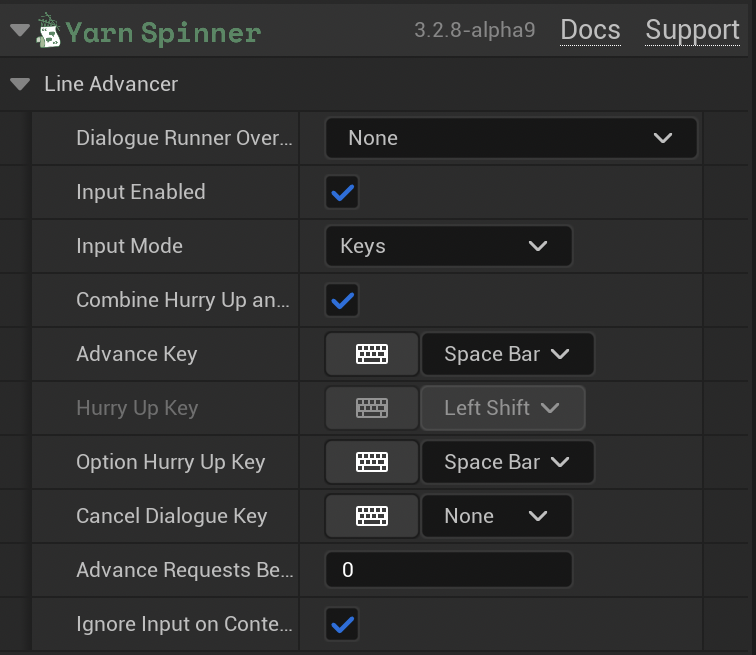
Hurrying up and moving on
By default, one key does two jobs. With Combine Hurry Up and Advance on, the first press of Advance Key during a line asks the line to hurry up, so if it’s still typing out, it finishes immediately. The next press moves on to the next line.
The Line Advancer counts presses, and doesn’t check whether the line has already finished typing out. On a line that has finished by itself, the first press does nothing you can see, and the second press moves on.
Turn off Combine Hurry Up and Advance to split these. Hurry Up Key then only finishes the line, and Advance Key moves on, even while the line is still typing out.
Set Advance Requests Before Cancelling to stop the dialogue when the player asks to move on that many times during the same line. It’s 0 by default, which turns this off.
While options are showing, Option Hurry Up Key makes them appear at once, skipping the Options Presenter’s fade in, and Advance Key does nothing. Cancel Dialogue Key stops the dialogue at any time, the same as calling Stop Dialogue on the Dialogue Runner. It’s set to None by default.
With Ignore Input on Content Frame on, which is the default, key presses in the same frame that a line or options arrive are ignored, so a key that picks an option doesn’t also hurry up the line that follows.
Input modes
Input Mode sets where the Line Advancer’s input comes from:
| Input Mode | What it does |
|---|---|
| Keys | Checks the keys in Advance Key, Hurry Up Key, Option Hurry Up Key and Cancel Dialogue Key every frame. |
| Manual | Doesn’t listen for input. Call the Line Advancer’s functions from your own Blueprints or C++. |
In Keys mode, the Line Advancer reads the keys from the first Player Controller. Each key setting can be any key Unreal knows, including gamepad buttons. The Line Advancer doesn’t use Enhanced Input. To use Input Actions, set Input Mode to Manual and call its functions from your input events.
The key settings and their defaults:
| Setting | Default | What it does |
|---|---|---|
| Advance Key | Space Bar | Moves on to the next line. With Combine Hurry Up and Advance on, the first press during a line hurries it up instead. |
| Hurry Up Key | Left Shift | Finishes the current line immediately. Only used when Combine Hurry Up and Advance is off. |
| Option Hurry Up Key | Space Bar | Makes options appear at once. |
| Cancel Dialogue Key | None | Stops the dialogue. |
Using the Line Advancer from Blueprints and C++
Call these functions on the Line Advancer from your own Blueprints or C++, in either input mode:
| Function | What it does |
|---|---|
| Request Line Hurry Up | Finishes the current line immediately. |
| Request Next Line | Moves on to the next line. With Combine Hurry Up and Advance on, it hurries up the line first, the same as a press of Advance Key. |
| Request Option Hurry Up | Makes options appear at once. |
| Request Dialogue Cancellation | Stops the dialogue. |
They do nothing while Input Enabled is off. Is Presenting Line and Is Presenting Options tell you what the Line Advancer last saw arrive.
For example, to move the dialogue on from a button in your dialogue box, add a Button named ContinueButton to WBP_Dialogue, and turn on Is Variable. In the Actor’s Begin Play, after creating the widget, get ContinueButton from it, add a Bind Event to On Clicked node, and connect its event to Request Next Line on the YarnLineAdvancer.
In C++, call the same functions on the component:
LineAdvancer->RequestNextLine();The Line Advancer also has four events: On Advance Requested, On Line Hurry Up Requested, On Option Hurry Up Requested and On Dialogue Cancellation Requested. They’re called whenever it makes that request, whether the request came from a key or from your own code.
Line Advancer settings
All of these are under Yarn Spinner > Line Advancer in the Details panel.
| Setting | Default | What it does |
|---|---|---|
| Dialogue Runner Override | none | The Dialogue Runner to tell to hurry up, move on, or stop. When it’s empty, the Line Advancer uses the Dialogue Runner on its own Actor. |
| Input Enabled | On | While it’s off, the Line Advancer ignores input, and its functions do nothing. |
| Input Mode | Keys | Where the input comes from. |
| Combine Hurry Up and Advance | On | Uses Advance Key to both finish a line and move on. |
| Advance Key | Space Bar | Moves on, or hurries up the line first. |
| Hurry Up Key | Left Shift | Finishes the current line. Only used when Combine Hurry Up and Advance is off. |
| Option Hurry Up Key | Space Bar | Makes options appear at once. |
| Cancel Dialogue Key | None | Stops the dialogue. |
| Advance Requests Before Cancelling | 0 | Stops the dialogue after this many requests to move on during one line. 0 turns it off. |
| Ignore Input on Content Frame | On | Ignores key presses in the frame that a line or options arrive. |
The Yarn Input Handler
The plugin has a second component for input, the Yarn Input Handler. It isn’t a Presenter, so it doesn’t go in the Dialogue Presenters list. Add it to the Actor with your Dialogue Runner, and it finds the Dialogue Runner when the game starts and listens for keys while dialogue is running. Use either the Line Advancer or the Input Handler, not both.
With Hurry Up Before Advance on, the first press of Advance Key or Alternate Advance Key during a line asks the line to hurry up, and the next press moves on. Like the Line Advancer, it counts presses rather than checking whether the line has finished typing out.
| Setting | Default | What it does |
|---|---|---|
| Dialogue Runner | none | The Dialogue Runner to control. When it’s empty, the Input Handler uses the Dialogue Runner on its own Actor. |
| Input Mode | Key Codes | Key Codes checks the keys below. Manual doesn’t listen for input, so you call Trigger Advance and Trigger Cancel yourself. |
| Input Enabled | On | Turn it off, or call Set Input Enabled, to ignore keys during a cutscene. |
| Advance Key | Space Bar | Hurries up the line, or moves on. |
| Alternate Advance Key | Enter | A second key that does the same. |
| Cancel Key | Escape | Stops the dialogue. |
| Hurry Up Before Advance | On | The first press hurries up the line, and the next moves on. Turn it off to move on with every press. |
| Presses to Cancel | 3 | Stops the dialogue after this many presses within Rapid Press Window. 0 turns it off. |
| Rapid Press Window | 1 | Seconds in which presses count towards Presses to Cancel. |
| Input Cooldown | 0.1 | The shortest time, in seconds, between two presses that count. |
Events
| Event | When it’s called |
|---|---|
| On Typewriter Complete | A line has finished appearing, either by typing out or because the player hurried it up. |
Is Typewriting tells you whether the Line Presenter is typing out a line right now.
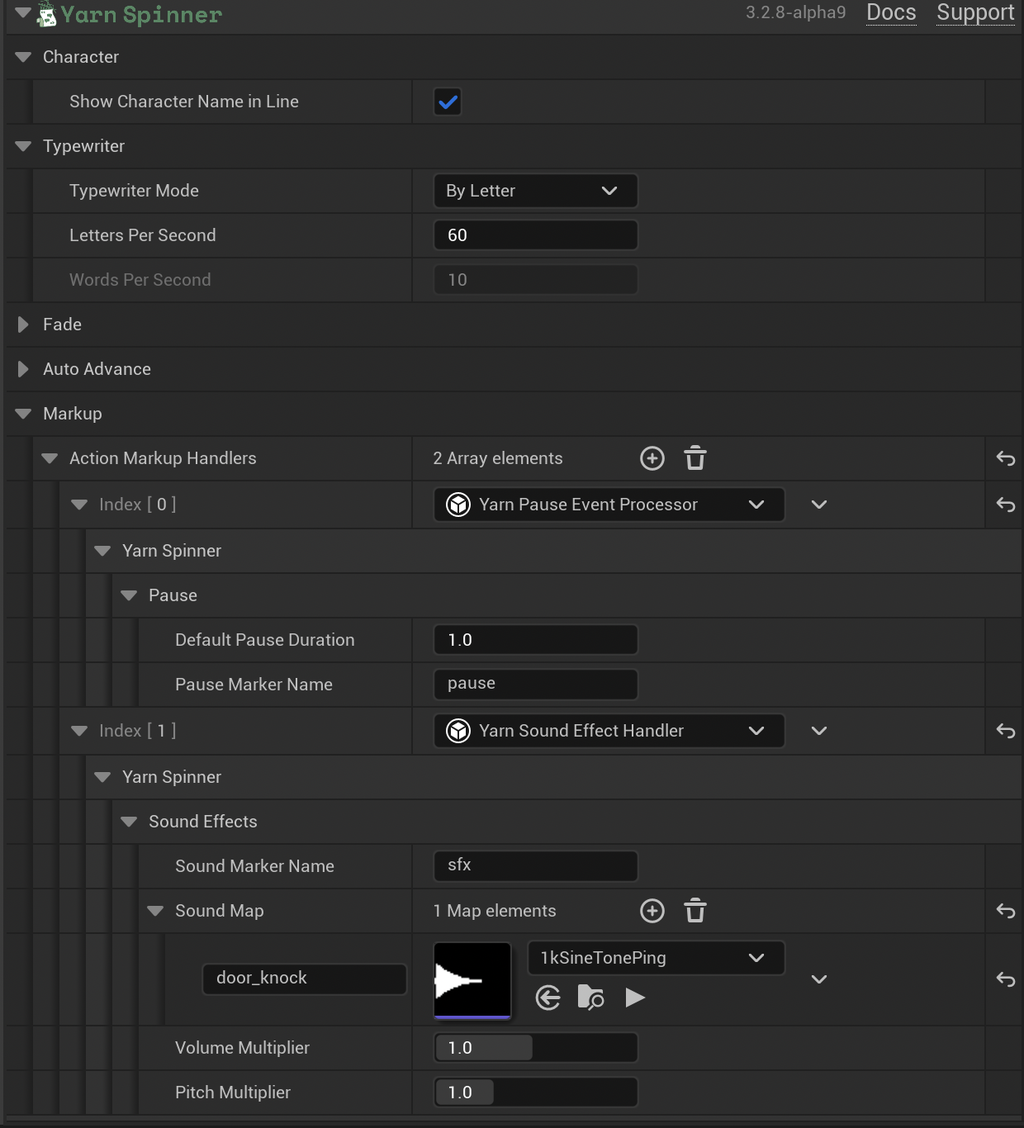
Settings
| Setting | Default | What it does |
|---|---|---|
| Show Character Name in Line | On | Only used when there’s no Character Name Widget: keeps the speaker’s name at the start of the text. |
| Typewriter Mode | By Letter | How the text appears. |
| Letters Per Second | 60 | Typing speed in By Letter mode. |
| Words Per Second | 10 | Typing speed in By Word mode. |
| Use Fade Effect | Off | Not used by the Line Presenter in this version. |
| Fade In Duration | 0.25 | Not used by the Line Presenter in this version. |
| Fade Out Duration | 0.1 | Not used by the Line Presenter in this version. |
| Auto Advance | Off | Moves on by itself once a line has finished typing. |
| Auto Advance Delay | 1 | Seconds to wait before moving on. Only editable when Auto Advance is on. |
| Action Markup Handlers | Yarn Pause Event Processor | Objects that run game code partway through a line. The default one handles [pause]. See Markup. |
| Line Text Widget | none | The Text Block that shows the line’s text. Set it while the game runs. |
| Character Name Widget | none | The Text Block that shows the speaker’s name. Set it while the game runs. |
| Character Name Container | the character name widget | Hidden when a line has no speaker. Set it while the game runs. |
| Line Container | none | Shown when a line starts, and hidden when the dialogue starts and ends. Set it while the game runs. |