
Showing Dialogue
To show dialogue to the player, your Level needs a Dialogue Runner and at least one Dialogue Presenter.
The Dialogue Runner runs your Yarn Project. It works out what comes next, but doesn’t show anything. It hands each line, and each set of options, to your Dialogue Presenters, and each Presenter shows them in its own way, such as text in a box, buttons, or a voice clip.
In Yarn Spinner for Unreal Engine, the Dialogue Runner and the Presenters are all components. A typical setup is one Actor with a Dialogue Runner, two Presenters, one for lines and one for options, and a Line Advancer, which lets the player move on to the next line:
The Line Presenter and Options Presenter don’t make any UI of their own. They put text into the widgets of a Widget Blueprint that you make, so your dialogue looks however you design it. Line Presenter and Options Presenter explain how to connect them.
The built-in Presenters
Yarn Spinner for Unreal Engine includes four Presenters. To add one to an Actor, click Add in the Components panel and search for its name:
| Presenter | What it does |
|---|---|
| Line Presenter (Yarn Line Presenter) | Shows each line in a Text Block, with the speaker’s name, typing it out letter by letter or word by word. |
| Options Presenter (Yarn Options Presenter) | Shows each option as a button, made from a Widget Blueprint you choose. |
| Voice Over Presenter (Yarn Voice Over Presenter) | Plays a recorded clip for each line. |
| Widget Presenter (Yarn Widget Presenter) | Shows lines and options in a ready-made dialogue box, so you can see your dialogue before you build any UI. |
You can use several at once. The Dialogue Runner gives each line to every Presenter at the same time, and moves on when they’ve all finished with it.
The Line Advancer works alongside them. It listens for the player’s key presses and tells the Presenters to finish the current line, or move on to the next one. See Line Advancer.
If none of these fit your game, write your own Presenter.
A quicker start
To get dialogue on screen before you build your own UI, add a Yarn Widget Presenter to the Actor with your Dialogue Runner, and add it to the Dialogue Runner’s Dialogue Presenters list. See Adding Presenters.
When the dialogue starts, the Widget Presenter makes its own widget and adds it to the viewport: a dark box along the bottom of the screen, with the speaker’s name, the line’s text, and each set of options as numbered buttons. The player clicks to continue, and clicks an option or presses its number key to choose it. While the dialogue runs, the Widget Presenter shows the mouse cursor.
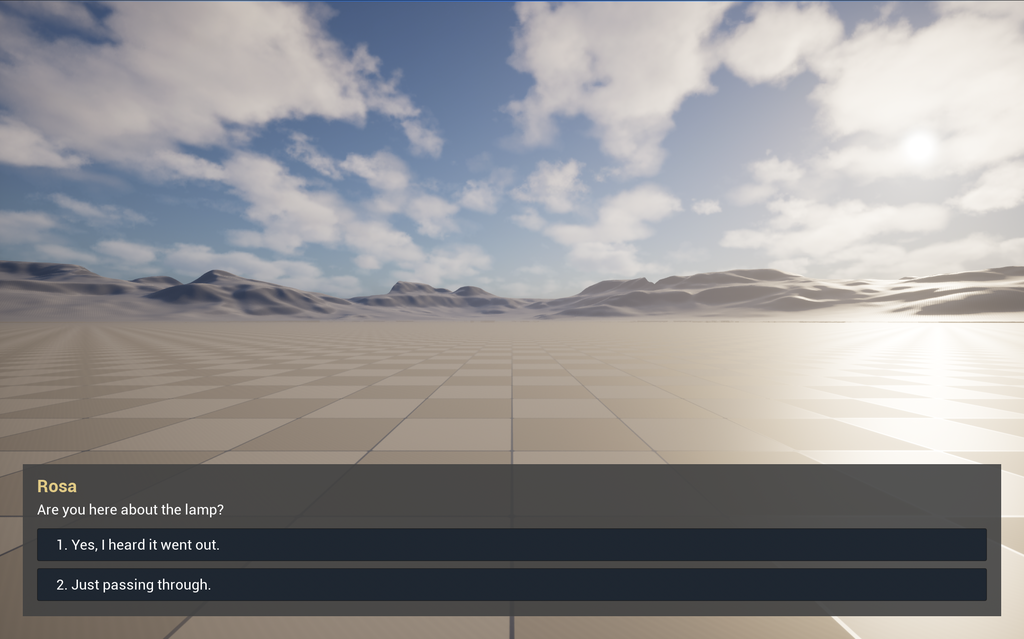
You can change its Typewriter Speed, in characters per second, and its Background Color, Text Color and Character Name Color in the Details panel.
In this section
- Dialogue Runner: setting up the Dialogue Runner, starting and stopping dialogue, and its events.
- Line Presenter: showing lines, character names, typing speed, and continuing to the next line with the Line Advancer.
- Options Presenter: showing options as buttons, and what happens to options the player can’t choose.
- Typewriter and Effects: how text appears, and helpers for fades and shakes.
- Markup: formatting text, and running game code partway through a line.
- Voice-Over: playing a recorded clip for each line.
- Building Your Own Presenter: writing a Presenter for anything the built-in ones don’t cover.
- A Different Kind of Presenter: a second custom Presenter, which keeps the whole conversation on screen and takes options from the number keys.