
Yarn Spinner for Unreal Engine Editor Tools
Yarn Spinner adds two asset types and a few menu items to the Content Browser, headers and a node picker to the Details panel, and two pages in Project Settings. For finding problems while the game runs, it has a Debug HUD component and verbose logging.
In the Content Browser
Yarn Spinner adds two asset types. Both are under Miscellaneous in the Content Browser’s filters.
| Asset type | Made from | What it’s for |
|---|---|---|
| Yarn Project | A .yarnproject file | The compiled dialogue a Dialogue Runner runs. See Yarn Projects. |
| Yarn Source File | A .yarn file | A copy of a script’s text, to look at in Unreal. You don’t need these. See Yarn Source File assets. |
Each has its own thumbnail in the Content Browser:


Right-click a Yarn Project for these menu items:
| Menu item | What it does |
|---|---|
| Reimport | Compiles the .yarnproject file again, and updates the Yarn Project. You only need this when Yarn Spinner hasn’t noticed a change. See Changing a script. |
| Generate YSLS File | Rewrites the project’s .ysls.json file, for autocomplete in VS Code. See The .ysls.json file. |
A Yarn Source File has Reimport too, which reads the .yarn file again.
The Yarn Spinner components have their own icons in the Components panel and the Add menu, so you can tell a Dialogue Runner from a Presenter.
In the Details panel
Yarn Spinner adds to the Details panel for a few kinds of object:
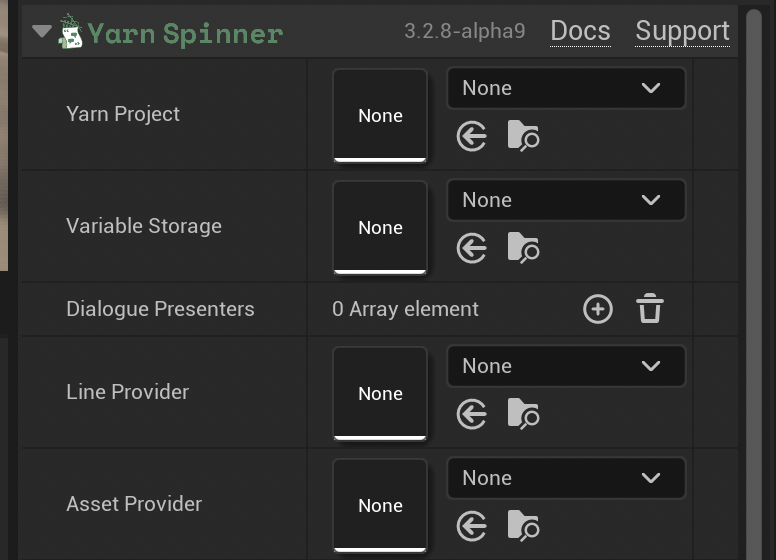
- Dialogue Runner, Dialogue Presenters and Yarn Input Handler: the Yarn Spinner section has a header with the Yarn Spinner logo, the version of the plugin, and links to the documentation and to support on Discord. This includes every Presenter, such as the Line Presenter, the Options Presenter and the Line Advancer.
- Yarn Node Reference: anywhere you use one, it shows a Yarn Project picker, and a dropdown of that project’s nodes in place of a text box.
- Yarn Projects and Yarn Source Files: double-clicking one shows what was imported. See The Yarn Project asset.
Picking a node from a list
A Yarn Node Reference is a Yarn Project and a node name together. Add a variable of this type to a Blueprint, or a UPROPERTY of type FYarnNodeReference in C++, and you pick the node from a dropdown, so you can’t mistype its name. If the node isn’t in the project, its tooltip says so.
Pass it to the Dialogue Runner’s Start Dialogue From Reference to start from that node. Is Node Reference Valid tells you whether the project contains the node.
The Dialogue Runner’s own Start Node is a text box, not a dropdown.
Project settings
Yarn Spinner adds two pages to , under Plugins.
Yarn Spinner
| Setting | Default | What it does |
|---|---|---|
| Ysc Path | empty | Where to find ysc, the Yarn Spinner compiler. Leave it empty and Yarn Spinner looks in the usual install locations and on your PATH. See Compiling. |
Ysc Path is saved for you only, in your project’s Saved folder, not in its Config folder. Everyone on your team can install ysc in a different place.
Yarn Spinner Command Registry
This page lists the Commands and Functions Yarn Spinner found in your C++ code: UFUNCTIONs marked with YarnCommand or YarnFunction. Each entry has the name your Yarn Scripts use, the class and the function. You can’t edit it. The editor updates it whenever it writes your .ysls.json files.
It’s saved in Config/DefaultGame.ini, and packaged builds use it to find these Commands and Functions. Commit it to source control with the rest of your project. If Unreal can’t write to the file, for example because it’s read-only, the Output Log shows a warning, and packaged builds may miss some Commands. See The .ysls.json file.
The Debug HUD
The Yarn Debug HUD component keeps track of what a Dialogue Runner is doing while the game runs: whether dialogue is running, the current node, the current line, your variables, and a history of what’s happened. Press a key to show or hide it on screen.
To set it up:
- Add a Yarn Debug HUD component to the Actor that has your Dialogue Runner. It finds the Dialogue Runner on the same Actor. To watch a Dialogue Runner on a different Actor, set Dialogue Runner.
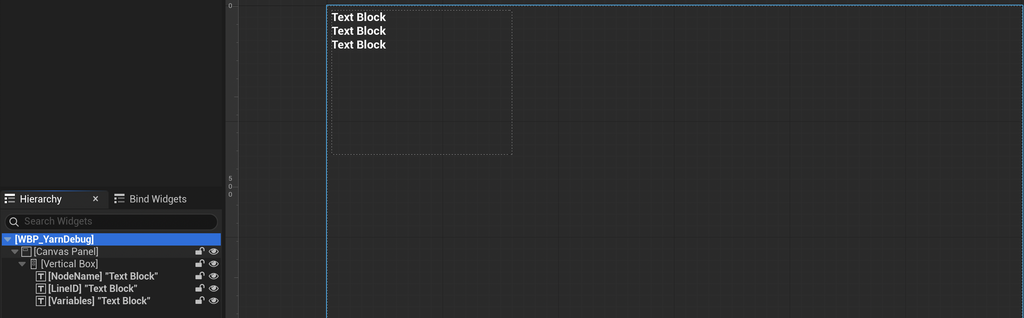
- Make a Widget Blueprint whose parent class is Yarn Debug Widget. Lay out the information you want, using the widget’s Current Node Name, Current Line ID and Is Dialogue Running variables, and its Get Formatted Variables and Get History functions. The widget updates them ten times a second. The variables come from Yarn Debug Widget, so the My Blueprint panel only lists them after you click its gear icon and turn on Show Inherited Variables. Get Formatted Variables returns a list with one entry for each variable, like
$gold = 5.00. To show them in one Text Block, join them with Join String Array. The list only has your variables when the Dialogue Runner uses the Yarn In Memory Variable Storage. - On the Debug HUD component, set Debug Widget Class to your Widget Blueprint.
- Play, and press F3.
The component’s settings, under Yarn Spinner > Debug in the Details panel, are:
| Setting | Default | What it does |
|---|---|---|
| Dialogue Runner | empty | The Dialogue Runner to watch. If it’s empty, the component uses the Dialogue Runner on its own Actor. |
| Debug Widget Class | empty | The widget to show. Set it to a Widget Blueprint based on Yarn Debug Widget. |
| Toggle Key | F3 | The key that shows and hides the HUD. |
| Show By Default | Off | Shows the HUD as soon as the game starts. |
| Auto Log Events | On | Adds an entry to the history when dialogue starts and ends, and when each node starts and ends. |
| Screen Anchor | 0, 0 | Meant to set where the HUD appears. In this version, it has no effect, so position things in your widget instead. |
The history only records lines, chosen options and Commands if you tell it to. Call Log Line, Log Option Selected and Log Command on the component, for example from your own Presenter or Command handlers. Log Node Start and Log Node End add node entries yourself, if you’ve turned off Auto Log Events. The widget keeps the 100 most recent entries. Change its Max History Entries to keep more or fewer.
Get Formatted Variables lists every variable as text, like $gold = 10.00. It only works when the Dialogue Runner’s Variable Storage is a Yarn In Memory Variable Storage, which is the default.
You can also show and hide the HUD from Blueprints or C++, with Show Debug HUD, Hide Debug HUD, Toggle Debug HUD and Is Debug HUD Visible.
The Debug HUD never appears in a Shipping build, so you can leave the component on your Actors.
Verbose logging
For more detail, turn on Verbose Logging on the Dialogue Runner, under Yarn Spinner > Debug. The Dialogue Runner then writes a line to the Output Log, from LogYarnSpinner, when each node starts and finishes, for each Command it runs, each time it shows options, and when the dialogue ends.