
Yarn Projects
A Yarn Project is a .yarnproject file. It lists the .yarn files that make up one set of dialogue (or glob patterns that point to them, such as **/*.yarn), and holds a few settings. When you import it, Yarn Spinner for Unreal Engine compiles it into a Yarn Project asset, and a Dialogue Runner runs that asset.
Most games need one Yarn Project. You can have several, for example one for story dialogue, one for barks, and one for the tutorial. Each compiles separately into its own Yarn Project asset, and a Dialogue Runner uses one project at a time. You can switch a Dialogue Runner to a different project while the game runs, with Set Yarn Project.
Creating a project
Unreal doesn’t create .yarnproject files. Make one in VS Code with the Yarn Spinner extension, with ysc, or by hand.
To make one with ysc, open a terminal in the folder where you keep your Yarn Scripts, and run:
ysc create-proj DialogueA .yarnproject file is a plain JSON file with a different extension. A project made by ysc looks like this:
{
  "projectFileVersion": 4,
  "sourceFiles": ["**/*.yarn"],
  "excludeFiles": [],
  "localisation": {},
  "baseLanguage": "en",
  "compilerOptions": {
    "diagnosticsSeverity": {}
  }
}To make one by hand, save a file like this with the .yarnproject extension. Only sourceFiles and baseLanguage are needed:
{
  "projectFileVersion": 4,
  "sourceFiles": ["**/*.yarn"],
  "baseLanguage": "en"
}Importing a project
Drag the .yarnproject file from your file browser into the Content Browser. Yarn Spinner runs ysc on it, reads the compiled program, the line text and the line metadata, and creates a Yarn Project asset named after the file. The temporary files ysc writes are deleted afterwards.
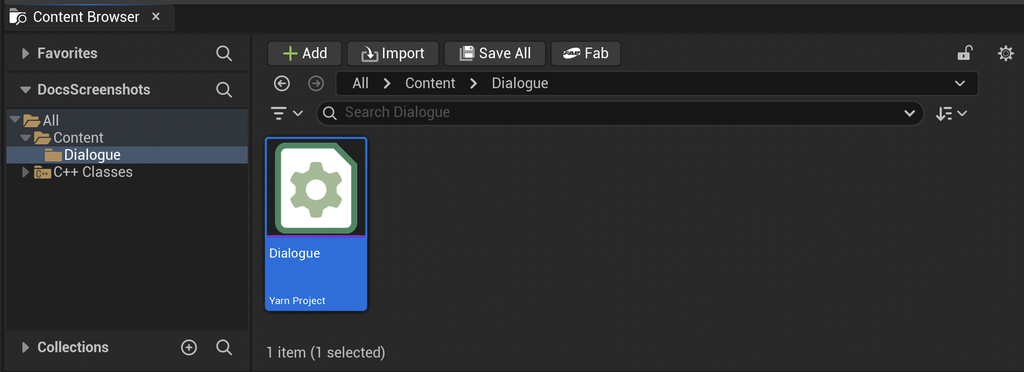
The Yarn Project asset remembers where the .yarnproject file is, and compiles it from there every time. The .yarn files stay on disk where they are. You don’t need to import them. If you move or rename the .yarnproject file, the Yarn Project can’t find it, and you’ll need to import it again.
Which scripts are included
sourceFiles is a list of patterns, matched against paths relative to the folder the .yarnproject is in:
*matches any part of a file or folder name.**matches any number of folders, so the default**/*.yarnincludes every.yarnfile in the project’s folder and all folders below it.- A pattern with no wildcards, like
Intro/Start.yarn, includes that one file.
If a project has no sourceFiles, it uses **/*.yarn.
You can be more specific. This project includes only the scripts in two folders:
{
  "projectFileVersion": 4,
  "sourceFiles": ["Dialogue/*.yarn", "Barks/*.yarn"],
  "baseLanguage": "en"
}An optional excludeFiles list uses the same patterns to leave files out:
{
  "projectFileVersion": 4,
  "sourceFiles": ["**/*.yarn"],
  "excludeFiles": ["Drafts/**/*.yarn"],
  "baseLanguage": "en"
}
A .yarn file can belong to more than one project. Unreal doesn’t edit sourceFiles for you, so change it in the .yarnproject file. When you save the file, the Yarn Project reimports.
Compiling
Unreal compiles a Yarn Project when it imports it: when you first drag it in, when you change the .yarnproject file, and when you save any .yarn file it includes. Compiling always covers every script in the project. There’s no compiling one file on its own.
To compile, Yarn Spinner runs ysc, the Yarn Spinner compiler, in the background. You never run it yourself, but it needs to be installed. See Installing the compiler.
To find ysc, Yarn Spinner checks, in order:
- The Ysc Path setting, in , under . If it’s set to a file that doesn’t exist, Yarn Spinner logs a warning and carries on looking.
- The usual install locations. On Windows, these are
%USERPROFILE%\.dotnet\tools\ysc.exe,%USERPROFILE%\.yarn-spinner\ysc.exe, andYarnSpinner\ysc.exein%LOCALAPPDATA%and%APPDATA%. On macOS and Linux, they’re/usr/local/bin/ysc,~/.dotnet/tools/yscand/opt/homebrew/bin/ysc. - Your
PATH.
If ysc takes longer than 60 seconds, Yarn Spinner stops it, and the import fails.
To reimport a project yourself, right-click it in the Content Browser and choose Reimport.
.yarnc file, made by running ysc compile yourself, into the Content Browser. This makes a Yarn Project asset with the compiled program only. It has none of the project’s line text or translations, and saving a script doesn’t recompile it. Use a .yarnproject unless you have a reason not to.When compiling fails
If a script has an error, ysc doesn’t compile the project. What happens next depends on whether the project has been imported before:
- On the first import, no Yarn Project asset is created.
- On a reimport, the reimport fails, and Unreal shows a notification saying so. The Yarn Project asset is left without a compiled program until a reimport succeeds, so fix the error before you play.
Either way, the errors appear in the Output Log, from LogYarnSpinner, one per error. Each starts with the full path to the file, then the line and column in brackets. Line and column numbers count from 0.
For example, this script has two nodes with the same title, which isn’t allowed:
title: Start
---
Capsley: Hello!
===

title: Start
---
Capsley: Oh no!
===The Output Log shows one error for each of them, and then the failed compile:
LogYarnSpinner: Error: C:/MyGame/Dialogue/Dialogue.yarn(0,0): Duplicate node title: 'Start'
LogYarnSpinner: Error: C:/MyGame/Dialogue/Dialogue.yarn(5,0): Duplicate node title: 'Start'
LogYarnSpinner: Error: (0,0): Not compiling files because errors were encountered.
LogYarnSpinner: Error: Failed to compile Yarn project: ysc returned error code 1:Fix the script and save it, and the project compiles again. In this example, rename one of the nodes.
Two node names that differ only by case, like Start and start, also stop the import. Other versions of Yarn Spinner allow this, but Unreal can’t tell them apart, so Yarn Spinner reports an error that names both. Rename one of them. Two variables that differ only by case, like $gold and $Gold, only cause a warning, but they share one value in Unreal.
Warnings from the compiler don’t stop the import. They appear in the Output Log too, and the Yarn Project keeps them under Import Diagnostics.
The Yarn Project asset
Double-click a Yarn Project in the Content Browser to see its details.
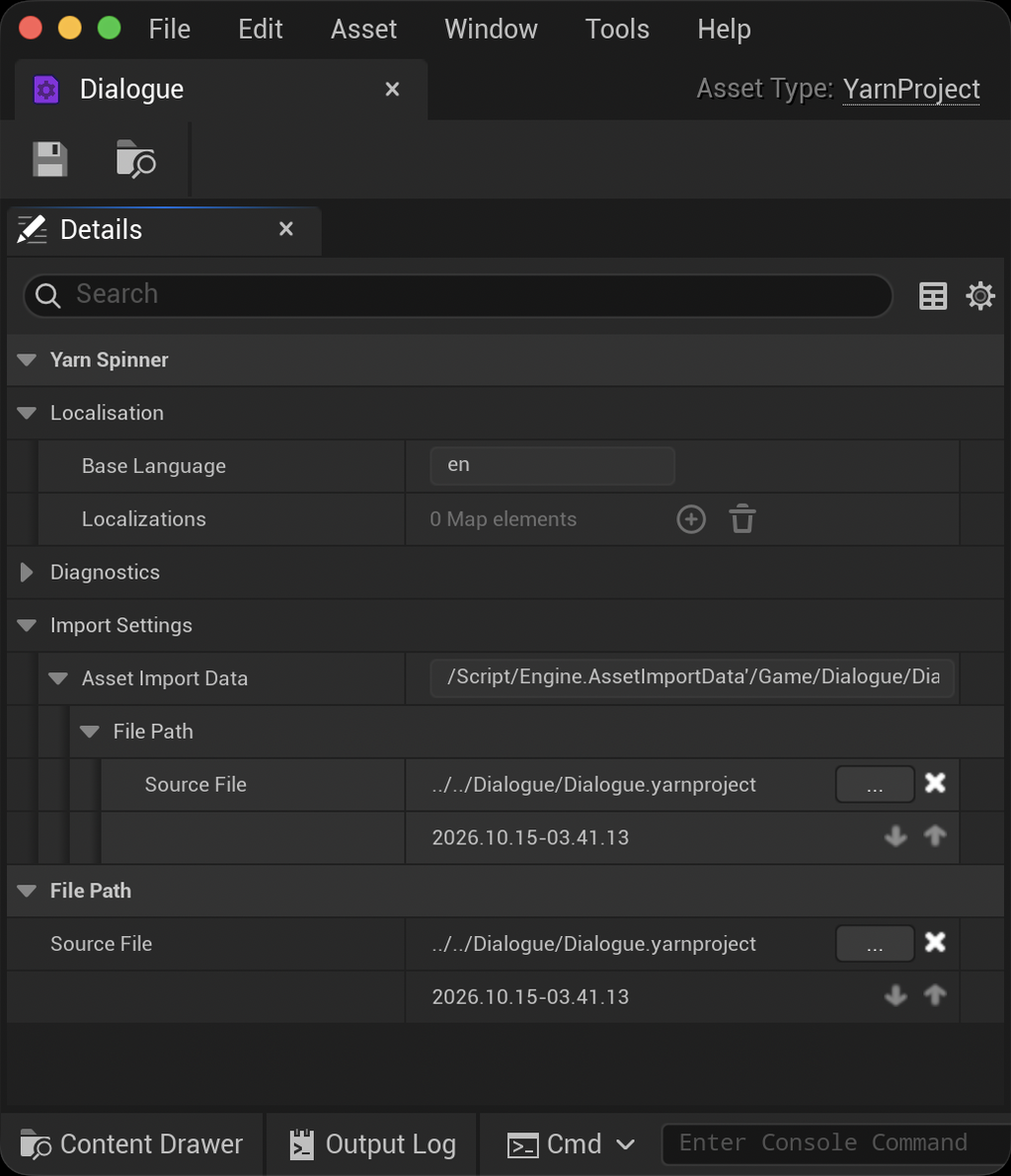
Everything here is filled in by the import, and you can’t edit it. The sections, under Yarn Spinner, are:
| Section | What it shows |
|---|---|
| Import Settings | The .yarnproject file the asset was imported from, and when. |
| Localisation | The project’s Base Language, and under Localizations, each language the .yarnproject file lists, with its translated lines, the path to its strings file, and the folder its assets are in. See Localising Your Game. |
| Diagnostics | Import Diagnostics: the warnings the compiler reported on the last successful import. Each has its severity, file, line, column and message. |
The asset doesn’t list its nodes, lines or variables. To get them, use the Blueprint functions under Yarn Spinner in the action menu, such as Get All Node Names, Get All Line IDs and Get All Declared Variable Names, or the Yarn Project’s own Has Node and Get Base Text. A Yarn Node Reference shows a project’s nodes in a dropdown. See Editor Tools.
The .ysls.json file
Each time a Yarn Project imports, Yarn Spinner writes a .ysls.json file next to the .yarnproject file, named after it, such as Dialogue.ysls.json. It lists the Commands and Functions Yarn Spinner can find in your project. The Yarn Spinner extension for VS Code reads it to autocomplete and check your Commands and Functions while you write.
It finds two kinds:
- C++
UFUNCTIONs marked with theYarnCommandorYarnFunctionmeta specifier, likeUFUNCTION(meta = (YarnCommand = "wave")). These entries include each parameter’s name, type and default value, and the function’s doc comment. - Register Command Handler, Register Blocking Command Handler and Register Function Handler nodes in your Blueprints, when the Command Name or Function Name pin is typed in rather than connected. These entries have the name only, and for a Function, the number in its Parameter Count pin.
It doesn’t find Commands registered in C++ with AddCommandHandler, or functions on your Command Handler Objects. To have a C++ Command autocompleted, mark a UFUNCTION with YarnCommand and register its object with Register Commands From Object instead. See Commands and Functions.
The file lists every Command and Function in your Unreal project, so each Yarn Project’s file has the same contents. It’s rewritten:
- when a Yarn Project imports or reimports.
- a second after a Blueprint compiles, or after C++ code is live-coded or hot-reloaded.
- when you right-click a Yarn Project in the Content Browser and choose Generate YSLS File.
Only the editor uses this file. Nothing reads it at runtime.
At the same time, Yarn Spinner saves the YarnCommand and YarnFunction functions it found to your project’s Config/DefaultGame.ini. Packaged builds don’t include UFUNCTION metadata, so Register Commands From Object reads this list instead. If you change these functions and package your game without opening the editor in between, open the editor once, or reimport a Yarn Project, so the list is up to date. You can see the list in Project Settings. See Project settings.