
Adding VNKit to Your Project
If you’re starting a new visual novel, the VNKit Template has all of this done already. This page is for adding VNKit to a project you already have.
Installing
VNKit needs Yarn Spinner for Unity 3.2.8 or later. Install Yarn Spinner first.
Once it’s installed, VNKit appears in the Project window under .
Making a Configuration asset
A Configuration asset holds the settings for your visual novel: the stage’s slots, how the text box looks, how lines are typed out, and the standalone settings.
- Choose .
- Open .
- Drag your new Configuration asset into the VN Config slot.
Every visual novel in the project uses this Configuration asset.
Choosing a render layer
VNKit draws its characters and backgrounds on their own layer, so that your game’s cameras don’t draw them twice. The Configuration asset’s Render Layer is set to layer 12.
If your project already uses layer 12 for something else:
- Open , and add a layer called
vnkitin an unused slot. - On your Configuration asset, set Render Layer to that layer’s number.
Making a standalone visual novel
In standalone mode, VNKit runs the whole game: a main menu, the story, saving and loading, and keyboard and controller support. Use this if your game is only a visual novel.
- On your Configuration asset, turn on Standalone Mode.
- Set Dialogue Reference to your Yarn Project and the node your story starts at. This node runs when the player chooses Play Game.
- Open the Standalone scene, at .
- Choose and save a copy of the scene in your
Assetsfolder, so you can change it. - Press Play, and choose Play Game.
See Standalone Mode for the menu, the controls, and saving.
Adding VNKit to another game
If your visual novel scenes are part of a bigger game, add VNKit to one of your scenes instead:
- Drag the Visual Novel Kit prefab, from , into your scene.
- Select the prefab’s Dialogue Runner, and set its Yarn Project to your Yarn Project.
- Start the dialogue. Either turn on the Dialogue Runner’s Start Automatically and choose a Start Node, or call
StartDialogueon the Dialogue Runner from your own code.
When the dialogue finishes, VNKit fades out its stage, and your game shows through again.
Adding your images
VNKit finds images by name in a Resources folder, so every image it uses must be:
- inside a folder called
Resources, anywhere in yourAssetsfolder. - imported as a Sprite.
VNKit comes with a Texture Importer preset, VNKitTextureImporter, in . Apply it to your images to import them the way VNKit expects.
See Characters for how to name your images.
Getting autocomplete for VNKit’s Commands
VNKit comes with VNKit.ysls.json, which describes every VNKit Command to the Yarn Spinner editor. With it, you get autocomplete for Commands as you write, and warnings when a Command is missing something.
- Copy
VNKit.ysls.json, from , into the same folder as your.yarnprojectfile. - In VS Code, open your
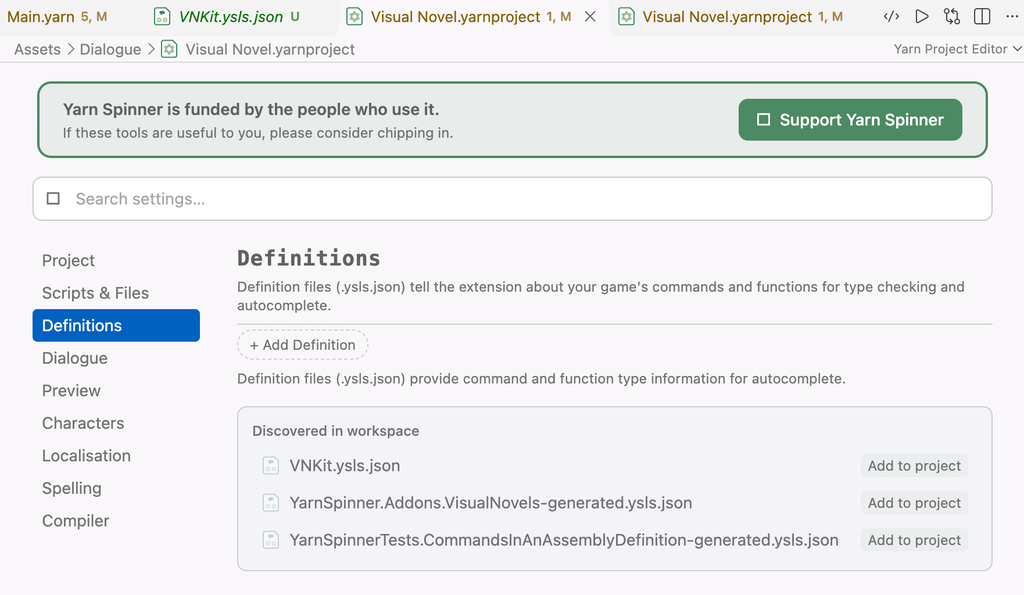
.yarnprojectfile. It opens in the Yarn Project Editor. - Choose Definitions.
VNKit.ysls.jsonis listed under Discovered in workspace. Choose Add to project next to it.
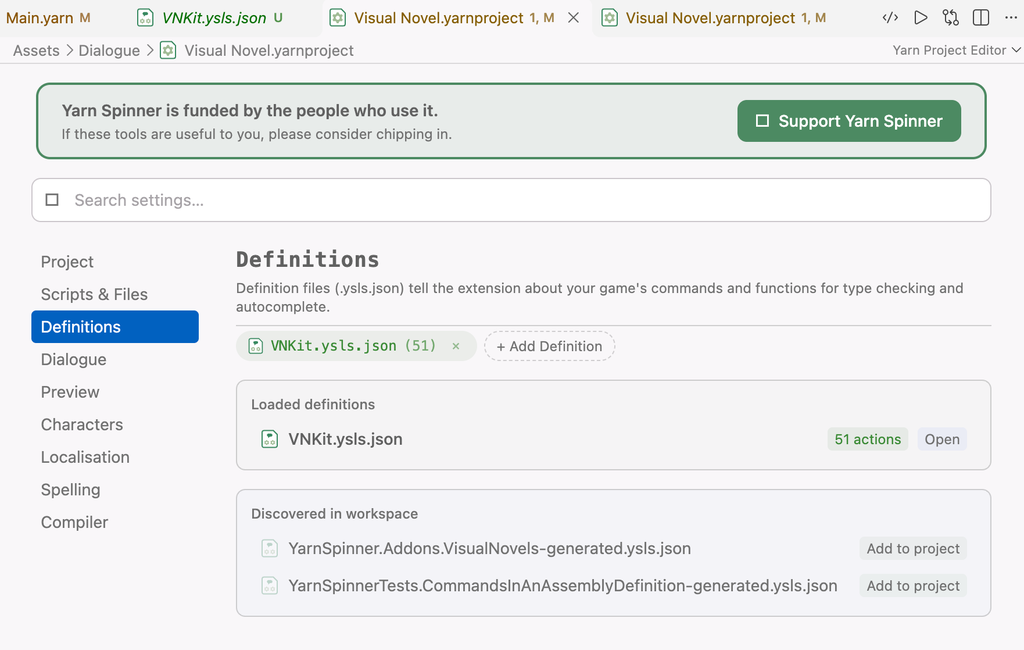
VNKit.ysls.json moves to Loaded definitions, with its 51 actions. If it isn’t listed under Discovered in workspace, choose Add Definition and pick it instead.
If you’re not using VS Code, open the .yarnproject file in a text editor, and add VNKit.ysls.json to its definitions list:
"definitions": [
    "VNKit.ysls.json"
]If the list already has other definition files in it, add VNKit.ysls.json alongside them.
The VNKit Template’s Yarn Project is already set up this way.