
Using Speech Bubbles
The Speech Bubbles Add-On provides a customisable speech bubble system. This guide adds it to a small 3D game. We’ll be using prefabs and assets from the Yarn Spinner Samples package to speed this up, but nothing we are using from there is necessary.
Setting up for Speech Bubbles
To use Speech Bubbles for Yarn Spinner, you’ll need to create a new Unity project and install the Yarn Spinner package, and then install the Speech Bubbles for Yarn Spinner package.
The finished game looks like this:
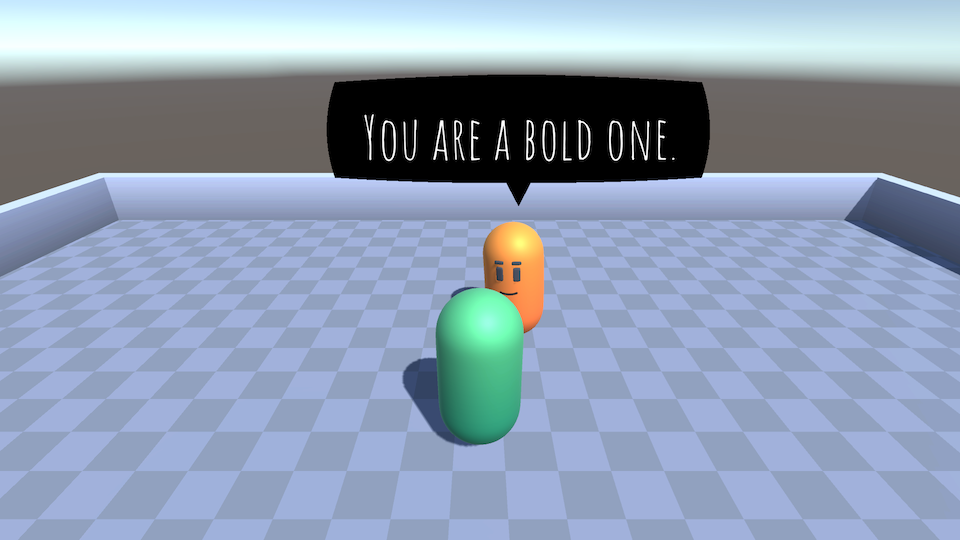
Our environment and the characters will all be using the same Sample Package assets we used to build out the examples for the Speech Bubbles in addition to all the samples in the Samples package.
Building the Basics
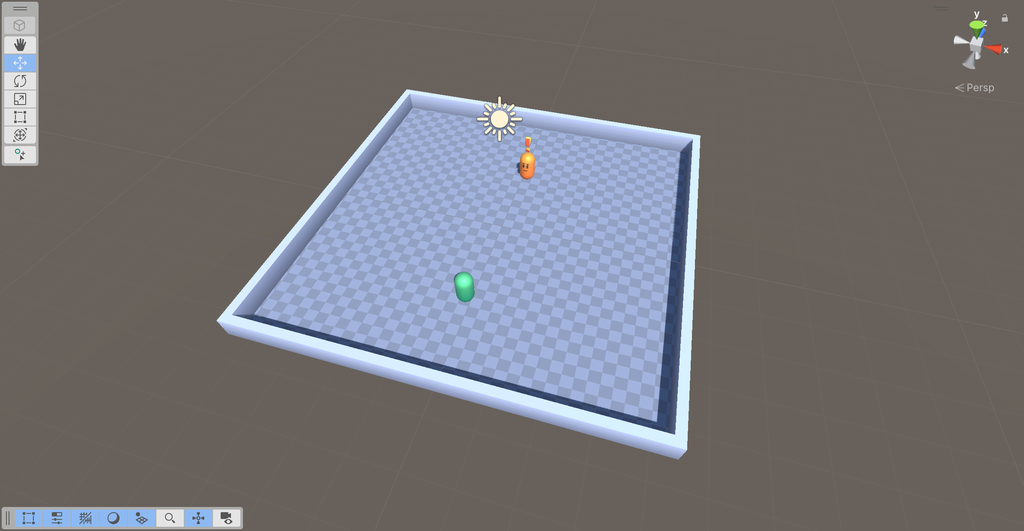
First we want to have the environment to wander around in, so from the Packages/Yarn Spinner Samples/Prefabs folder grab the Basic Arena prefab out and drop it into the scene.
Our script, which we’ve yet to write, will have two characters, the player and one NPC so we need them next. From the Packages/Yarn Spinner Samples/Prefabs folder grab the Player prefab and place them somewhere in the arena. From the same folder grab the NPC prefab and place it somewhere else in the arena. We also want our NPC to be coloured orange, or else the story won’t make any sense.
Select the NPC and rename them to be called “Orange”, then in the Inspector find the Character Appearance component and select the Orange button.
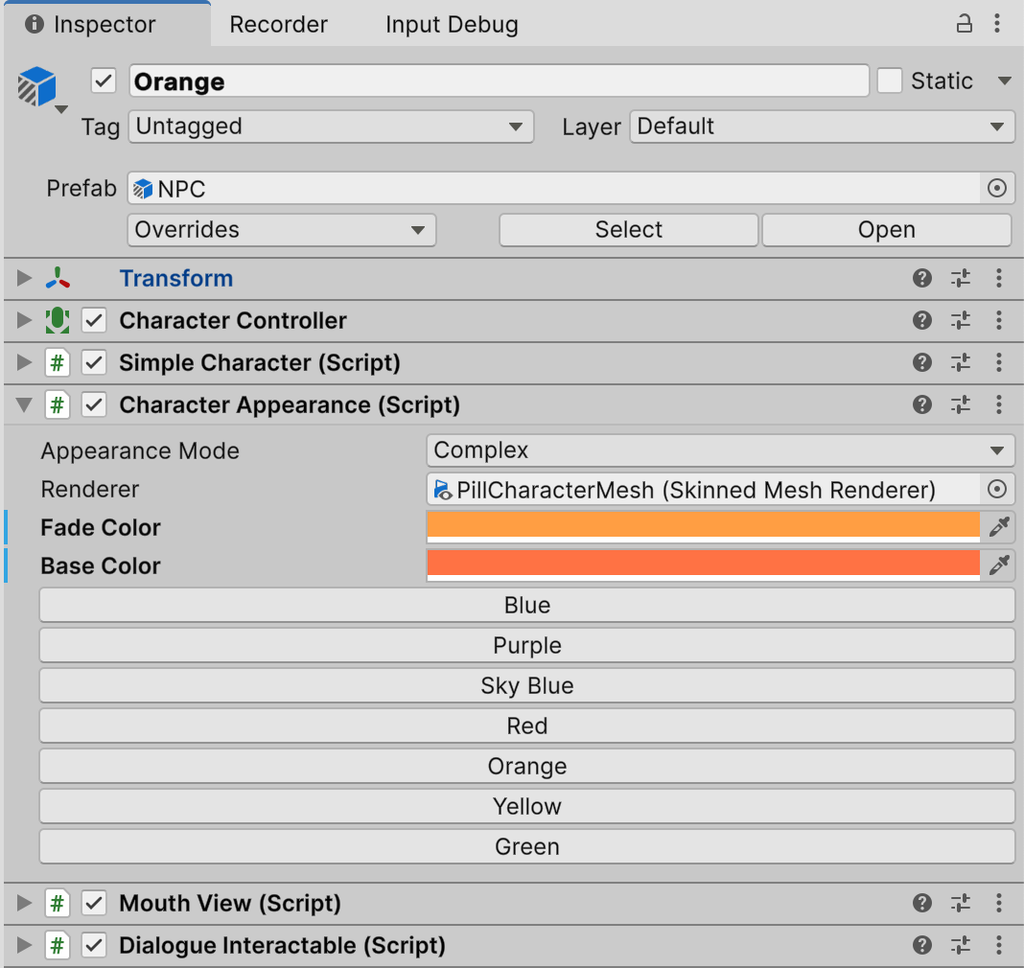
Orange will change to now be coloured the same as their namesake. Once that is done we should have our world built out.
Camera controls
The player can move about so we will want the camera to track them, luckily the code for that is also already done in the sample assets. From the Packages/Yarn Spinner Samples/Prefabs folder and drag the Camera Rig prefab into the scene. This includes a camera so we can select the existing Main Camera from the hierarchy and delete it. For the camera rig to follow the player we need to let it know that that is its target. To do this select the Camera Rig and in the Inspector drag the Player from the Hierarchy into the Target field.
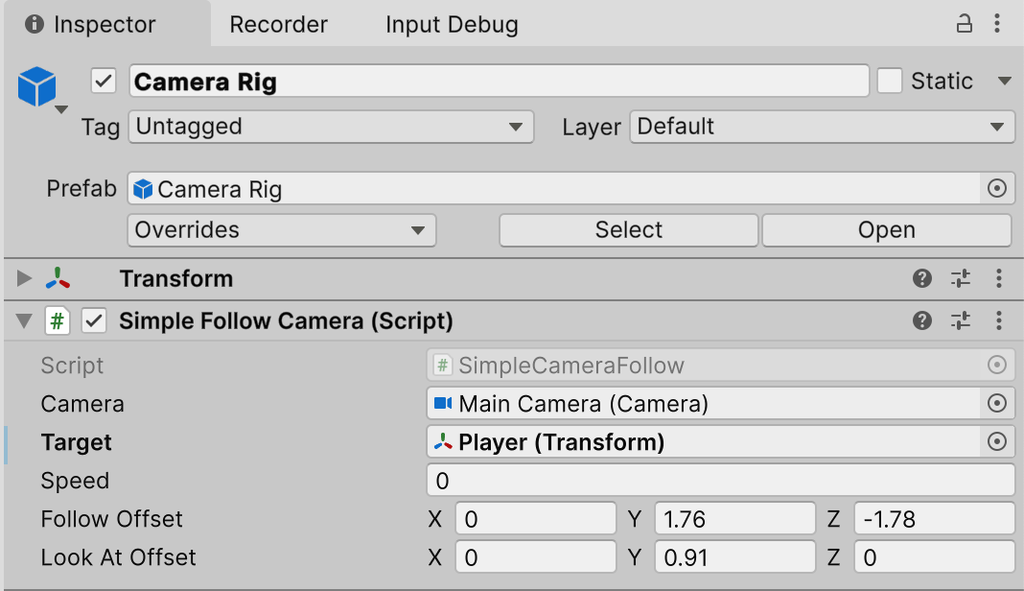
Now our camera is following the player, you can test this by starting the game and walking the player around the scene.
Creating the Dialogue and System
Time to make the dialogue happen, first we will make our project by creating a new Yarn Project asset by going Create -> Yarn Spinner -> Yarn Project and we’ll name it Demo.yarnproject. For our script we’ll also make that now Create -> Yarn Spinner -> Yarn Script and name that Demo.yarn. Open Demo.yarn and add the following dialogue:
Simple Yarn Script
title: Orange
---
Orange: Hello!
    -> Why Hello There!
        Orange: You are a bold one.
    -> Who are you?
        Orange: I'm Orange.
    -> You're orange.
        Orange: Yep.
===Next, add the story to the demo game.
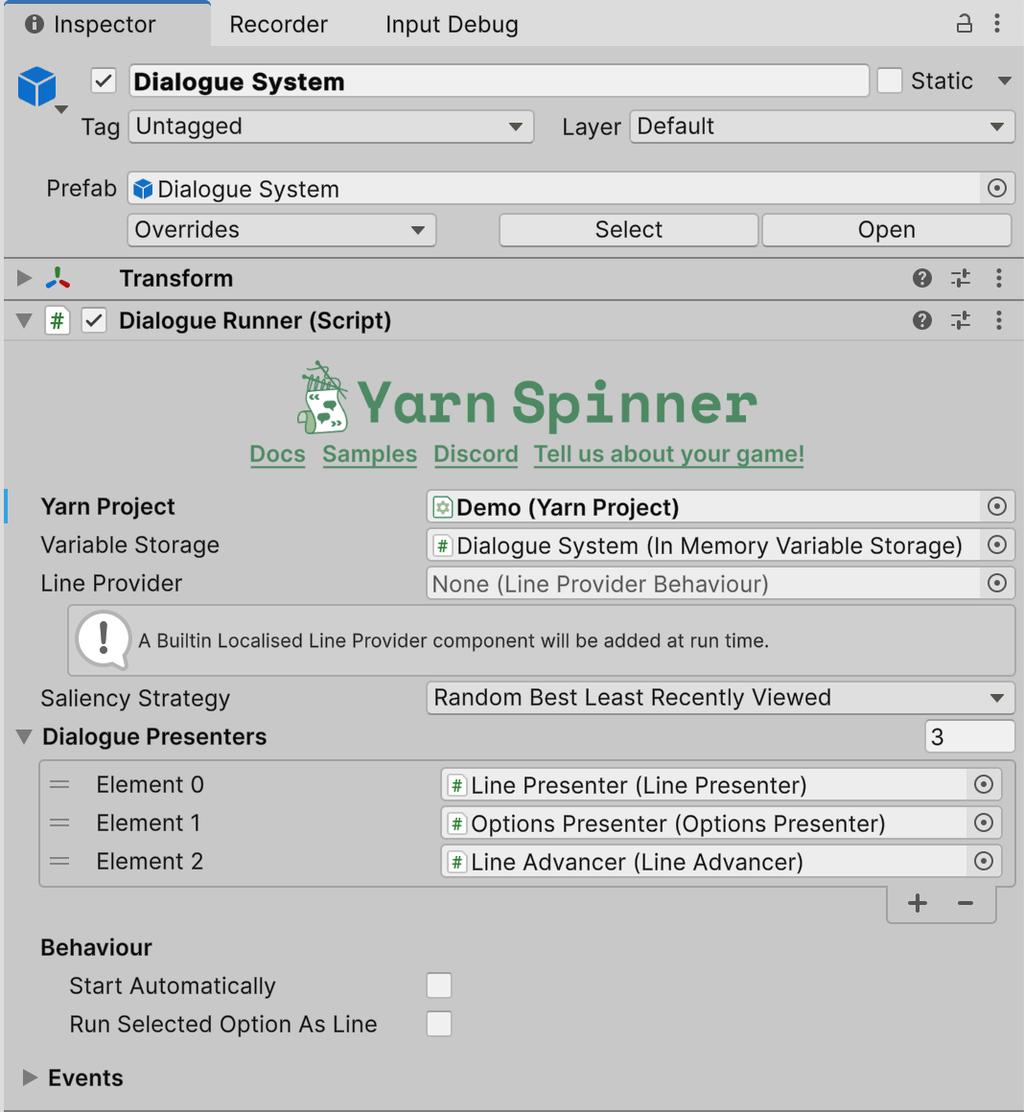
In the Hierarchy right click and add a new Yarn Spinner -> Dialogue System to the scene. Select the Dialogue System and in its Inspector set the Yarn Project field to be our Demo.yarnproject we just made.
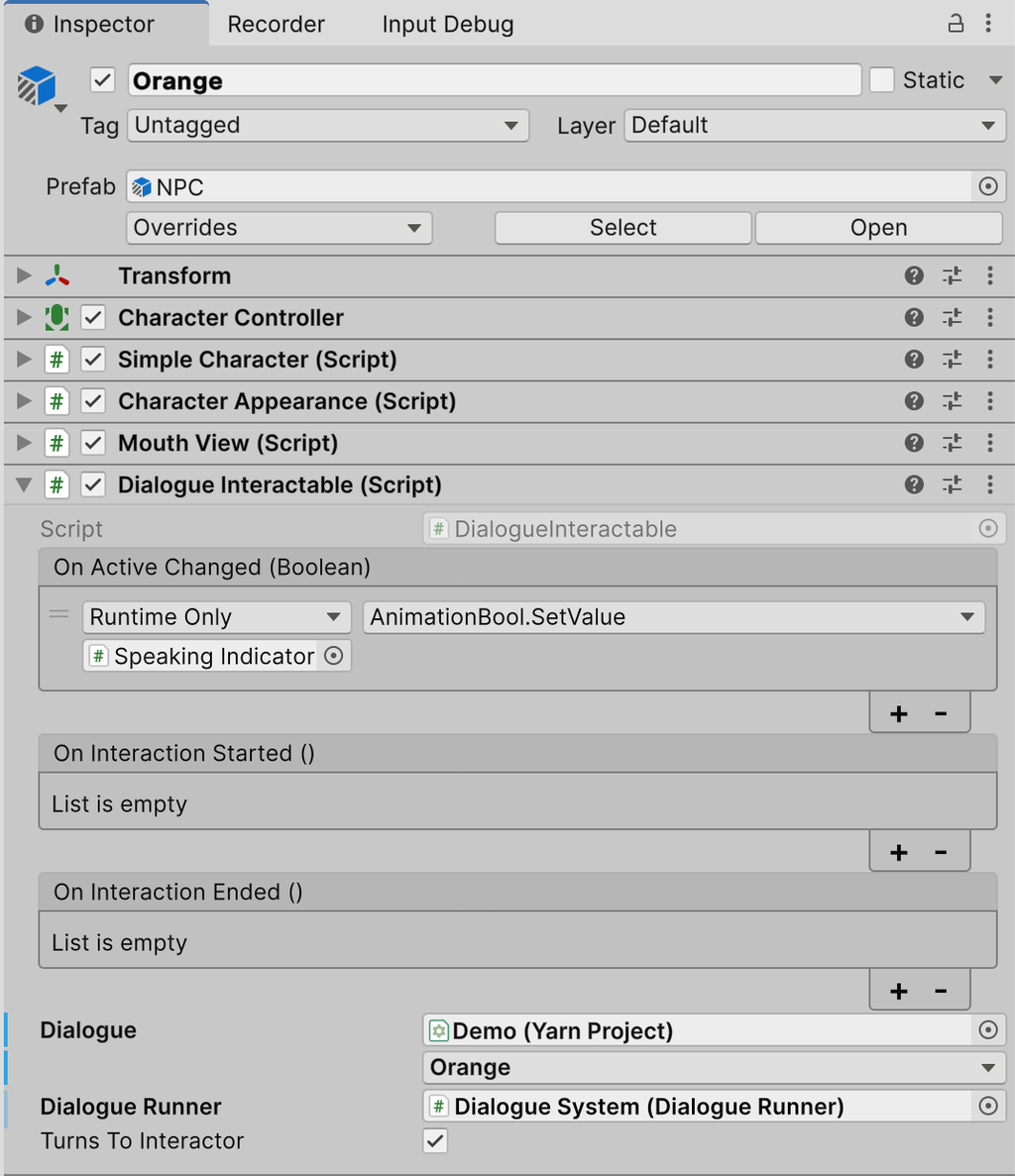
The last step is to make it so that Orange can trigger dialogue when interacted with. Select our Orange NPC in the scene and in its Inspector connect our Dialogue System into its Dialogue Runner field, our Demo.yarnproject project into its Dialogue field and from the node dropdown select the Orange node.
Now if you run the scene once again you’ll see it all work, but it’s using the default presenters, and not the speech bubbles. Everything up until now gets a basic scene running so that we can add the bubbles.
Adding Bubbles
Bubbles are a bit different from most presenters, they need to both be told about the dialogue events, so must participate in the dialogue system but also need to understand the characters they belong to so they can anchor the actual individual bubble with that character. These two pieces need to be done before they’ll work.
Adding Bubbles to Dialogue System
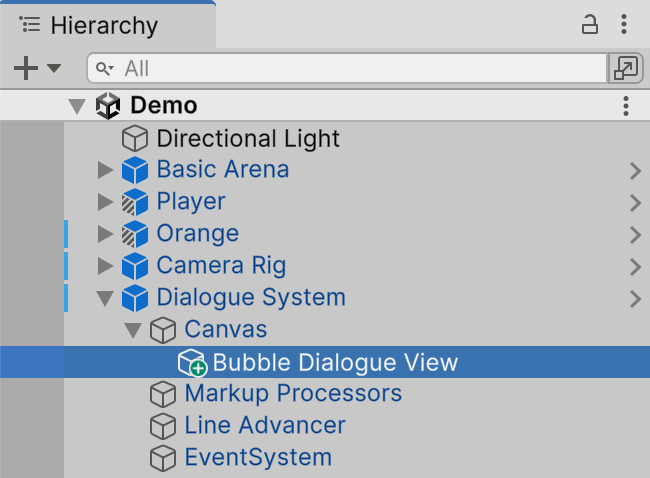
First up we will need to modify the dialogue system. Expand out the Dialogue System and its Canvas. Select the Line Presenter and Options Presenter and delete both of them, we won’t need them as the Speech Bubbles will handle both roles. Add a new empty game object to the Canvas and name it “Bubble Dialogue View”.
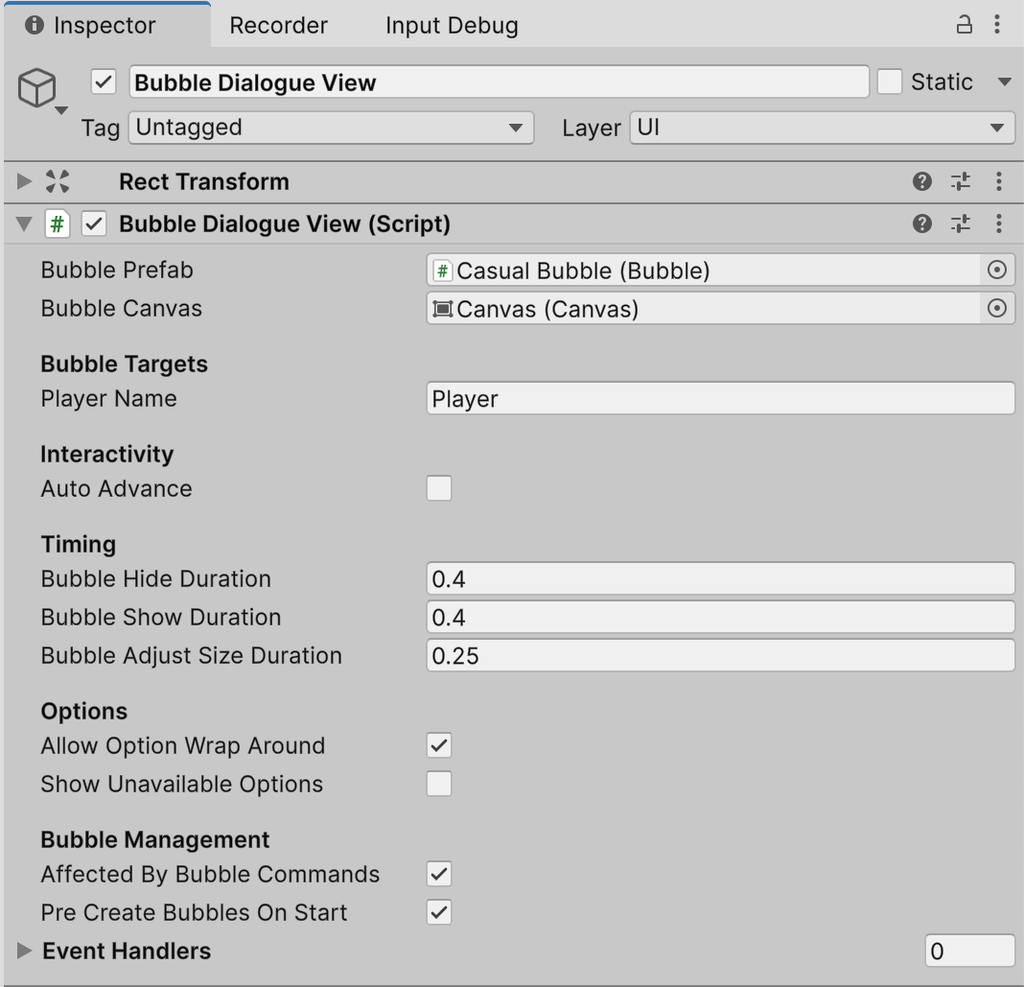
In the Inspector for the Bubble Dialogue View add a new Bubble Dialogue View component to the game object. This is our Speech Bubbles presenter component but it will need some configuration. In the Bubble Prefab field add the Casual Bubble from the Prefabs folder in the Speech Bubbles install. In the Bubble Canvas field add the Canvas from the Hierarchy into this field.
Bubble Input and Line Advancer
As discussed in the Speech Bubbles main page the way Line Advancer works with the bubbles is a bit different than other presenters. We will need to add a Bubble Input, otherwise bubbles won’t know how to handle their options.
Select the Line Advancer from the Dialogue System and delete it. With Bubble Input’s default Control Mode of Basic, Bubble Input handles advancing the dialogue itself. Add a new empty game object to the Canvas, name it “Bubble Input”, and add a new Bubble Input component to it.
Leave the Control Mode as Basic. Add the Bubble Dialogue View from the Hierarchy into the View field. Add the Dialogue System from the Hierarchy into the Runner field. Finally, configure the input however you like. We left ours as keycodes.
Hooking it up
The last step is to make the Dialogue Runner aware of these changes.
Select the Dialogue System and in its Inspector delete all the elements inside the Dialogue Presenters field. Set the size of that field to be one. Into the new slot drag the Bubble Dialogue View.
Now we need to anchor the bubbles to their characters.
Anchoring the Bubbles
Because the bubbles don’t know the world position of the character they are associated with we need to give them that information. We do that via a Character Bubble Anchor, which is little more than a transform the Bubble Dialogue View knows about so it can map that anchors world position into a canvas screen position.
Select the Player and add a new empty game object to the Player, name it Anchor. Add a Character Bubble Anchor component to the anchor game object. In the Inspector set the Character Name field to be Player, this is used later so that the Bubble Dialogue View can use the current line’s speaker name to work out which anchor to use. Leave the rest of the values as is.
Do the same with Orange, add a new game object and call it Anchor, add a Character Bubble Anchor to it, and set the Character Name to be Orange.
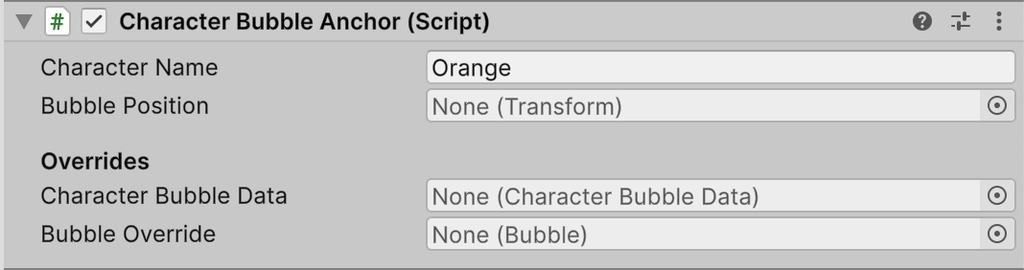
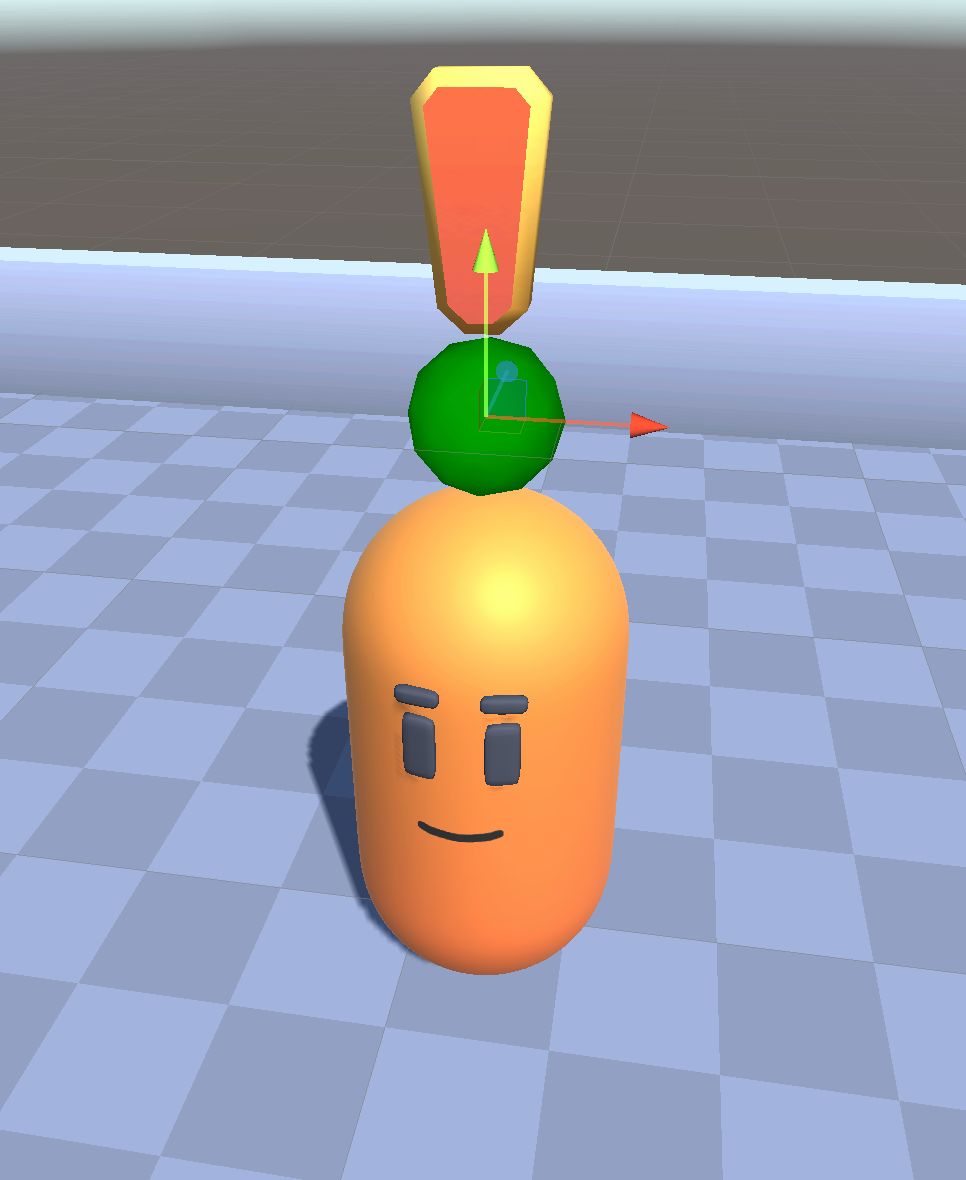
The transform value set on the anchor, or the transform of the anchor itself if one isn’t set, will be the position that is used to anchor the bubble. On both the Player and Orange, position the anchor somewhere that feels right to you. To help with this a small green ball gizmo will be drawn at the anchor location, so using that we placed the anchor point slightly above the characters heads, but you can put it anywhere you want.
Playing with Bubbles
With that, you can play your project and see the Speech Bubbles working:
Next check our provided Speech Bubble Examples which show the bubbles in 2D as well as 3D and how you can create custom bubble content for individual characters.