
Themed Line Presenter
This sample gives the standard Line Presenter and Options Presenter a pixel-art look. The dialogue panel has a brown frame with an orange border, the text uses the Pixelify Sans font, the continue button is an orange arrow, and each option is marked with a small triangle when it’s selected. None of it needs new Presenter code. Changes to the Dialogue System prefab in the scene, and a new option prefab, do it all.
When you run it, you walk up to Alice and talk to her. She says one line, then offers two options, and replies to whichever one you pick.
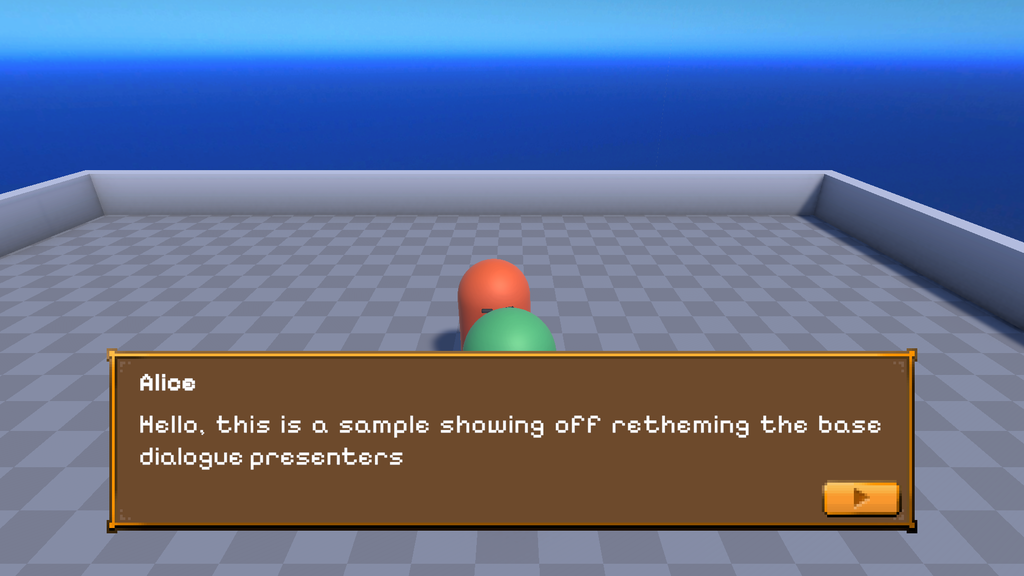
Running it
In the Project window, open the Themed Line Presenter sample’s folder, open the ThemedLinePresenter scene, and press Play. In the Package Manager, this sample is called Theming Default Presenters.
- Move with WASD or the arrow keys.
- Walk up to Alice and press Space to talk to her.
- Press Space, or click the arrow, to show the whole line or go to the next one.
- Click an option to pick it.
How it works
The scene uses the same layout as the other 3D samples. Alice is the NPC GameObject, and the two Presenters are in the Dialogue System prefab, with some of their settings changed in the scene.
The dialogue
The Yarn Script is short. Talking to Alice runs the Alice node.
title: Alice
---
Player: Hello
Alice: Hello, this is a sample showing off retheming the base dialogue presenters

-> Neat
    Alice: right?
-> Dull
    Alice: rude!
===The sprites and fonts
The art is in the sample’s Art folder:
Sprites.pngis a sprite sheet, sliced into separate sprites in the Sprite Editor:Background,Button-Continue-Up,Button-Continue-Down,Option-Selected, and four button sprites. TheBackgroundsprite has a 16-pixel border on each side, and the four button sprites have a 7-pixel border, so their corners stay the same size however big they get.Fontshas Pixelify Sans Regular and Bold, and a TextMeshPro font asset made from each one in the Font Asset Creator.
The Line Presenter
The Line Presenter uses the standard Line Presenter component, and behaves the same as it does anywhere else. The look comes from overrides on the prefab’s GameObjects in the scene:
Background’s Image uses theBackgroundsprite, with its Image Type set to Sliced, and its colour set to white so the sprite shows as it is.Character Nameuses thePixelifySans-Regular SDFfont asset at size 48, with its font style set to bold.Textuses the same font asset at size 50, with its alignment set to justified, so each line of text fills the width of the panel.Continue Button’s Image uses theButton-Continue-Upsprite. Its Button’s Transition is set to Sprite Swap, withButton-Continue-Downas the pressed sprite.Line Presenter’s Vertical Layout Group has more padding at the bottom, to leave room for the button.Button Container’s Layout Element has Ignore Layout on, so the button sits in the corner of the panel instead of taking a row of its own.
The Line Presenter Button Handler on Button Container is already in the prefab. It’s listed in the Line Presenter’s Event Handlers, so the Line Presenter tells it when each line starts and ends, and it connects the continue button to the Dialogue Runner.
The Options Presenter
Options Presenter uses the standard Options Presenter component. Its Background uses the same sliced sprite as the Line Presenter’s. Last Line uses the Pixelify Sans font asset, bold, at size 48. Shows Last Line is on in the prefab, so Alice’s line stays on screen above the options.
Its Option View Prefab is set to the sample’s own Option Item prefab. That’s a prefab variant of the Option Item prefab that comes with Yarn Spinner, so it keeps the Option Item component and its behaviour, and only changes how it looks:
- The text uses the Pixelify Sans font asset at size 50, in white.
- In the Option Item component’s Appearance group, the Normal colour is white, and the Selected sprite is
Option-Selected, the small triangle.
When an option is selected, the Option Item shows its Selection Indicator with the Selected sprite. When it’s deselected, it switches to Normal, which has no sprite, so the triangle is hidden.
For more ways to change how options look, see Options Presenter.
Things to try
- Select
Options Presenterand turn off Shows Last Line. The options appear on their own, without Alice’s line above them. - Select
TextunderLine Presenter, and change its alignment from justified to left. Lines that wrap no longer fill the panel. - Change Letters per Second on
Line Presenter. It’s set to 60. A lower number makes the text appear more slowly.