
Welcome
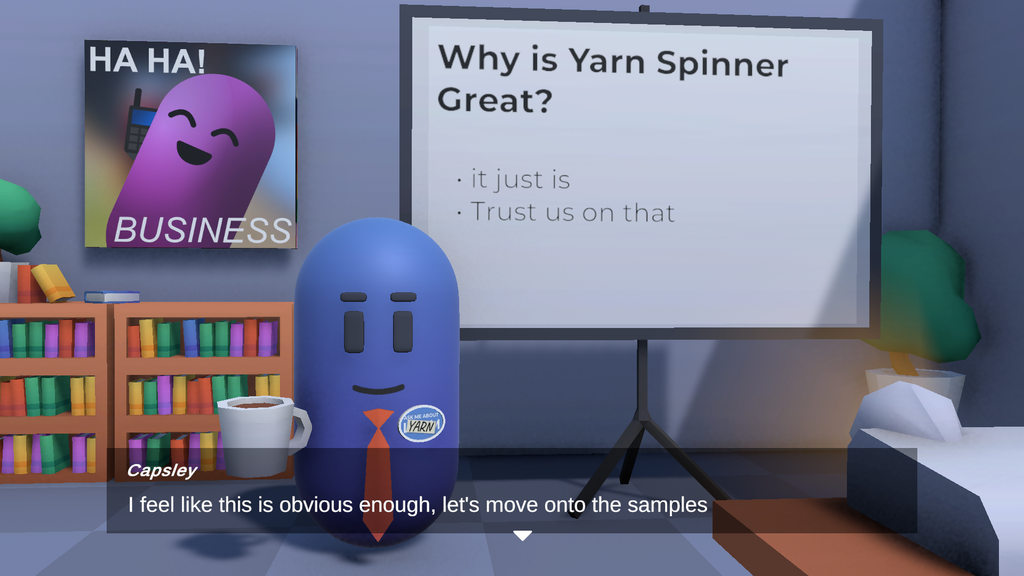
Welcome is an introduction to the samples. Capsley, a blue capsule character, stands in front of a projector screen and gives a short talk about Yarn Spinner and the samples. Most of Capsley’s lines show in the usual dialogue box at the bottom of the screen. The slides on the projector are written as lines of dialogue too, and a custom Presenter turns them into a heading, bullet points or a picture.
After the opening slides, Capsley asks which samples you’d like to hear about. Each choice shows a few slides about one group of samples, with a screenshot of each sample while Capsley describes it. Afterwards the same question comes back. Choose Nah to finish the talk.
Running it
Open the Intro scene in the Welcome sample’s folder and press Play. The dialogue starts by itself.
- Press Space, or click the button in the dialogue box, to show the whole line or go to the next one.
- Click an option to pick it.
- Click a link in a line to open it. Two open web pages in your browser, and one opens
Intro.yarn.
Many of the samples share their characters, which come with the samples package. Capsley is the shared Explanation Character. See What the samples share.
How it works
The scene uses the Dialogue System prefab, which has a Dialogue Runner, a Line Presenter and an Options Presenter. In this scene, the Dialogue Runner’s Yarn Project is set to Intro.yarnproject, Start Automatically is on, and a fourth Presenter, the Slideshow on Projector Canvas, is added to its Dialogue Presenters. A Link Markup Handler is added to the Dialogue System’s root GameObject.
The slide itself is ordinary UI on its own Canvas, Projector Canvas. Its Render Mode is Screen Space - Camera, using Projector Camera, and Projector Camera renders into a Render Texture, Projector.renderTexture. The Plane in front of the projector screen uses a material that shows that texture, so whatever Projector Canvas shows appears on the screen in the 3D scene.
NPC is Capsley, made from the shared NPC prefab. In this sample, Capsley only stands there.
Links in lines
Three of Capsley’s lines have [link] markup, like these:
Capsley: For a full syntax guide please see the [link="docs.yarnspinner.dev/write-yarn-scripts/scripting-fundamentals" external=true]website[/link].
Capsely: The Yarn file for this sample is [link="b7d73fefd4204491eb9898889427a0f6"]here[/link].The Link Markup Handler (Shared Assets/Scripts/LinkMarkupHandler.cs) is a replacement markup handler. It registers itself with the Dialogue Runner’s Line Provider for the link tag, and turns the tagged text into a TextMesh Pro link, coloured and underlined. When you click it:
- If the tag has
external=true, it opens the address in your web browser, withhttps://in front. - Otherwise the value is the GUID of an asset in the project, and it opens that asset. Links to assets only work in the Editor.
See Markup for more on markup and replacement markup handlers.
Slides in the Yarn Script
Each slide is a group of lines between two Commands. Lines from the characters SlideHeader, SlideBullet and SlideImage are the slide’s content.
<<start_slide>>
SlideHeader: Agenda
SlideBullet: Yarn Spinner
SlideBullet: Why it's so great
SlideBullet: The list of samples
<<end_slide>>

Capsley: Let's get cracking!

<<clear_slide>>
<<start_slide>>
SlideImage: code-1
<<end_slide>>SlideBullet line adds a bullet point to the slide’s body.code-1 instead of a body.The lines between <<start_slide>> and <<end_slide>> go by without the player pressing anything, so the whole slide appears at once.
The rest of the script is ordinary Yarn. The SampleSelection node shows the options, and each option uses <<detour>> to run a node about one group of samples, then returns to the options. Nah uses <<jump>> to go to the End node. See Scripting Fundamentals for how options, jumps and detours work.
The Slideshow Presenter
Slideshow.cs is a custom Presenter. It’s a subclass of DialoguePresenterBase, and its StartSlide(), EndSlide() and ClearSlide() methods are the three Commands. Each is a static method marked with [YarnCommand], such as [YarnCommand("start_slide")], so Yarn Spinner finds it with no other setup. Because the methods are static, each one finds the Slideshow in the scene with FindAnyObjectByType<Slideshow>(). See Commands.
The Dialogue Runner gives every line to all of its Presenters. Slideshow only uses a line while a slide is being built, and only if the line’s character is one of the three slide characters:
public override YarnTask RunLineAsync(LocalizedLine line, LineCancellationToken token)
{
    if (string.IsNullOrEmpty(line.CharacterName) || !isRunningSlideshow)
    {
        return YarnTask.CompletedTask;
    }

    var text = line.TextWithoutCharacterName.Text;

    switch (line.CharacterName)
    {
        case "SlideHeader":
            SetHeader(text);
            break;
        case "SlideBullet":
            AddBullet(text);
            break;
        case "SlideImage":
            var image = Resources.Load<Sprite>(text);
            if (image == null)
            {
                Debug.LogWarning($@"Failed to find sprite ""{text}""");
            }
            SetImage(image);
            break;
    }

    return YarnTask.CompletedTask;
}RunLineAsync() returns immediately, so Slideshow never holds a line on screen. For SlideImage, the line’s text is the name of a sprite, which Slideshow loads with Resources.Load(). The pictures are in the sample’s Resources folder, such as Resources/code-1.png. If there’s no such sprite, it logs a warning and leaves the picture empty.
Left alone, the Line Presenter would show the slide lines in the dialogue box as well. To stop that, the Commands turn other Presenters off:
<<start_slide>>disables each Presenter in Slideshow’s Override Dialogue Views list. In this scene, the list has the Line Presenter and the Options Presenter. It also hides the slide, plays the Audio Source on Projector Canvas, and starts slide mode.<<end_slide>>waits for Delay Before Showing New Slide, which is 1.25 seconds in this scene, then enables the same Presenters again, shows the slide, and ends slide mode. The dialogue waits for this Command to finish before it goes on.<<clear_slide>>empties the heading, body and picture.
The slide’s Projection Items, the screen’s Plane and the projector’s beam of light, are hidden while a slide is built and shown again when it’s finished.
While the Line Presenter is disabled, the Dialogue Runner doesn’t give it lines. The only Presenters left are the Line Advancer and Slideshow, and Slideshow doesn’t wait on a line, so the slide lines run one after another without any input. See How it works with Presenters.
Things to try
- Add a slide of your own to
Intro.yarn, with a<<clear_slide>>, a<<start_slide>>, aSlideHeaderline, someSlideBulletlines and an<<end_slide>>. - Select Projector Canvas and change Delay Before Showing New Slide. With a larger number, the dialogue box takes longer to come back after each slide.
- Put a picture of your own in the sample’s
Resourcesfolder, set its Texture Type to Sprite (2D and UI), and show it with aSlideImageline that gives its file name without the extension. - Select Projector Canvas and remove the Line Presenter from Override Dialogue Views. The slide lines then show in the dialogue box as well, with names like
SlideBullet, and you have to click through each one.