
Samples
The samples are small scenes that each show one part of Yarn Spinner for Unity, with the Yarn Scripts and C# that make them work. Open one, run it, then look at how it’s built.
The samples are a separate Unity package, Yarn Spinner Samples, in the YarnSpinner-Unity-Samples repository on GitHub. They aren’t part of the main Yarn Spinner package, so you add them to your project yourself.
Getting the samples
You need Yarn Spinner for Unity installed first. See Installation.
Then choose . You can also click Samples at the top of the Inspector for a Dialogue Runner, a Yarn Project or a Yarn Script.
If you installed Yarn Spinner with the Package Manager, this adds the samples package from its Git URL, https://github.com/YarnSpinnerTool/YarnSpinner-Unity-Samples.git, and Unity installs it in the background. The samples are large, so it can take a little while. If you installed Yarn Spinner some other way, the menu item opens the installation instructions in your web browser instead.
Once the samples package is installed, the menu item is greyed out, and the Samples button in the Inspector opens the Package Manager at the samples package.
To add the package by hand, open , click +, choose Install package from git URL, and enter https://github.com/YarnSpinnerTool/YarnSpinner-Unity-Samples.git.
Importing a sample
Installing the samples package doesn’t put any samples in your project. You import each one you want from the Package Manager:
- Open .
- Select Yarn Spinner Samples. It’s listed under Packages - Yarn Spinner Pty Ltd, even if you got Yarn Spinner from the Asset Store.
- Open the Samples tab.
- Click Import next to the sample you want.
Unity copies the sample into Assets/Samples/Yarn Spinner Samples/, in a folder named after the package version, then the sample.
Running a sample
Each sample has a scene. Open it from the sample’s folder in the Project window, and press Play.
The samples were made with the Universal Render Pipeline. Most scenes have a Sample Renderer Detector GameObject, which logs a warning if your project doesn’t use a render pipeline, because the materials won’t look right. You can delete it.
What the samples share
Many samples use the same pieces, which come with the samples package in its Shared Assets folder:
- The player and the other characters are prefabs, such as
Player,NPCandExplanation Character, inShared Assets/Prefabs. Capsley, the blue character who explains many of the samples, is an Explanation Character. Shared Assets/Scriptshas the scripts for moving characters around, following them with the camera, and letting the player talk to a character when they’re close to it. The Dialogue Interactable component starts a node on a Dialogue Runner when the player talks to the character it’s on.Shared Assets/Arthas the characters, environments, fonts and textures.
Most samples use the Dialogue System prefab from Yarn Spinner for its Dialogue Runner and Presenters. See Showing Dialogue.
In the 3D samples, move with W, A, S and D or the arrow keys. When you’re close enough to talk to a character, a speaking indicator appears over them. Press Space to talk to them. In a conversation, press Space, or click the button in the dialogue box, to show the whole line or go to the next one.
The samples
Getting started
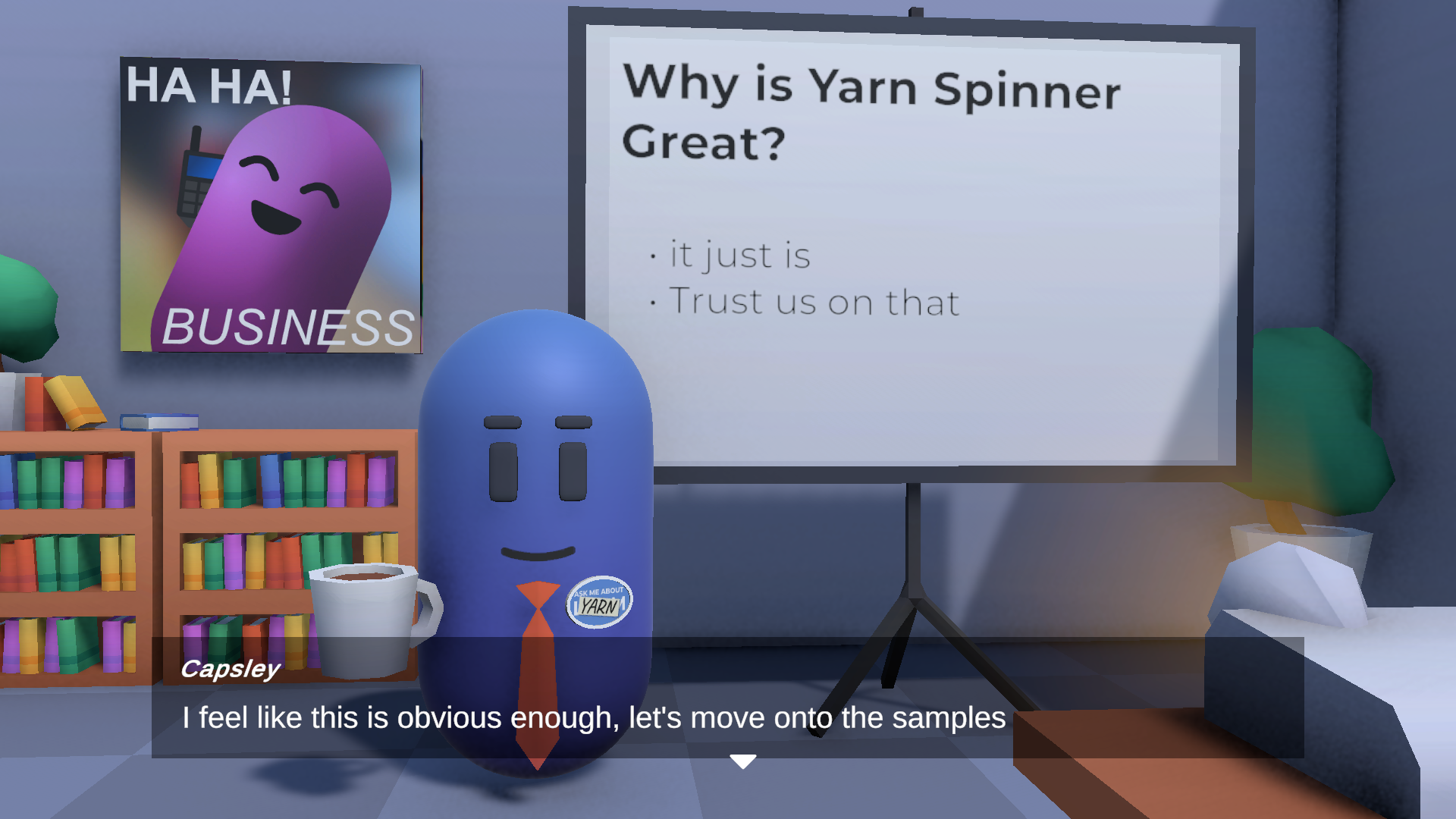
Welcome
A spoken introduction to the samples, with slides on a projector screen.
Feature Tour
A room-by-room walk through Yarn Spinner’s main features.
Connecting to your game
Inline Events
Trigger movement and emotions from inside a line of dialogue.
Node Internals
Look inside a node to get information Yarn Spinner doesn’t otherwise give you.
Showing dialogue
Replacement Markup
Markup that styles text or swaps in other content as a line is shown.
Themed Line Presenter
Restyle the Line Presenter and Options Presenter with a font, a background and a continue button, with no code.
Options That Timeout
Options that run out if the player takes too long to choose.
Phone Chat
A text-message conversation on a phone screen, with each line and option added below the last.
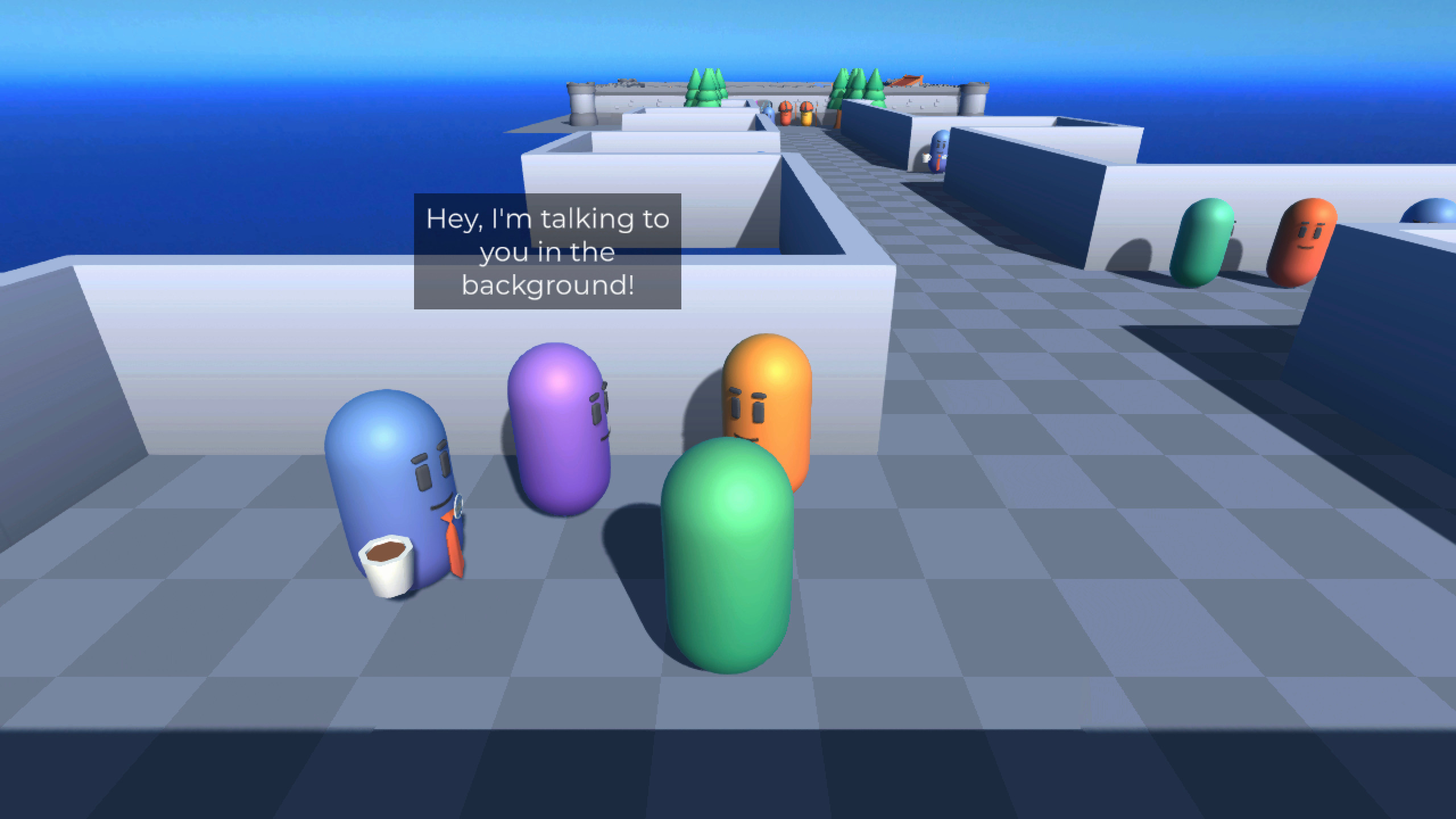
Background Chatter
Conversations between characters around you, with each line above its speaker.
Voice-over and localisation
Saliency and storylets
Basic Saliency
Characters say different things depending on the day and time, using node groups and line groups.
Custom Saliency
A custom saliency strategy that makes some content more likely than the rest.
Advanced Saliency
Choose the cast, the room and the scenario, and storylets build the scene.
| Sample | Folder in the package | Scene |
|---|---|---|
| Welcome | Samples~/Welcome | Intro |
| Feature Tour | Samples~/FeatureTour | FeatureTour |
| Inline Events | Samples~/InlineEvents | Inline Events |
| Basic Saliency | Samples~/BasicSaliency | BasicSaliencyDemo |
| Custom Saliency | Samples~/CustomSaliency | Custom Saliency |
| Advanced Saliency | Samples~/AdvancedSaliency | The Room |
| Background Chatter | Samples~/BackgroundChatter | BackgroundChatter |
| Phone Chat | Samples~/PhoneChat | PhoneChat |
| Options That Timeout | Samples~/OptionsThatTimeout | Timeout |
| Replacement Markup | Samples~/ReplacementMarkup | Replacement Markers |
| Themed Line Presenter | Samples~/ThemedLinePresenter | ThemedLinePresenter |
| Node Internals | Samples~/NodeInternals | Internals |
| Voice Over | Samples~/VoiceOver | VoiceOver-BuiltInLocalization and VoiceOver-UnityLocalization |
The Package Manager lists some samples under slightly different names: Theming Default Presenters is Themed Line Presenter, Voiceover and Localisation is Voice Over, and Basic Saliency and Storylets is Basic Saliency.