
Line and Asset Providers
The Dialogue Runner has a Line Provider for getting lines ready. For each line, it gets the line’s text, in the right language, ready to show. It also finds the asset that goes with the line, like a voice clip, so the Presenters can use it.
Yarn Spinner for Unity comes with two Line Providers:
- The Built-in Localised Line Provider uses the text and assets in your Yarn Project. The Dialogue Runner adds one when the game runs if it doesn’t have a Line Provider.
- The Unity Localised Line Provider uses String Tables and Asset Tables from Unity’s Localization package.
The Line Provider
When a line runs, the Dialogue Runner gives the Line Provider the line’s ID, and gets back a line that’s ready for the Presenters:
flowchart TB
  id["Line ID: line:a1b2c3d"]
  presenters["Presenters"]
  id -->|"1. find the text"| text["Rosa: You've got {0} coins."]
  text -->|"2. fill in values"| subs["Rosa: You've got 15 coins."]
  subs -->|"3. read markup"| presenters
id -->|"4. find the asset"| presenters- It finds the text in the current language. See Localising Your Game.
- It fills in values, like
{$coins}or{days_since_lamp_lit()}, which the dialogue has already worked out. - It reads the markup, like
[b]or[wave], so the Presenters know what to show. See Markup. - It finds the line’s asset, like a voice clip, if it has one. See Assets for each line.
The result is a LocalizedLine, which the Dialogue Runner gives to each of its Dialogue Presenters.
In a translation, each value is written as a number in braces, like {0}. Translators should keep these, and can move them to wherever they belong in their language:
language,id,text,...
de,line:c3d4e5f,Rosa: Du hast {0} Münzen.,...The Line Provider is in the Dialogue Runner’s Line Provider field. From C#, get it with the Dialogue Runner’s LineProvider property.
Shadow lines
Sometimes the same line appears in more than one place, like a greeting that can come up in several nodes. A shadow line is a copy of another line that shares its translations and voice clip, so it only needs translating and recording once.
Give the copy a #shadow: tag with the ID of the line it copies, instead of a #line: tag:
title: Morning
---
Rosa: Hello again. #line:a1b2c3d
===

title: Evening
---
Rosa: Hello again. #shadow:a1b2c3d
===A shadow line must have exactly the same text as the line it copies. If it doesn’t, the Yarn Project won’t compile, and you’ll see “Shadow lines must have the same text as their source”. Both Line Providers support shadow lines. See Shadow Lines.
The Built-in Localised Line Provider
The Built-in Localised Line Provider gets text and assets from the Yarn Project, using the languages in the Yarn Project’s Localisation list.
If the Dialogue Runner’s Line Provider field is empty, the Dialogue Runner adds one when the game runs, and its Inspector says “A Builtin Localised Line Provider component will be added at run time.” To change its settings, add a Builtin Localised Line Provider to the Dialogue Runner’s GameObject yourself, with Add Component, and drag it into the Line Provider field.
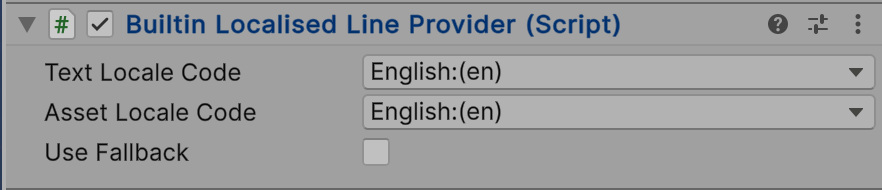
| Property | Default | What it does |
|---|---|---|
| Text Locale Code | the computer’s language | The language for text. From C#, it’s the LocaleCode property. |
| Asset Locale Code | the computer’s language | The language for voice clips and other assets. From C#, it’s the AssetLocaleCode property. |
| Use Fallback | off | Use another language when a line isn’t in the current one. If it’s off, the line shows !! ERROR: Missing line! instead. |
| Fallback Locale Code | the computer’s language | Only shown when Use Fallback is on. The language to use when a line or asset isn’t in the current one. |
Each setting is a dropdown of languages, shown with their codes, like English:(en). If you choose a language the Yarn Project doesn’t have, the Line Provider uses your base language.
Text Locale Code and Asset Locale Code let text and voice use different languages. For example, to show German text with English voice clips, set Text Locale Code to German and Asset Locale Code to English.
The Unity Localised Line Provider
The Unity Localised Line Provider gets text from a String Table Collection, and assets from an Asset Table Collection, in Unity’s Localization package. Use it when your Yarn Project has Use Unity Localisation System turned on. See Using Unity’s Localization package for how to set it up.

| Property | What it does |
|---|---|
| Strings Table | The String Table Collection with your lines. Until you set it, the Inspector says “Choose a strings table to make this line provider able to deliver line text.” |
| Asset Table | Optional. The Asset Table Collection with the assets for your lines, using the line IDs as keys. |
It doesn’t have its own language settings. It uses the Localization package’s selected locale, and the Localization package’s fallback settings when a line isn’t translated.
Assets for each line
Each line can have one asset in each language. The Built-in Localised Line Provider finds it in the language’s Assets Folder, in the file named after the line’s ID. The Unity Localised Line Provider finds it in the Asset Table, in the entry with the line’s ID as its key.
The asset is in the LocalizedLine’s Asset field, or null if the line doesn’t have one. The Voice Over Presenter plays it if it’s an AudioClip. See Voice-Over.
An asset can be anything Unity can import. This Presenter shows a picture for each line that has one:
using UnityEngine;
using UnityEngine.UI;
using Yarn.Unity;

public class LinePicturePresenter : DialoguePresenterBase
{
    [SerializeField] RawImage picture;

    public override YarnTask OnDialogueStartedAsync()
    {
        return YarnTask.CompletedTask;
    }

    public override YarnTask OnDialogueCompleteAsync()
    {
        picture.texture = null;
        return YarnTask.CompletedTask;
    }

    public override YarnTask RunLineAsync(LocalizedLine line, LineCancellationToken token)
    {
        picture.texture = line.Asset as Texture2D;
        return YarnTask.CompletedTask;
    }
}Texture2D. If the line’s asset isn’t an image, or it doesn’t have one, this clears the picture.Add it to a GameObject, and add that GameObject to the Dialogue Runner’s Dialogue Presenters list.
Because each line has one asset, a line can’t have both a voice clip and a picture from its assets folder. If a folder has two files for the same line, one is picked, with a warning in the Console. To give a line more than one asset, use an asset that holds the others and implements IAssetProvider. Its TryGetAsset<T>() method gives back the asset of the type you ask for. The Voice Over sample does this: each line’s asset holds its voice clip and its lip sync timings, and the Voice Over Presenter gets the clip from it.
Loading assets before they’re needed
Before a node’s lines run, the Dialogue Runner tells the Line Provider which lines might run, so it can get their assets ready.
The Built-in Localised Line Provider only needs this when the Yarn Project has Use Addressable Assets turned on. It starts loading the node’s assets then, so they’re usually loaded by the time each line runs. Without Addressables, the assets are loaded along with the scene, so there’s nothing to do. See Using Addressable Assets.
The Unity Localised Line Provider doesn’t load anything ahead of time. Use the Localization package’s preloading to do that.
Choosing assets with your own tag
Matching assets to lines by name means the line IDs have to stay the same. If you’d rather pick a line’s asset yourself, give the line a tag of your own, like #picture:lamp, and read it in your Presenter. A line’s tags are in the LocalizedLine’s Metadata, without the #:
using System.Collections.Generic;
using UnityEngine;
using UnityEngine.UI;
using Yarn.Unity;

public class PicturePresenter : DialoguePresenterBase
{
    [SerializeField] Image picture;
    [SerializeField] List<Sprite> pictures;

    public override YarnTask OnDialogueStartedAsync()
    {
        return YarnTask.CompletedTask;
    }

    public override YarnTask OnDialogueCompleteAsync()
    {
        picture.enabled = false;
        return YarnTask.CompletedTask;
    }

    public override YarnTask RunLineAsync(LocalizedLine line, LineCancellationToken token)
    {
        picture.sprite = PictureFor(line);
        picture.enabled = picture.sprite != null;
        return YarnTask.CompletedTask;
    }

    Sprite PictureFor(LocalizedLine line)
    {
        foreach (var tag in line.Metadata)
        {
            if (tag.StartsWith("picture:"))
            {
                var pictureName = tag.Substring("picture:".Length);
                return pictures.Find(sprite => sprite.name == pictureName);
            }
        }
        return null;
    }
}picture:. #picture:lamp is in Metadata as picture:lamp.picture: tag, so no picture.title: Pictures
---
Rosa: This is the old lamp from the tower. #picture:lamp
Rosa: Here's the key to get in. #picture:key
Rosa: Good luck up there.
===#picture: tag names a sprite in the Presenter’s list.#picture: tag, so the picture is hidden.The lines keep their own line tags, so you can still use Add Line Tags to Yarn Scripts, and both Line Providers keep a line’s other tags in its Metadata.
Writing your own Line Provider
To get text or assets from somewhere else, write a Line Provider of your own. Make a class that inherits from LineProviderBehaviour, add it to the Dialogue Runner’s GameObject, and drag it into the Dialogue Runner’s Line Provider field. The Dialogue Runner sets its YarnProject property to the Dialogue Runner’s Yarn Project.
This Line Provider gets text from the Yarn Project, like the Built-in Localised Line Provider, but loads each line’s asset from a Resources folder:
using System.Threading;
using UnityEngine;
using Yarn;
using Yarn.Markup;
using Yarn.Unity;

public class ResourcesLineProvider : LineProviderBehaviour
{
    [SerializeField] string localeCode = "en";

    readonly LineParser lineParser = new LineParser();
    readonly BuiltInMarkupReplacer replacer = new BuiltInMarkupReplacer();

    public override string LocaleCode
    {
        get => localeCode;
        set => localeCode = value;
    }

    void Awake()
    {
        lineParser.RegisterMarkerProcessor("select", replacer);
        lineParser.RegisterMarkerProcessor("plural", replacer);
        lineParser.RegisterMarkerProcessor("ordinal", replacer);
    }

    public override YarnTask<LocalizedLine> GetLocalizedLineAsync(Line line, CancellationToken cancellationToken)
    {
        string text = YarnProject.GetLocalization(localeCode).GetLocalizedString(line.ID);

        if (text == null)
        {
            return YarnTask.FromResult(LocalizedLine.InvalidLine);
        }

        string withValues = LineParser.ExpandSubstitutions(text, line.Substitutions);
        string fileName = line.ID.Replace("line:", "");

        return YarnTask.FromResult(new LocalizedLine
        {
            TextID = line.ID,
            RawText = text,
            Text = lineParser.ParseString(withValues, localeCode),
            Substitutions = line.Substitutions,
            Metadata = YarnProject.lineMetadata?.GetMetadata(line.ID) ?? new string[0],
            Asset = Resources.Load($"Voice/{localeCode}/{fileName}"),
        });
    }

    public override void RegisterMarkerProcessor(string attributeName, IAttributeMarkerProcessor markerProcessor)
    {
        lineParser.RegisterMarkerProcessor(attributeName, markerProcessor);
    }

    public override void DeregisterMarkerProcessor(string attributeName)
    {
        lineParser.DeregisterMarkerProcessor(attributeName);
    }
}LocaleCode, the language it’s using.select, plural and ordinal markup is handled by BuiltInMarkupReplacer. Register it, or those tags won’t work.YarnTask, so it can wait for something to load before it returns.{0} becomes the value of $coins.#line:tutorial-tom-01 gets Resources/Voice/en/tutorial-tom-01, or null if there’s no file.This Line Provider doesn’t handle shadow lines. To support them, call YarnProject.lineMetadata.GetShadowLineSource() with the line’s ID. It returns the ID of the line it copies, or null if it isn’t a shadow line, and you use that ID to find the text and asset.
To get assets ready before they’re needed, override PrepareForLinesAsync() as well. The Dialogue Runner calls it with the IDs of the lines that might run, each time a node starts. By default, it does nothing.