
Localising Your Game
Localising your dialogue with Yarn Spinner’s built-in localisation system takes five steps:
flowchart TB
  yarn["Yarn Scripts"]
  tags["Yarn Scripts with line tags"]
  csv["Strings CSV"]
  translated["Translated CSV,<br>from your translators"]
  project[("Yarn Project,<br>with a localisation for each language")]
  game["Your game, in another language"]
  yarn -->|"1. add line tags"| tags
  tags -->|"2. export"| csv
  csv -->|"3. translate"| translated
  translated -->|"4. add to the Yarn Project"| project
project -->|"5. choose the language"| gameAll the buttons for this are in the Yarn Project’s Inspector. Select your .yarnproject file in the Project window, and look for the Localisation section.
If your game uses Unity’s Localization package, you can keep your lines in a String Table Collection instead. Steps 1 and 2 are the same. See Using Unity’s Localization package.
1. Add line tags
A line tag is an ID at the end of a line, like #line:a1b2c3d. Translations are matched to lines by their IDs. A line without a tag gets an ID made from where it is in the file. That ID changes when you edit the Yarn Script, and the line’s translations stop matching it.
To tag every line that doesn’t have one, click Add Line Tags to Yarn Scripts. It edits your Yarn Scripts and adds a tag to the end of each untagged line, then reimports them. Lines that already have a tag keep it. Every line ID must be unique across all your Yarn Scripts.
The button is greyed out when every line already has a tag, when the Yarn Project has no Yarn Scripts, or when the Inspector has changes you haven’t applied yet. In that last case, the Inspector says “Unable to add line tags while the project has unsaved changes.” Click Apply first. You can still type tags by hand.
If Unity’s Localization package is installed and any lines don’t have a tag, the Inspector also shows a warning. Tag your lines before you export them, and tag new lines as you write them.
Choosing what the tags look like
By default, Add Line Tags to Yarn Scripts makes random tags. To choose another kind, turn on Use custom line tagging in the Localisation section. A dropdown appears under it, listing every line tagger class in your project by its full name:
| Line tagger | Example | |
|---|---|---|
Yarn.Compiler.RandomLineTagGenerator | #line:0a1b2c3 | A random ID. This is what you get when Use custom line tagging is off. |
Yarn.Compiler.DescriptiveLineTagGenerator | #line:Tutorial_0200_Bob | Made from the node name, the line’s position in the node, and the character. |
The descriptive tagger numbers the lines in each node 0100, 0200, 0300 and so on, so there’s room for new lines. If you add a line between Tutorial_0200_Bob and Tutorial_0300_Bob and tag it again, the new line gets a number in between, like Tutorial_0250_Bob. If there’s no number left in between, it adds a suffix like _g1.
Writing your own line tagger
To make tags your own way, write a class that implements ILineTagGenerator. It appears in the dropdown once Unity has compiled it.
using System.Collections.Generic;
using Yarn.Compiler;

public class NodeIndexLineTagger : ILineTagGenerator
{
    public void PrepareForLines(
        Dictionary<string, List<ILineTagGenerator.LineTagContext>> lineContexts,
        HashSet<string> excludedIDs)
    {
    }

    public string GenerateLineTag(string node, int lineIndex)
    {
        return $"line:{node}_{lineIndex}";
    }
}lineContexts has the lines in each node, by node name. Each line’s LineTagContext has its text, its file, its line number, and its LineID if it already has one. excludedIDs has the IDs that are already in use. A tagger that needs this information keeps it for GenerateLineTag.line:, and must not already be in use. If it doesn’t, tagging stops with an error in the Console.2. Export your lines
Click Export Strings and Metadata as CSV, and choose where to save the file. The button is greyed out until every line has a tag, and while the Inspector has changes you haven’t applied. Yarn Spinner writes two files.
The strings file has a row for each line, with its ID and its text in your Base Language:
language,id,text,file,node,lineNumber,lock,comment
en,line:tutorial-tom-01,Tom: Uh.. hello?,.../VoiceOver.yarn,Start,43,7ae86f0e,
en,line:tutorial-tom-02,Tom: Is anyone there?,.../VoiceOver.yarn,Start,46,e89e6ab3,| Column | What it holds |
|---|---|
language | The language of the text. In an exported file, it’s your Base Language. |
id | The line’s ID. This is how the translation is matched to the line. |
text | The line’s text. |
file, node, lineNumber | Where the line is in your Yarn Scripts. |
lock | A short code made from the line’s text. Update Existing Strings Files uses it to find lines whose text has changed. |
comment | The line’s other tags, if it has any, after Line metadata:. Translators can use them for context. |
The metadata file, with -metadata at the end of its name, tells translators where each line comes from: the file, the node, the line number, and the line’s other tags. It only has the lines that have tags other than their line tag. Yarn Spinner doesn’t read it back in.
3. Translate
Make a copy of the strings file for each language, and give each copy to its translator. Translators replace the text column with their translation, and can set the language column to the language’s code, like de for German or pt-BR for Brazilian Portuguese:
language,id,text,file,node,lineNumber,lock,comment
de,line:tutorial-tom-01,Tom: Ah. Hallo?,.../VoiceOver.yarn,Start,43,7ae86f0e,
de,line:tutorial-tom-02,Tom: Ist da jemand?,.../VoiceOver.yarn,Start,46,e89e6ab3,Translators should leave the other columns alone. If the id changes, Yarn Spinner can’t match the translation to its line, and if the lock changes, it can’t tell when the line’s text has changed.
Each line’s text starts with the character’s name, like Tom:. Translators should keep the name and the colon at the start, but they can translate the name itself.
4. Add the translations to the Yarn Project
Put the translated CSV file in your Unity project, anywhere in the Assets folder. Then, in the Yarn Project’s Inspector:
- Click Add Localisation. A new section appears in the Localisation list, set to your base language.
- Open it, and change Language to the translation’s language.
- Drag the CSV file into Strings File.
- If the language has voice clips or other assets, drag their folder into Assets Folder. See Voice clips in other languages.
- Click Apply.
Each language’s section is titled with the language’s name and code, like German (de), and has these settings:
| Setting | What it does |
|---|---|
| Language | The language this section is for. |
| External Asset | Off by default. Turn it on to use a Localization asset you’ve made yourself instead of a strings file and assets folder. |
| Strings File | The translated CSV file. For your base language, it says Automatically included, because the text comes from your Yarn Scripts. |
| Assets Folder | The folder with this language’s voice clips and other assets. |
| Localization Asset | Only shown when External Asset is on. The Localization asset to use for this language. |
Delete removes a language. It’s greyed out for your base language, which is always in the list.
When you apply, Yarn Spinner reads each strings file and keeps the translations in the Yarn Project. If a language other than your base language has no strings file, or its strings file can’t be read, Yarn Spinner leaves that language out and shows a warning in the Console. Yarn Spinner reimports the Yarn Project whenever a strings file changes.
To make a Localization asset for External Asset, choose . Its Inspector has buttons to import the lines from a Yarn Project, import strings from a CSV file, and import assets from a folder. From code, add strings to it with AddLocalizedStrings().
5. Choose the language
The game’s language is set on the Dialogue Runner’s Line Provider. Unless you’ve given the Dialogue Runner a Line Provider of your own, it adds a Built-in Localised Line Provider when the game runs.
The Built-in Localised Line Provider has two languages. Text Locale Code is the language for text, and Asset Locale Code is the language for voice clips and other assets. When the Dialogue Runner adds one, both are set to the language of the player’s computer, as a two-letter code like de. If the Yarn Project doesn’t have that language, it uses your base language.
To choose the language yourself, add a Built-in Localised Line Provider to the Dialogue Runner’s GameObject, set its Text Locale Code and Asset Locale Code, and drag it into the Dialogue Runner’s Line Provider field. See Line and Asset Providers.
To switch language while the game runs, set the Line Provider’s LocaleCode and AssetLocaleCode properties:
using UnityEngine;
using Yarn.Unity;

public class LanguageSwitcher : MonoBehaviour
{
    [SerializeField] DialogueRunner dialogueRunner;

    public void SetLanguage(string localeCode)
    {
        if (dialogueRunner.LineProvider is BuiltinLocalisedLineProvider lineProvider)
        {
            lineProvider.LocaleCode = localeCode;
            lineProvider.AssetLocaleCode = localeCode;
        }
    }
}LocaleCode is Text Locale Code, and AssetLocaleCode is Asset Locale Code. Call SetLanguage("de") to switch to German.If a line is on screen when the language changes, it stays in the old language. The next line is in the new one.
Voice clips in other languages
Each language’s voice clips go in the folder you set as its Assets Folder. Yarn Spinner looks through the folder, and its subfolders, for a file named after each line’s ID, without the line: part. A clip called tutorial-tom-01.wav belongs to the line tagged #line:tutorial-tom-01. Case doesn’t matter.
If no file has exactly that name, Yarn Spinner uses a file whose name contains the ID, like Tom-tutorial-tom-01.wav. If more than one file does, it picks one and shows a warning in the Console. Your base language can have an Assets Folder too.
When you add, move or delete files in an assets folder, Yarn Spinner reimports the Yarn Project, so it always has the latest files. This is the Update Localised Assets setting in Yarn Spinner’s project settings, which is on by default.
When the game’s language changes, the next line plays the clip for the new language. See Voice-Over for how the Voice Over Presenter plays each line’s clip.
Using Addressable Assets
By default, the Yarn Project refers to every asset directly, so they’re all loaded when a scene that uses the Yarn Project loads. With many voice clips in many languages, that can be a lot of memory.
If the Addressables package is installed, the Localisation section has a Use Addressable Assets setting. Turn it on and click Apply, and Yarn Spinner makes each asset in your assets folders addressable, in your default Addressables group. The Built-in Localised Line Provider then loads each node’s assets when the node starts, instead of when the scene loads.
Updating translations when your lines change
When you add, change or remove lines, click Update Existing Strings Files. It updates every strings file in the Yarn Project’s Localisation list:
- New lines are added, with their text left empty.
- Lines that no longer exist in the Yarn Project are removed.
- If a line’s text has changed, its translation gets
(NEEDS UPDATE)in front, so translators can find it.
Every line needs a line tag before you can update strings files. The Console lists the files that were updated.
When a line isn’t translated
If a language’s strings file doesn’t have a line, the Built-in Localised Line Provider shows !! ERROR: Missing line! instead, and shows a warning in the Console. A line whose translation is empty, like a new line added by Update Existing Strings Files, shows as an empty line.
To show another language instead of the error, turn on the Line Provider’s Use Fallback, and choose the language in Fallback Locale Code:
| Property | Default | What it does |
|---|---|---|
| Use Fallback | off | Use another language when a line isn’t in the current one. |
| Fallback Locale Code | the computer’s language | Only shown when Use Fallback is on. The language to use when a line isn’t translated. Set it to your base language to use the text from your Yarn Scripts. |
The fallback is used for assets as well. If a line has no voice clip in the Asset Locale Code language, the Line Provider looks in the fallback language.
Using Unity’s Localization package
If your game already uses Unity’s Localization package for the rest of its text, you can keep your lines there too. Yarn Spinner puts your lines in a String Table Collection, and a Unity Localised Line Provider reads them from it while the game runs.
Yarn Spinner’s built-in system is easier to set up. Unity’s Localization package has more features, and suits bigger teams who already use it, or who manage translations with other tools.
Setting up Unity’s Localization package
- Install the Localization package from the Package Manager. See the Localization package’s documentation.
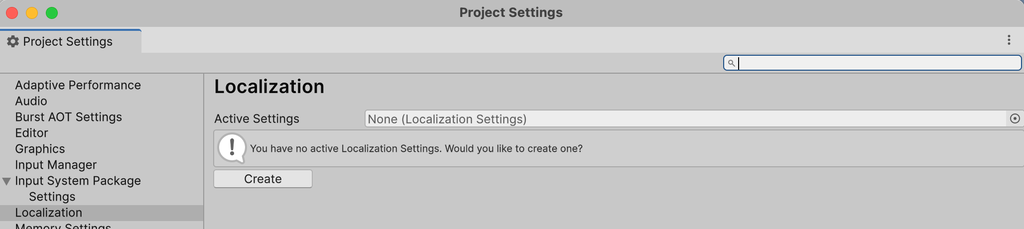
- In , click Create to make a Localization Settings asset.
- Add a Locale for each language, in the same Project Settings page. One of them must be your Yarn Project’s base language.
- Make a String Table Collection in .
Use a separate String Table Collection for your dialogue, apart from your other text like button labels. It’s easier to manage.
Putting your lines in a String Table Collection
- Select your Yarn Project.
- In the Localisation section, turn on Use Unity Localisation System.
- Set Base Language to the language your Yarn Scripts are written in.
- Drag your String Table Collection into String Table Collection.
- Click Apply.
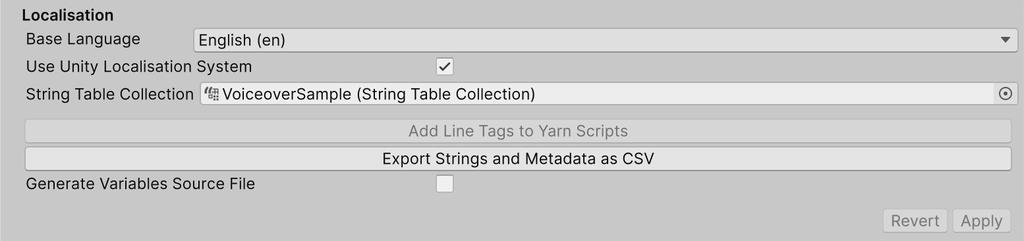
When Use Unity Localisation System is on, the language list, Add Localisation, Update Existing Strings Files and Use custom line tagging are hidden. Until you set a String Table Collection, the Inspector says “A string table collection is required.”
Every time the Yarn Project is imported, Yarn Spinner adds your lines to the table for your base language. The key of each entry is the line’s ID, like line:tutorial-tom-01, and the entry also keeps the line’s node and its other tags. If the collection has no table for your base language, Yarn Spinner uses the table for its parent language, like en for en-AU. If it can’t find either, you see a warning in the Console.
To check, open and look at your String Table Collection. Translators then fill in the columns for the other languages, in the Localization Tables window or with any of the Localization package’s tools.
To keep the entries in the same order as your Yarn Scripts, turn on Keep Unity Localization tables sorted in Yarn Spinner’s project settings.
Adding a Unity Localised Line Provider
The Dialogue Runner can’t add a Unity Localised Line Provider for you, because it doesn’t know which String Table Collection to use. When its Yarn Project uses Unity’s Localization package and it has no Line Provider, its Inspector shows a warning, with an Add Unity Localised Line Provider button:
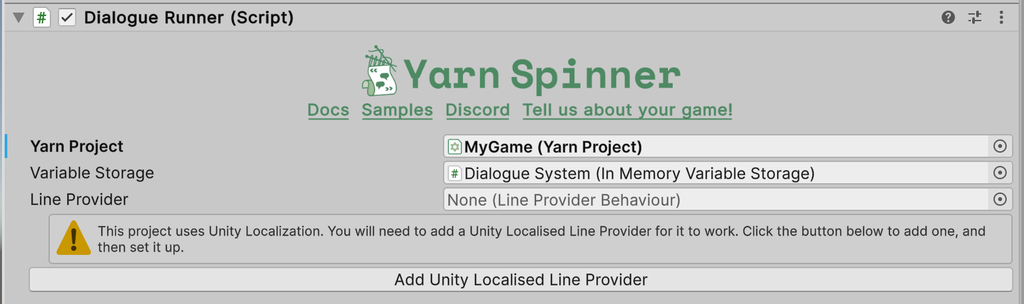
- Click Add Unity Localised Line Provider. It adds the component to the Dialogue Runner’s GameObject, and sets it as the Line Provider. If the GameObject already has one, the button says Use Unity Localised Line Provider instead.
- Select the new component, and set Strings Table to your String Table Collection.
If the Dialogue Runner has a Built-in Localised Line Provider when its Yarn Project uses Unity’s Localization package, the Inspector warns you to use a Unity Localised Line Provider instead.
Localising assets
Yarn Spinner doesn’t fill Asset Tables for you like it does String Tables. Instead, make an Asset Table Collection with an entry for each line that has an asset, using the line’s ID as the key. The asset for the line with the key line:tutorial-tom-01 goes in the entry line:tutorial-tom-01. Then set the Unity Localised Line Provider’s Asset Table to the collection.
To fill an Asset Table Collection from folders of files named after line IDs, choose :
- Set Asset Table Collection to your collection, and Yarn Project to your Yarn Project.
- Choose the kind of asset to look for in Asset Type. It’s
AudioClipto start with. - Under Asset Folders, drag in a folder for each language. A language without a table in the collection shows No table in collection.
- Click Add Assets.
The files are matched to lines the same way as in an assets folder. See Voice clips in other languages. The Console shows how many assets were added for each language.
Switching language
The Unity Localised Line Provider uses the Localization package’s selected locale. While you play in the Editor, you can switch it with the locale menu at the top right of the Game view:
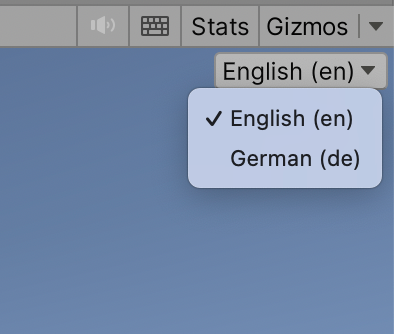
In your game, set LocalizationSettings.SelectedLocale, or the Unity Localised Line Provider’s LocaleCode property, which does the same thing. Setting LocaleCode to a language that has no Locale throws an exception.
If a line isn’t in the current language’s table, the Unity Localised Line Provider uses the Localization package’s fallback settings. If there’s still no text, the line shows !! Error: Missing localisation for line, followed by the line’s ID and the table’s language.
{ and }. You can’t use Smart Strings in your lines.The Voice Over sample
The Voice Over sample is translated into English, German, Spanish, Brazilian Portuguese and Simplified Chinese, and has a scene for each localisation system:
- VoiceOver-BuiltInLocalization uses
VoiceOver-BuiltInLocalization.yarnproject, which has a strings file for each language other than English, likeVoiceOver - de.csv, and assets folders with the voice-over. To hear another language, select the scene’s Built-in Localised Line Provider and change Text Locale Code and Asset Locale Code before you press Play. - VoiceOver-UnityLocalization uses
VoiceOver-UnityLocalization.yarnproject, with its lines in theVoiceoverSampleString Table Collection and its assets in theVoiceoverSampleAssetsAsset Table Collection. Switch language with the locale menu in the Game view.