
Line Presenter
The Line Presenter shows your dialogue one line at a time. It puts the speaker’s name in one text field and the line’s text in another, types the text out, and waits until it’s told to move on before handing control back to the Dialogue Runner.
The Line Presenter doesn’t listen for input itself. A separate component, the Line Advancer, listens for the player’s key presses and tells the Dialogue Runner to finish the line or move on.
If you added the Dialogue System prefab in Adding Presenters, you already have both.
The text fields it uses
A Line Presenter needs somewhere to put the text. In the Dialogue System prefab, that’s two TextMeshPro text fields inside a panel:
The Line Presenter doesn’t look for these by itself. You assign each one in the Inspector:
- Line Text is the text field for the line’s text. In the prefab, that’s
Text. - Name Field, under Character, is the text field for the speaker’s name. In the prefab, that’s
Character Name. - Canvas Group is the Canvas Group the Line Presenter fades in and out. In the prefab, it’s on the Line Presenter’s own GameObject.
The Line Presenter hides its panel by setting the Canvas Group’s Alpha to 0 when dialogue starts and when it ends. To keep the panel hidden before the dialogue starts, set Alpha to 0 in the Inspector too. The Dialogue System prefab already does this.
Character names
Most lines in Yarn start with the speaker’s name, like Rosa: Are you here about the lamp?.
When the Line Presenter has a Name Field, it puts Rosa in the name field and Are you here about the lamp? in Line Text. If a line has no speaker, the name field is hidden. To hide something bigger than the text field itself, such as a name plate with a background, set Character Name Container to that GameObject, and the whole GameObject is hidden.
If there’s no Name Field at all, Shows Name In Line decides whether the name stays at the start of the text. It’s on by default, so the player sees Rosa: Are you here about the lamp?.
How text appears
By default, the text types out one letter at a time. Typewriter Style, under Typewriter, changes that:
| Style | What it does |
|---|---|
| Instant | Shows the whole line at once. |
| By Letter | Types the line out one character at a time, at Letters per Second (60 by default). |
| By Word | Types the line out one word at a time, at Words per Second (10 by default). |
| Custom | Uses your own typewriter, set in Custom Typewriter. See Typewriter and Effects. |
Setting Letters per Second or Words per Second to 0 shows the line at once. The Line Presenter sets up its typewriter when the scene starts, so changing these settings while the game is running has no effect.
Fade UI, under Fade, fades the panel in when a line starts and out when it ends. It’s on by default. Fade Up Duration and Fade Down Duration set how long each fade takes, in seconds. When the player moves on to the next line, the panel disappears at once without fading out. You only see the fade out when Auto Advance moves on by itself.
To change how text looks with markup, see Markup.
Continuing to the next line
Once a line has finished typing out, the Line Presenter waits until the Dialogue Runner tells it to move on. There are three ways to do that:
- a Line Advancer, which moves on when the player presses a key or button,
- the continue button in the Line Presenter’s panel,
- your own code, which calls
RequestNextLine()on the Dialogue Runner. See How it works with Presenters.
To move on without the player pressing anything, turn on Auto Advance, under Automatically Advance Dialogue. Once a line has finished typing out, the Line Presenter waits Delay Before Advancing seconds, 1 by default, and then moves on.
The continue button
The Line Presenter in the Dialogue System prefab has a continue button in the corner of its panel. While a line is on screen, clicking it moves on to the next line, even if the line is still typing out. While there’s no line, the button is turned off.
The button is run by the Line Presenter Button Handler component on Button Container. It has two settings:
| Setting | What it does |
|---|---|
| Continue Button | The Button the player clicks. |
| Dialogue Runner | The Dialogue Runner to tell to move on. |
The Line Presenter Button Handler is an event handler, so it only works when it’s in the Line Presenter’s Event Handlers list. In the prefab, it’s already there. To add a continue button to your own Line Presenter, add a Line Presenter Button Handler to a GameObject, set its two settings, and add it to Event Handlers.
Line Advancer
The Line Advancer listens for the player’s input, and tells the Dialogue Runner to finish the current line at once, move on to the next line, or end the whole conversation. It’s a Dialogue Presenter, so it goes in the Dialogue Runner’s Dialogue Presenters list alongside your Line Presenter, which is how it knows when a line or options arrive.
To add one, click Add Component on a GameObject and search for Line Advancer. Then set:
- Runner to your Dialogue Runner.
- Presenter to your Line Presenter. The Line Advancer watches the Line Presenter’s typewriter, so it knows when a line has finished typing out.
Hurrying up and moving on
By default, one input does two jobs:
- If the line is still typing out, pressing Hurry Up Line finishes it immediately.
- If the line is already complete, pressing Hurry Up Line again moves on to the next one.
Turn on Separate Hurry Up And Advance Controls to split these. Hurry Up Line then only finishes the line, and a second input, Next Line, moves on, even while the line is still typing out.
Turn on Multi Advance Is Cancel to move on after the player presses Hurry Up Line a set number of times on the same line, even if it hasn’t finished typing out. Advance Count sets how many presses, 2 by default.
Hurry Up Options makes options appear at once, without fading in. Cancel Dialogue stops the dialogue, the same as calling Stop() on the Dialogue Runner.
Presses in the same frame that a line or options arrive are ignored, so a key that picks an option doesn’t also hurry up the line that follows.
Input modes
Input Mode sets where the Line Advancer’s input comes from:
| Input Mode | What it does |
|---|---|
| Input Actions | Uses actions from Unity’s Input System, such as a keyboard key or a gamepad button. |
| Key Codes | Uses keys on the keyboard. |
| Manual | Doesn’t listen for input. Call the Line Advancer’s methods from your own code. |
| Legacy Input Axes | Uses buttons from Unity’s Input Manager. |
| Third-Party | Uses another component on the same GameObject that implements ILineAdvancerInput, for input from a third-party input system. |
When you choose Input Actions, Key Codes or Legacy Input Axes, the Line Advancer adds a matching component to its GameObject, where you choose the keys, buttons or actions. Changing the mode removes the old component and adds the new one.
The Input Actions component has these settings:
| Setting | Default | What it does |
|---|---|---|
| Hurry Up Line Action | none | Finishes the current line, or moves on if it’s complete. |
| Next Line Action | none | Moves on to the next line. Only shown when Separate Hurry Up And Advance Controls is on. |
| Hurry Up Options Action | none | Makes options appear at once. |
| Cancel Dialogue Action | none | Stops the dialogue. |
| Enable Actions | On | Turns the actions on when dialogue starts. Turn it off if your game turns them on itself. |
The Key Codes component has these settings:
| Setting | Default | What it does |
|---|---|---|
| Hurry Up Line Key Code | Space | Finishes the current line, or moves on if it’s complete. |
| Next Line Key Code | Escape | Moves on to the next line. |
| Hurry Up Options Key Code | Space | Makes options appear at once. |
| Cancel Dialogue Key Code | None | Stops the dialogue. |
Next Line Key Code is only shown when Separate Hurry Up And Advance Controls is on, but the Line Advancer responds to it either way. To turn it off, set it to None before you turn the setting off.
The Legacy Input Axes component has Hurry Up Line Axis, Next Line Axis, Hurry Up Options Axis and Cancel Dialogue Axis, which are the names of buttons from the Input Manager. They default to Jump, Cancel, Jump, and empty. The Line Advancer responds when the button is released.
The Line Advancer in the Dialogue System prefab
In the Dialogue System prefab, the Line Advancer is on its own GameObject:
Its Runner is the Dialogue System’s Dialogue Runner, its Presenter is the Line Presenter, and it’s in the Dialogue Runner’s Dialogue Presenters list. Input Mode is Key Codes, so when you add the prefab to a scene, the Line Advancer gets a Key Codes component with the defaults above:
- Space finishes the current line, and moves on once it’s complete.
- Escape moves on to the next line.
- Space makes options appear at once.
- Nothing ends the conversation.
Using the Line Advancer from code
With Input Mode set to Manual, the Line Advancer doesn’t listen for any input. Call its methods from your own code instead:
| Method | What it does |
|---|---|
RequestLineHurryUp() | Finishes the current line immediately. |
RequestNextLine() | Moves on to the next line. |
RequestOptionHurryUp() | Makes options appear at once. |
RequestDialogueCancellation() | Stops the dialogue. |
RequestLineHurryUp() always finishes the line, and never moves on by itself, unless Multi Advance Is Cancel is on. To get the same behaviour as a key press, where pressing again once the line is complete moves on, call OnInputHurryUpLines() instead.
using UnityEngine;
using Yarn.Unity;

public class DialogueButtons : MonoBehaviour
{
    [SerializeField] LineAdvancer lineAdvancer;

    public void OnContinuePressed()
    {
        lineAdvancer.OnInputHurryUpLines();
    }

    public void OnSkipPressed()
    {
        lineAdvancer.RequestNextLine();
    }
}With Input Mode set to Third-Party, add a component of your own to the Line Advancer’s GameObject that implements ILineAdvancerInput. It calls the Line Advancer’s OnInputHurryUpLines(), OnInputNextContent(), OnInputHurryUpOptions() and OnInputCancelDialogue() when the player presses the matching input.
Line Advancer settings
| Setting | Default | What it does |
|---|---|---|
| Runner | none | The Dialogue Runner to tell to hurry up, move on, or stop. |
| Presenter | none | The Line Presenter whose typewriter the Line Advancer watches, to know when a line has finished typing out. |
| Separate Hurry Up And Advance Controls | Off | Uses one input to finish a line and another to move on. |
| Multi Advance Is Cancel | Off | Moves on after Hurry Up Line is pressed Advance Count times on the same line. |
| Advance Count | 2 | How many presses move on. Only shown when Multi Advance Is Cancel is on. |
| Input Mode | Input Actions | Where the input comes from. The Dialogue System prefab uses Key Codes. |
Settings
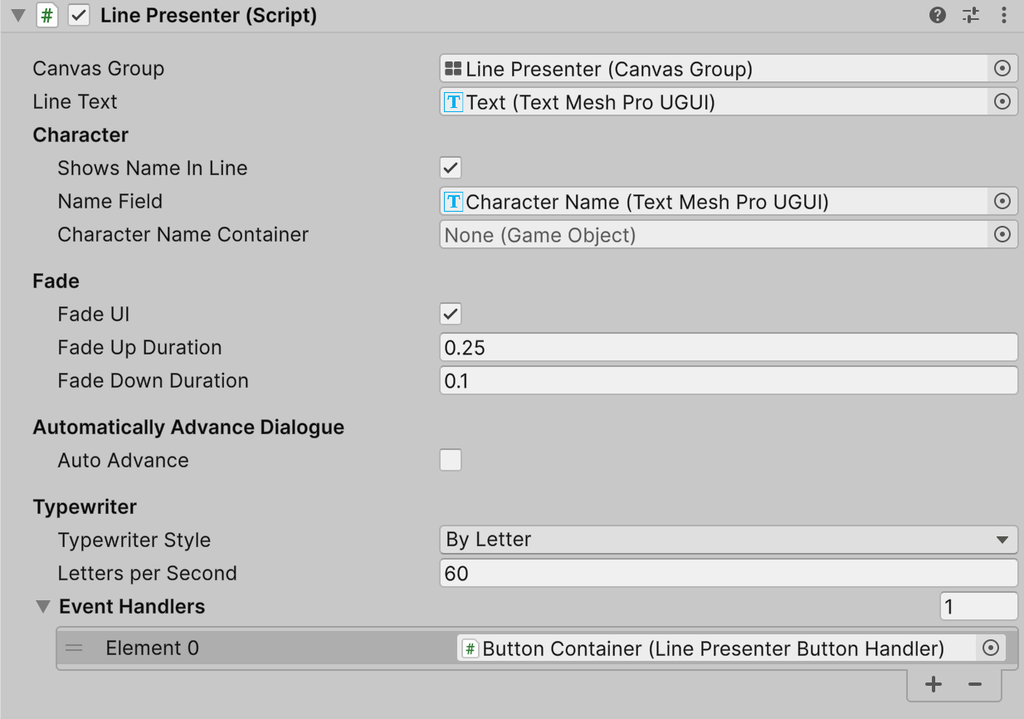
| Setting | Default | What it does |
|---|---|---|
| Canvas Group | none | The Canvas Group that’s faded in and out, and hidden between lines. |
| Line Text | none | The text field that shows the line’s text. |
| Shows Name In Line | On | Only used when there’s no Name Field: keeps the speaker’s name at the start of the text. |
| Name Field | none | The text field that shows the speaker’s name. |
| Character Name Container | the name field | Hidden when a line has no speaker. |
| Fade UI | On | Fades the panel in and out around each line. |
| Fade Up Duration | 0.25 | Seconds to fade in. Only shown when Fade UI is on. |
| Fade Down Duration | 0.1 | Seconds to fade out. Only shown when Fade UI is on. |
| Auto Advance | Off | Moves on by itself once a line has finished typing. |
| Delay Before Advancing | 1 | Seconds to wait before moving on. Only shown when Auto Advance is on. |
| Typewriter Style | By Letter | How the text appears. |
| Letters per Second | 60 | Typing speed in By Letter style. 0 shows the line at once. |
| Words per Second | 10 | Typing speed in By Word style. 0 shows the line at once. |
| Custom Typewriter | none | Your own typewriter, used in Custom style. |
| Event Handlers | empty | Components that run game code partway through a line. See Markup. |