
Importing Yarn Files into Unity
Unity imports each .yarn file as a Yarn Script. A Yarn Script holds the file’s text. It isn’t compiled on its own, and it has no import settings.
Compiling happens in the Yarn Project that includes the file. If a script has a mistake, the error shows in the Console, in the project’s Inspector, and in the script’s Inspector. See When a script has a mistake.
Adding a script
To create a new script, open the Assets menu and choose , or right-click in the Project window and choose the same. Unity creates a script called NewYarnScript, ready for you to rename, with one node in it.
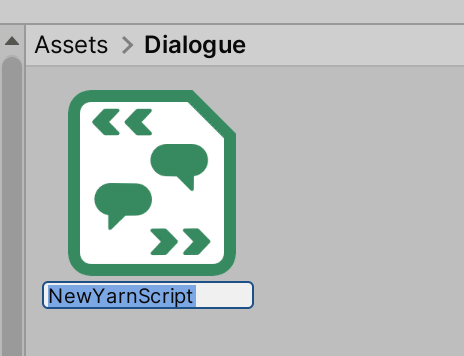
The new script’s node is named after the file:
title: NewYarnScript
---
This is an example of a Yarn Spinner script. Write your dialogue here!
===Put the .yarn file anywhere a Yarn Project’s sourceFiles patterns will match it. With the default pattern, **/*.yarn, that’s the project’s folder or any folder below it. Unity then reimports the project, and the script is part of it.
To check, select the script. Its Inspector shows the Yarn Project it belongs to, under Project. A script that belongs to several projects lists them all, under Projects.
Changing a script
When you save a .yarn file, Unity reimports it, and then reimports every Yarn Project that includes it. The projects compile again.
If you save from VS Code or another editor, Unity picks up the change the next time it checks its files, normally when you switch back to it.
When a script has a mistake
If a script you’ve saved has an error, the Yarn Project that includes it doesn’t compile, and the error is reported in the Console and on the project. The same example appears on the Yarn Projects page.
This script has two nodes with the same title, which isn’t allowed:
title: Start
---
Capsley: Hello!
===

title: Start
---
Capsley: Oh no!
===When you save it, the Console shows one error for each of them, and so does the script’s Inspector:
Rename one of the nodes and save again, and the project compiles.
Opening a script
Unity doesn’t edit Yarn Scripts itself. Write and edit them in VS Code with the Yarn Spinner extension, or the standalone Yarn Spinner Editor. Both have autocomplete, error checking as you type, and a graph view of your nodes.
If you turn on Enable direct connection to VS Code for Yarn Scripts in Project Settings, a Yarn Script’s Inspector has an Open in VS Code button.
Scripts that aren’t in a project
A script that no project includes is never compiled, so none of its nodes can run. Its Inspector says so:
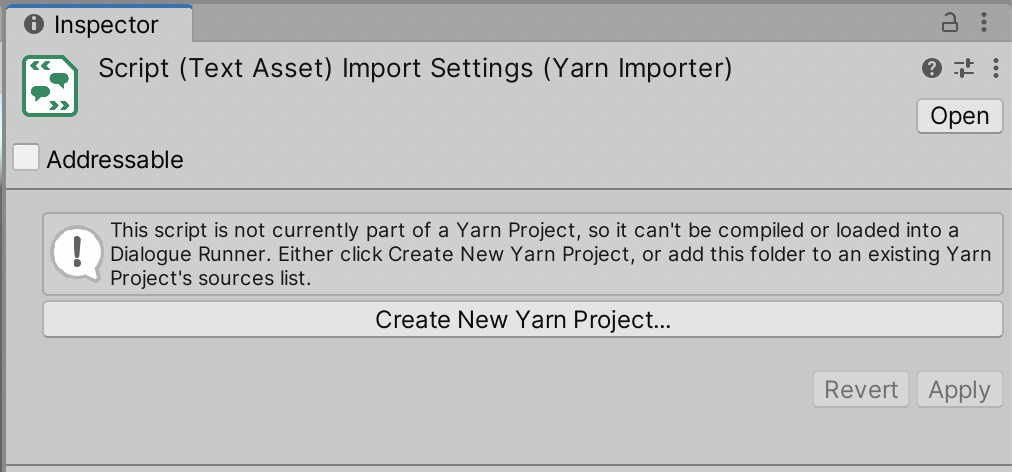
To fix it, click Create New Yarn Project… to make a project for it, move the file somewhere a project’s patterns already match, or add a pattern for it under Source Yarn Scripts in the project’s Inspector and click Apply.
If a change doesn’t show up
- Select the
.yarnprojectand check for an Errors section in its Inspector. If there is one, fix the errors it lists. See When a script has a mistake. - Select the script, and check its Inspector shows the Yarn Project under Project.
- Check the Console for errors that start with
Error compiling. - If you edited the file outside Unity, switch back to Unity so it picks up the change.