
Yarn Projects
A Yarn Project is a .yarnproject file. It lists the .yarn files that make up one set of dialogue (or glob patterns that point to them, such as **/*.yarn), and holds a few settings. Yarn Spinner for Unity compiles the project when Unity imports it, and a Dialogue Runner runs the result.
Most games need one Yarn Project. You can have several, for example one for each part of your game. Each compiles separately, and a Dialogue Runner uses one project at a time.
Creating a project
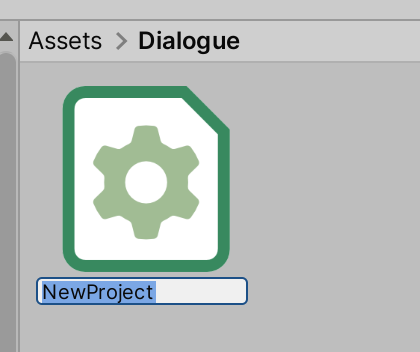
In Unity, open the Assets menu and choose , or right-click in the Project window and choose the same. Unity creates a project called NewProject, ready for you to rename.
If you already have a Yarn Script that isn’t part of a project, select it, and click Create New Yarn Project… in its Inspector. Unity creates a project called Project in the same folder. Yarn Projects created in VS Code with the Yarn Spinner extension are imported the same way.
A .yarnproject file is a plain JSON file with a different extension. Unity creates it and the project’s Inspector edits it, so you’ll rarely open it yourself. A project created in Unity includes these settings:
{
  "projectFileVersion": 4,
  "sourceFiles": ["**/*.yarn"],
  "excludeFiles": ["**/*~/*", "./Samples/Yarn Spinner*/*"],
  "baseLanguage": "en"
}
The base language is the language your computer is set to when you create the project.
Unity doesn’t create a Yarn Script when you create a project. To make one, see Adding a script.
Which scripts are included
sourceFiles is a list of patterns, matched against paths relative to the folder the .yarnproject is in:
*matches any part of a file or folder name.**matches any number of folders, so the default**/*.yarnincludes every.yarnfile in the project’s folder and all folders below it.- A pattern with no wildcards, like
intro/Start.yarn, includes that one file.
The excludeFiles list uses the same patterns to leave files out. A new project leaves out folders whose names end in ~, which Unity ignores too, and the Yarn Spinner samples. To leave out a folder of your own, add a pattern for it:
{
  "projectFileVersion": 4,
  "sourceFiles": ["**/*.yarn"],
  "excludeFiles": ["**/*~/*", "./Samples/Yarn Spinner*/*", "drafts/**/*.yarn"],
  "baseLanguage": "en"
}
A .yarn file can belong to more than one project. You can edit sourceFiles in the Inspector rather than by hand. See Source Yarn Scripts.
Compiling
Unity compiles a Yarn Project when it imports it: when you first add it, when you change the .yarnproject file, and when you change any .yarn file it includes. Yarn Spinner compiles it inside Unity, so you never run the Yarn Spinner compiler yourself.
The Functions you’ve written in C# are part of compiling too. The Yarn Project uses them to check that your scripts call them correctly.
When compiling fails
If a script has an error, the project still imports, with a list of errors instead of a compiled program. The errors appear in three places:
- The Console, one per error, each starting with
Error compiling, followed by the file and line. - The Yarn Project’s Inspector, under Errors, grouped by script.
- The Yarn Script’s Inspector, for the errors in that script.
For example, this script has two nodes with the same title, which isn’t allowed:
title: Start
---
Capsley: Hello!
===

title: Start
---
Capsley: Oh no!
===The Yarn Project reports one error for each of them:
Fix the script and save it, and the project compiles again. In this example, rename one of the nodes.
The Yarn Project Inspector
Select a .yarnproject in the Project window to see its settings in the Inspector.
The sections are:
| Section | What it shows |
|---|---|
| Errors | Only shown when compiling failed. Each error is listed under the script it’s in. |
| Source Yarn Scripts | The project’s sourceFiles patterns, one per row, each with a Delete button beside it. Add adds another row. |
| Localisation | The project’s Base Language, and a section for each other language, with its strings file and the folder its assets are in. Add Localisation adds a language, and Update Existing Strings Files brings each language’s strings file up to date with your scripts. See Localising Your Game. |
| Use custom line tagging | When it’s on, the line IDs that Add Line Tags to Yarn Scripts makes come from a line tagger class of your own, chosen from a list. |
| Add Line Tags to Yarn Scripts | Adds a #line: tag to every line that doesn’t have one, by changing your .yarn files. It’s only available when some lines need one. |
| Export Strings and Metadata as CSV | Saves every line in the project to a CSV file, and the lines’ tags to a second CSV file, for translating. |
| Generate Variables Source File | Settings for generating a typed variables class, described below. |
If Unity’s Localization package is installed, the Localisation section also has Use Unity Localisation System. Turn it on to keep the project’s lines in a Unity String Table Collection instead.
Below the settings, the Imported Object section shows what the project contains: Yarn Scripts, the scripts it includes, and Variables, every variable declared in them, with its type, starting value, and the script it’s declared in.
Applying changes
Changes you make in the Inspector aren’t saved until you click Apply, which writes them to the .yarnproject and recompiles. Revert throws them away. If you select something else while there are unapplied changes, Unity asks which you want.
Add Line Tags to Yarn Scripts is turned off while there are unapplied changes.
Generating a typed variables class
If you’d like to use typed properties in C# to access the variables from your Yarn Project, Yarn Spinner can generate a Variable Storage class from the variables your scripts declare.
Without the class, you get a variable by typing its name as text, like storage.TryGetValue<float>("$gold", out var gold). If you mistype the name, or the variable changes type, you only find out when the game runs.
With the class, you write variables.Gold instead. Your code editor autocompletes it, knows it’s a float, and your code won’t compile if you get the name wrong.
- Select the Yarn Project, and turn on Generate Variables Source File in the Inspector.
- Set Variables Class Name. The default is
YarnVariables. - Set Variables Class Namespace, if you want the class in a namespace. By default it isn’t in one.
- Set Variables Parent Class. The default is
InMemoryVariableStorage, and the list includes any Variable Storage classes of your own. - Click Apply.
The class is written to a .cs file named after the class, next to the .yarnproject, for example YarnVariables.cs. It’s rewritten every time the project compiles, so don’t edit it.
For each declared variable, the class has a property with the matching C# type, named without the $ and in Pascal case. $gold becomes Gold, and $has_sword becomes HasSword. Enums declared in Yarn become C# enums.
To use the class, add it to a GameObject in your scene and set it as the Dialogue Runner’s Variable Storage. See Variables and Storage.
The .ysls.json file
When your C# scripts compile, Yarn Spinner writes a .ysls.json file listing the Commands and Functions you’ve marked with the [YarnCommand] and [YarnFunction] attributes. The Yarn Spinner extension for VS Code can read it to autocomplete and check your commands.
The file is written to ProjectSettings/Packages/dev.yarnspinner/, with one file for each of your C# assemblies, such as Assembly-CSharp-generated.ysls.json. To stop writing it, turn off Generate YSLS file for attributed methods in Project Settings.