
Installing Yarn Spinner for Unity
You can download and install Yarn Spinner for Unity in several ways.

We recommend getting Yarn Spinner for Unity by buying Yarn Spinner+ for Unity from the Unity Asset Store or our itch.io store. Buying it supports us to keep making Yarn Spinner, and it comes with three extras: Text Animator for Yarn Spinner*, Classic RPG and Snaaake.
* Text Animator for Yarn Spinner is an integration. It connects Yarn Spinner to Text Animator for Unity, which is made by Febucci and sold separately.
Install from the Unity Asset Store
First, visit the Unity Asset Store page for Yarn Spinner for Unity, and add it to your cart, and complete your purchase while logged into the same Unity account you use to activate Unity.
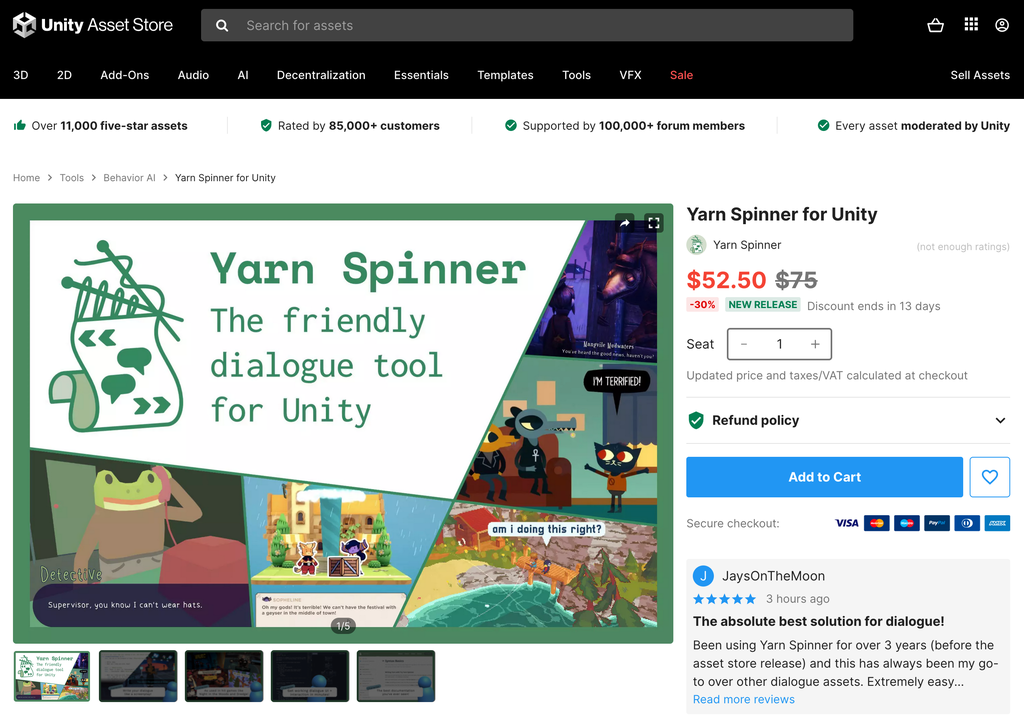
Once you’ve purchased Yarn Spinner for Unity, you’ll find the Add to Cart button replaced by an Open in Unity button. Click this button to launch Unity, and the Package Manager will locate your purchased package:

Once the Package Manager has located the package, you can use the Download button to fetch it:
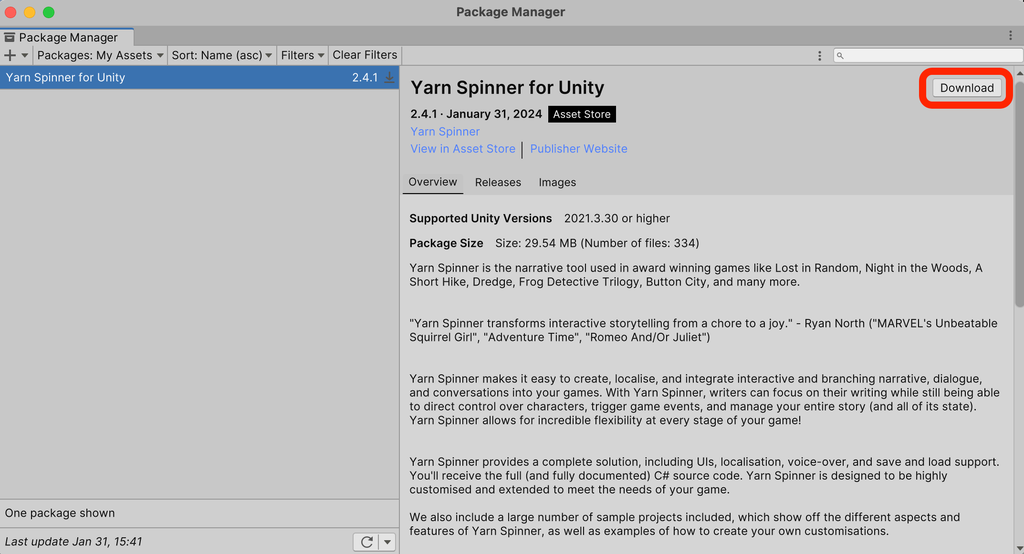
Once Yarn Spinner for Unity has downloaded, you can use the Import button to start the process of adding it to your project:

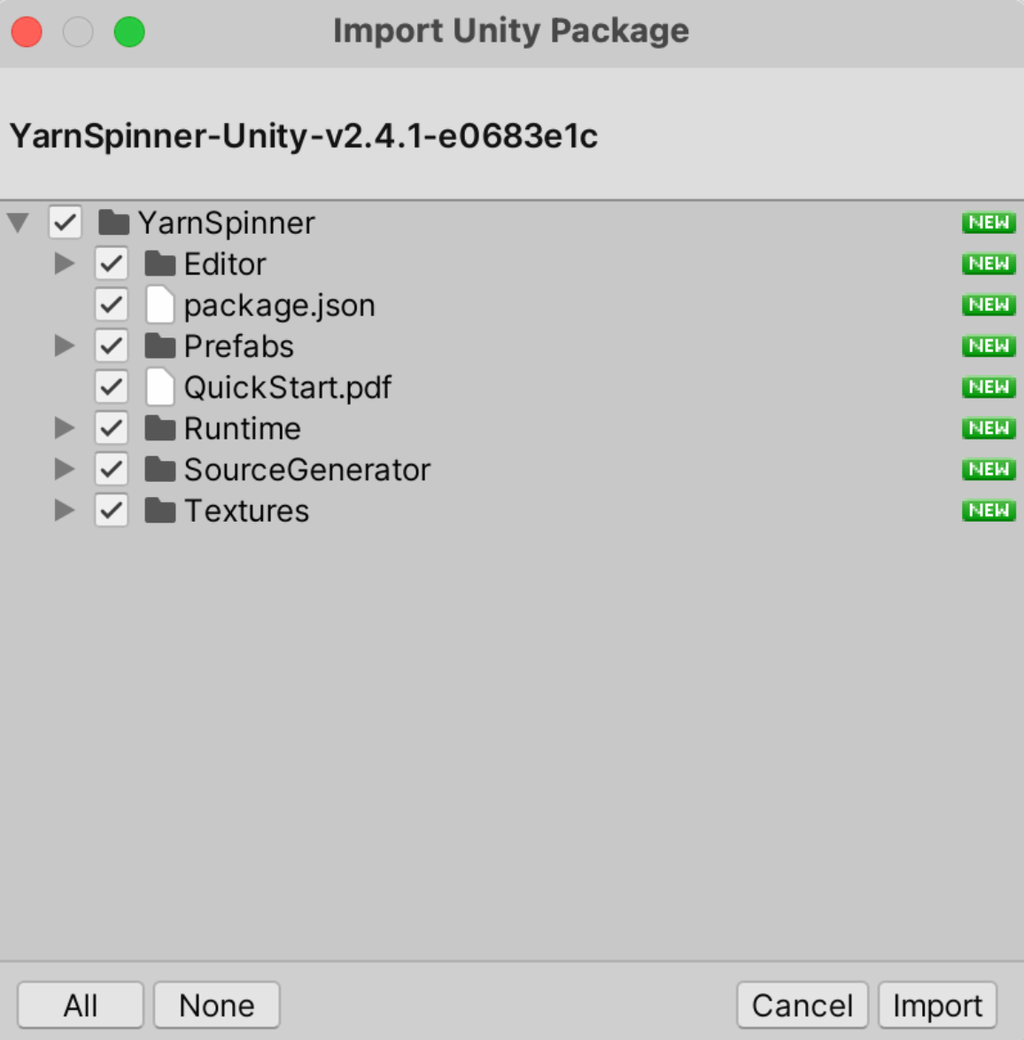
This will trigger the Import Unity Package workflow, where you can use the Import button to add the Yarn Spinner for Unity package to your project:
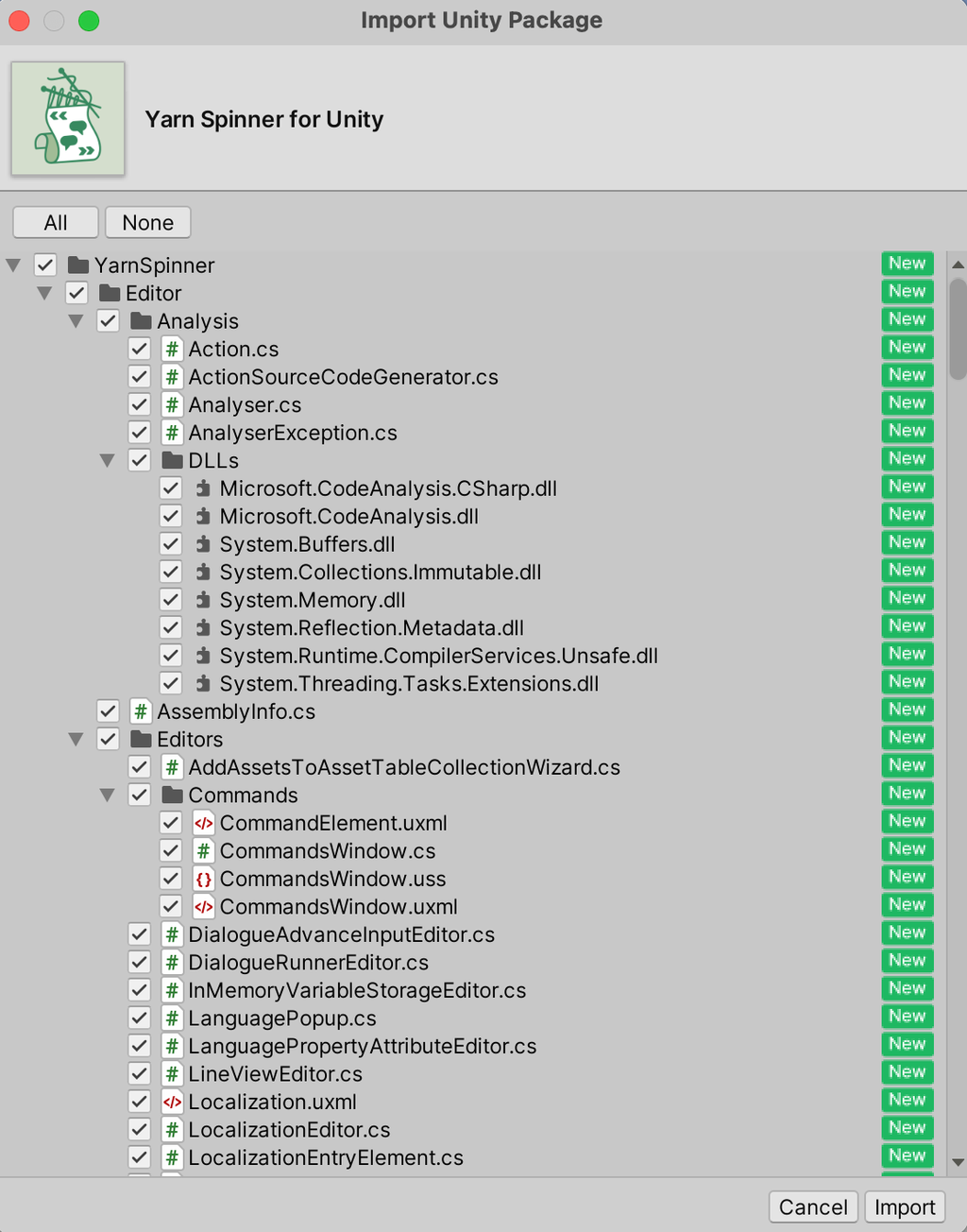
Yarn Spinner is now installed. You might also want to download and import the Yarn Spinner for Unity Samples as a .unitypackage, from here.
Install from Itch.io
First, visit the Yarn Spinner Itch.io Store, and click the Buy Now button, and complete the checkout process.
Once you’ve purchased Yarn Spinner, you’ll find a Download button at the top of the page:
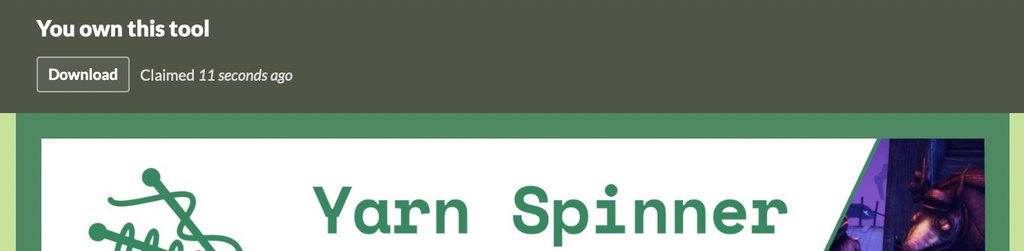
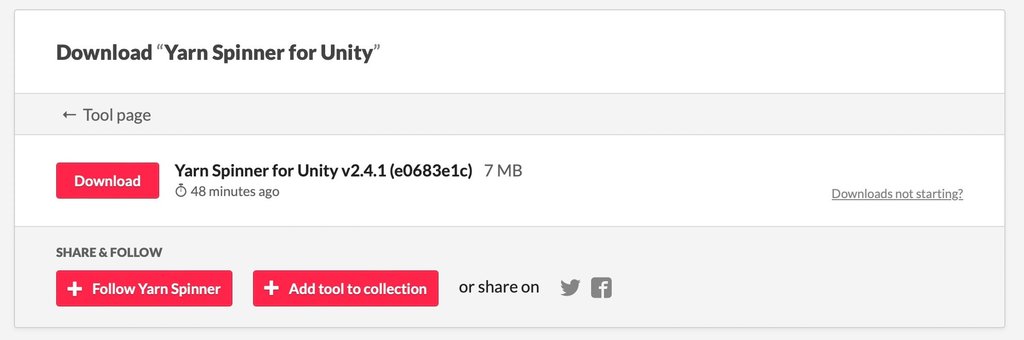
The download button will take you the following page, where you can download the Yarn Spinner for Unity .unitypackage:
Once you’ve downloaded the .unitypackage, with the Unity project you want to use it in open, double click it. Unity then lets you import the package into your project:
Install from GitHub
As an alternative to downloading Yarn Spinner from OpenUPM, you can install Yarn Spinner by downloading the package directly from GitHub, where the project’s source code is stored.
.unitypackage from the Yarn Spinner Itch.io or the Unity Asset Store.To install Yarn Spinner from GitHub, follow these instructions.
- Make sure your system has Git (minimum version 2.14.0) installed.
- In Unity, open the Window menu, and choose Package Manager.
- Click the
+button, and choose “Add package from git URL”. - In the text field that appears, enter the following URL:
https://github.com/YarnSpinnerTool/YarnSpinner-Unity.git#current
Type the URL exactly as it appears in this document. - The project will download and install. This might take a moment.
Install via OpenUPM
You can also install the Yarn Spinner package into your project using the Package Manager window in Unity. Yarn Spinner is available via the OpenUPM registry.
To follow the instructions in this section, your project needs to be using Unity 2020.1 or higher. If your project is using an earlier version of Unity, we recommend installing Yarn Spinner from Git.
.unitypackage from Itch.io or the Unity Asset Store.Setting Up the OpenUPM Registry in Your Project
Before you can install Yarn Spinner from OpenUPM, you first need to configure your project so that it knows where to get the package from.
- In Unity, open the Edit menu, and choose Project Settings.
- In the list of sections at the left hand side of the window, select Package Manager.
This window is where you tell Unity about where to find packages that come from registries besides Unity’s built-in one.
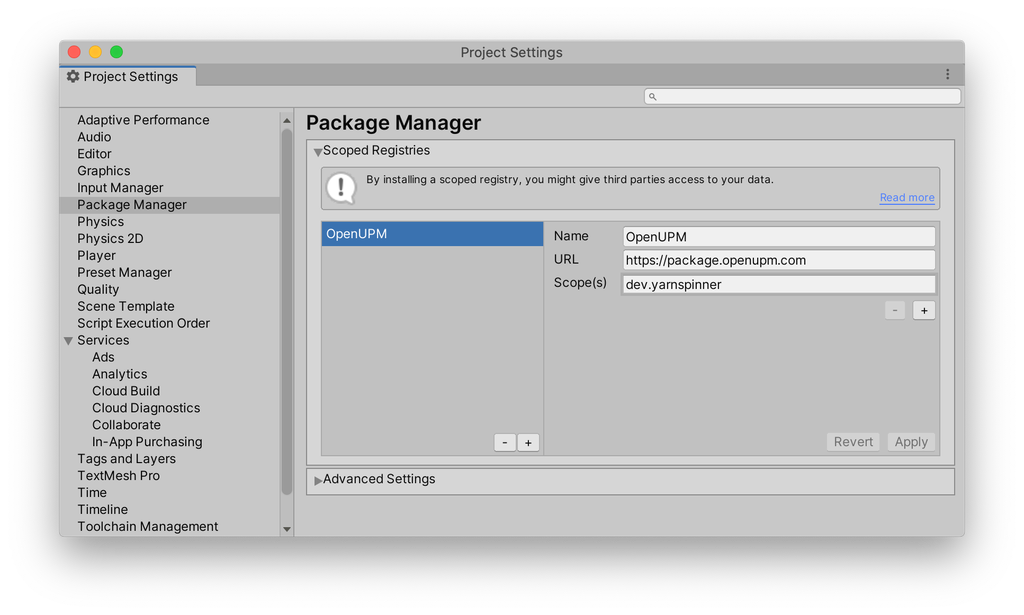
- In the Name field, type
OpenUPM. - In the URL field, type
https://package.openupm.com. - In the Scopes field, type
dev.yarnspinner. - Click Save.
When you’re done, the settings window should look like this:
You can now install Yarn Spinner itself.
Installing the Yarn Spinner package
- Open the Window menu, and choose Package Manager.
- In the toolbar, click Packages: In Project, and choose My Registries.
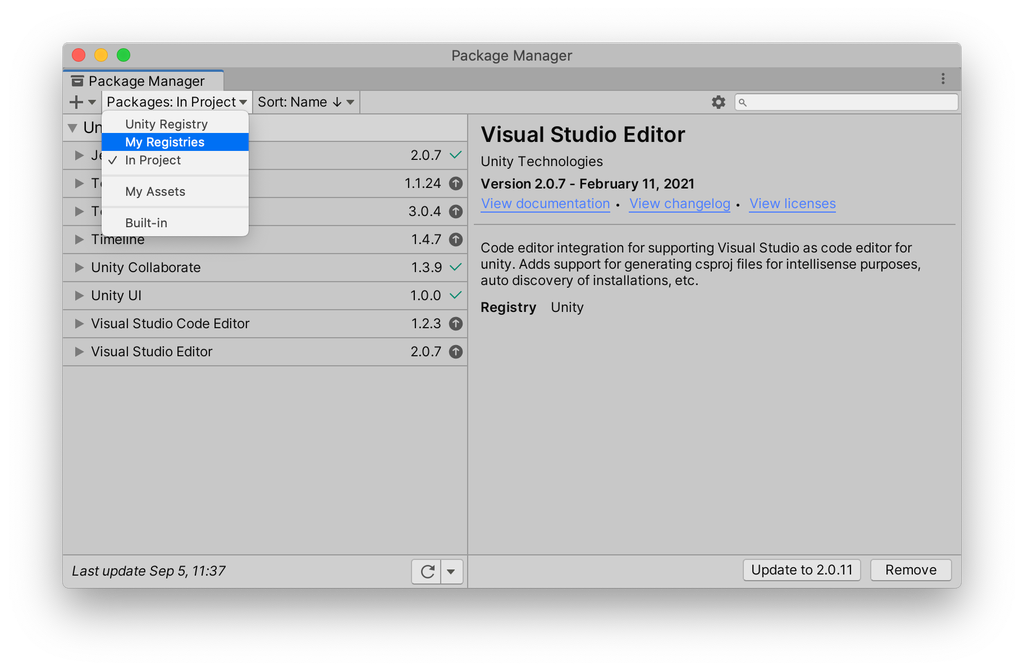
- Yarn Spinner will appear in the list. Select it, and click Install.
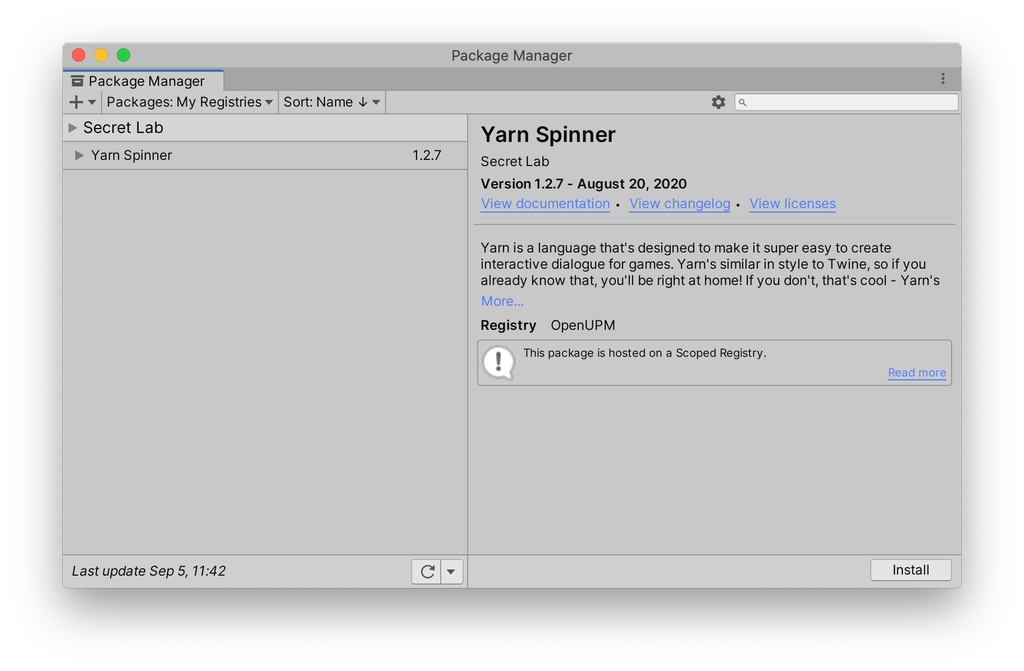
Yarn Spinner will download and install into your project.
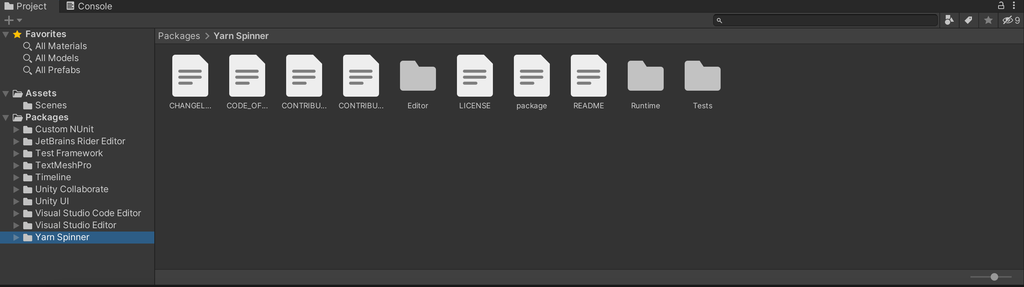
You can verify that everything is imported successfully by looking for Yarn Spinner under Packages, in the Project pane.
What’s the difference between the versions?
| Itch.io | Asset Store | Manual | |
|---|---|---|---|
| Full Unity Integration | ✅ Included | ✅ Included | ✅ Included |
| Text Animator for Yarn Spinner | ✅ Included | ✅ Included | |
| Unity Localization | ✅ Included | ✅ Included | ✅ Included |
| Voice-over | ✅ Included | ✅ Included | ✅ Included |
| Community Support | ✅ Included | ✅ Included | ✅ Included |
| Direct Support | ✅ Included | ✅ Included |