
Voice Over
This sample plays a recorded voice clip with each line. It’s a short conversation between Tom, who has no idea where he is, and Anne, who’s trying to help. The lines are shown as subtitles at the bottom of the screen while the clips play. Tom’s text is yellow and Anne’s is cyan.
The text is translated into German, Chinese, Brazilian Portuguese and Spanish, and the lines are recorded in English, German, Chinese and Brazilian Portuguese. You can change the language before the conversation starts, or part way through it.
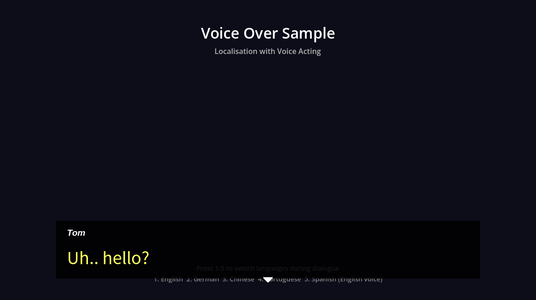
Running it
Open samples/voice_over/scenes/voice_over.tscn and press Run Current Scene. The sample has sound.
- Pick a language from the menu, then click Start Dialogue.
- Press Enter or Space, or click, to continue to the next line. Click an option to choose it.
- During the conversation, press 1 for English, 2 for German, 3 for Chinese, 4 for Brazilian Portuguese, or 5 for Spanish.
The conversation doesn’t move on by itself. Each line stays on screen after its clip finishes, until you continue. If you continue before the clip has finished, it fades out quickly and the next line starts.
When the conversation ends, the screen cuts to black, and the language menu and the Start Dialogue button come back, so you can play it again in another language.
There are no Spanish recordings. In Spanish, the text is Spanish, and the English clips play.
How it works
The Dialogue Runner has four Presenters, and gives every line to all of them:
- The Line Presenter shows the line’s text, and waits for the player to continue.
- The Options Presenter shows the choice, with the line before it above the options.
CharacterColorPresenter, fromscripts/character_color_presenter.gd, colours the text by who’s speaking. It’s a small Presenter of its own that sets the colour of the Line Presenter’s and Options Presenter’s labels, then returns immediately.- The Voice-Over Presenter plays the line’s clip through its
AudioPlayer.
The Dialogue Runner moves on once every Presenter has returned. The Voice-Over Presenter has End Line When Voice Complete turned off, so when a clip finishes, nothing ends the line, and the Line Presenter keeps waiting for the player. Wait Time Before Start is 0.25 and Wait Time After Complete is 0.5, which leaves a short gap before and after each clip. See Voice-Over.
The Dialogue Runner’s Show Selected Option as Line is on. When the player picks an option, like “Who are you?”, it runs as a line, so Tom says it aloud.
Line IDs and clips
Every line in VoiceOver.yarn has a #line: tag, and each clip is named after its line’s ID:
<<set_fade_color 1>>

<<wait 2>>

<<fade_up 2>>

<<wait 1>>

// The start of our conversation!
Tom: Uh.. hello? #line:tutorial-tom-01 // tentative
Tom: Is anyone there? #line:tutorial-tom-02

Anne: Hi there! #line:tutorial-anne-01 // chirpyscripts/fade_effect.gd, on the FadeOverlay node. The screen goes black, then fades in over two seconds.tutorial-tom-01.wav: the line ID without the line: part. The comment after it is a note on how to read the line. Players don’t see comments.tutorial-anne-01.wav.The clips are in a folder for each language:
samples/voice_over/dialogue/audio/en/tutorial-tom-01.wav
samples/voice_over/dialogue/audio/de/tutorial-tom-01.wav
samples/voice_over/dialogue/audio/zh/tutorial-tom-01.wav
samples/voice_over/dialogue/audio/pt_BR/tutorial-tom-01.wavChoosing the language
The scene’s script, scripts/voice_over_sample.gd, points the Dialogue Runner at the English clips when the scene starts:
dialogue_runner.set_audio_base_path("res://samples/voice_over/dialogue/audio/en/")The clips in the other languages come from Godot’s translation remaps. In , each English clip has a German, Chinese and Brazilian Portuguese clip listed for it. When the language is German, loading en/tutorial-tom-01.wav gives you de/tutorial-tom-01.wav instead. Spanish has no remaps, so the English clip is used.
The text comes from Godot’s translations. VoiceOver.strings.csv has a row for each line, keyed by its line ID with YARN_ in front, and a column for each language. Godot imports it as five .translation files, which are listed in . See Localising Your Game.
keys,en,de,zh,pt_BR,es
YARN_line:tutorial-tom-01,Tom: Uh.. hello?,Tom: Ah. Hallo?,Tom: 呃……有人吗?,Tom: Ahm… ola?,Tom: Uh… ¿Hola?
YARN_line:tutorial-tom-02,Tom: Is anyone there?,Tom: Ist da jemand?,Tom: 有人在吗?,Tom: Tem alguem ai?,Tom: ¿Hay alguien ahí? Both the text and the clips follow Godot’s current locale, so changing the language only takes one call. The languages are set up in the scene. LanguageMenu lists them in the Inspector, and the script’s Locales setting has the locale code for each one, in the same order: en, de, zh, pt_BR and es. The menu’s item_selected signal, the Start Dialogue button’s pressed signal and the Dialogue Runner’s dialogue_completed signal are connected to the script in the scene, too.
The language menu and the number keys both call TranslationServer.set_locale():
func _set_language(index: int) -> void:
	language_menu.select(index)
	TranslationServer.set_locale(locales[index])
	print("Language set to: %s (%s)" % [language_menu.get_item_text(index), locales[index]])


func _input(event: InputEvent) -> void:
	# quick language switch with number keys (for testing)
	if event is InputEventKey and event.pressed:
		var index: int = (event as InputEventKey).keycode - KEY_1
		if index >= 0 and index < locales.size():
_set_language(index)The line that’s already showing doesn’t change. The new language starts with the next line.
Things to try
- Select
VoicePresenterand turn on End Line When Voice Complete. Each line now moves on by itself, half a second after its clip finishes. - On
VoicePresenter, set Fade Out Time on Interrupt to 1, then continue part way through a line. The clip fades out over a second instead of stopping almost at once.