
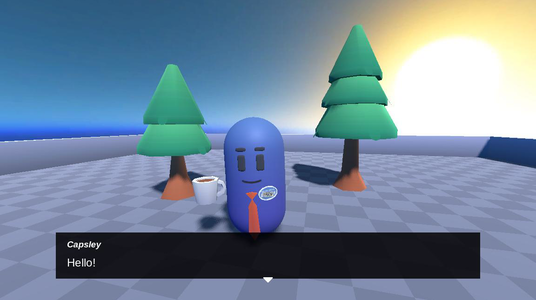
Simple 3D is the smallest 3D setup in the samples. Capsley stands in a small arena between two trees, and says one line, “Hello!”. There’s no player to move and nothing to set up in code. The dialogue comes from the shared dialogue scene in samples/shared, with only its Yarn Project changed.
Running it
Open samples/simple_3d/simple_3d.tscn and click Run Current Scene. The dialogue starts by itself.
- Press Enter or Space, or click, to show the whole line or end the dialogue.
How it works
The scene is made almost entirely of shared pieces from samples/shared:
CharacterBody3Dis Capsley, fromsamples/shared/scenes/explanation_character.tscn.BasicArenaissamples/shared/scenes/Basic Arena.tscn, the floor and low walls.Dialogueissamples/shared/scenes/dialogue.tscn, with Editable Children turned on.
The shared dialogue scene has almost everything the dialogue needs. Its YarnDialogueRunner has Auto Start on, its Start Node is Start, and its Presenters are the shared LinePresenter and OptionsPresenter from samples/shared/ui. It has no Yarn Project, because each scene that uses it sets its own. Here, Editable Children is turned on for the Dialogue instance, and the YarnDialogueRunner’s Yarn Project is set to Simple3D.yarnproject. The Welcome sample uses the same shared scene in the same way.
The whole Yarn Script is one node:
title: Start
---
Capsley: Hello!
===To get the same dialogue in your own 3D scene, add a Dialogue Runner with a Yarn Project, a Line Presenter and an Options Presenter on a CanvasLayer, and turn on Auto Start. Nothing about it is specific to 3D.
Adding Presenters from code
The root node’s script, simple_3d.gd, is all comments. It shows the other way to give the Dialogue Runner its Presenters, which is to add them in code rather than listing them in the Inspector:
extends Node3D

# @onready var dialogue_runner: YarnDialogueRunner = $Dialogue/YarnDialogueRunner
# @onready var line_presenter = $Dialogue/UILayer/LinePresenter
# @onready var options_presenter = $Dialogue/UILayer/OptionsPresenter

# # Called when the node enters the scene tree for the first time.
# func _ready() -> void:
# 	dialogue_runner.add_presenter(line_presenter)
# dialogue_runner.add_presenter(options_presenter)Adding a Presenter that’s already in the list does nothing, so to try the code version, clear the Dialogue Runner’s Presenters first, then uncomment the code. Setting the Presenters in the Inspector, as this scene does, is usually simpler. See Adding Presenters.
Things to try
- Add more lines to
Simple3D.yarn, or some options. The shared Options Presenter shows them with no other changes. - Select
Dialogue/YarnDialogueRunnerand turn off Auto Start. Nothing happens when the scene runs, because nothing starts the dialogue.