
This sample reads a compiled Yarn node from GDScript. Before a node runs, it finds every Command in the node, and works out which assets those Commands need, so they can be loaded ahead of time.
Nothing is loaded for real. The Commands print messages to Godot’s Output panel, and the first time a Command sees an asset, it waits a second to stand in for a slow load. When you run the sample, Capsley explains what’s going on, then asks whether to run the next node with the “preload” or without it. With the preload, the Commands finish instantly. Without it, each one pauses for a second.
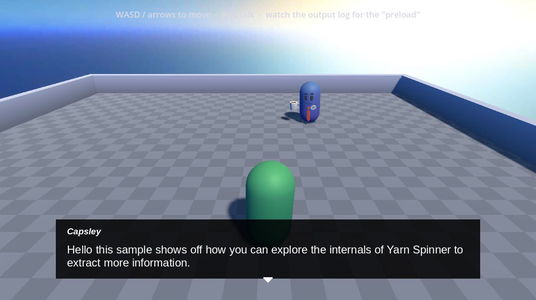
Running it
Open samples/node_internals/node_internals.tscn and press Run Current Scene. Keep the Output panel open, because that’s where the results appear.
- Move with W, A, S and D, or the arrow keys.
- Walk up to Capsley and press E to talk.
- Press Enter or Space, or click, to continue.
You can talk to Capsley again after the conversation ends. The explanation at the start only appears the first time, because it’s in a <<once>> block.
How it works
The CommandAssetPreloader node registers five Commands with the Dialogue Runner, using add_command():
| Command | What it does |
|---|---|
<<preload_command_assets>> | Finds the assets the commands node needs, and marks them as loaded. |
<<clear_preload>> | Forgets everything that’s been marked as loaded. |
<<set_background>> | Stands in for showing a background. |
<<set_music>> | Stands in for playing music. |
<<character_avatar>> | Stands in for showing a character’s picture. |
Its Preload Node Name, set to commands in the Inspector, names the node it looks through.
Each Command is registered with its own add_command() call, so when the Yarn Project is imported, Yarn Spinner finds all five and lists them in Internals.ysls.json, which the Yarn Spinner extension for VS Code reads to suggest them as you type. See The .ysls.json file.
The Yarn Script
At the end of the Start node, the player picks whether to preload, and then the dialogue jumps to the commands node:
-> launch with the "preload"
    <<preload_command_assets>>
-> launch without the "preload"
    <<clear_preload>>

<<jump commands>>
===

title: commands
---
Capsley: this node has a lot of commands in it that are intended to simulate a bunch of commands that need to load assets and resources
<<set_background castle>>
<<set_music "cool beats to slay dragons to">>
<<character_avatar Glenn>>
<<character_avatar Liz>>
<<character_avatar EvilDave>>
<<character_avatar RegularDave>>
Capsley: aaaaaaand donecommands node now, and mark its assets as loaded.Finding the node
CommandAssetPreloader gets the compiled node from the Dialogue Runner’s Yarn Project:
func _get_node_to_preload() -> YarnNode:
	if dialogue_runner == null or dialogue_runner.yarn_project == null:
		return null
	var program := dialogue_runner.yarn_project.get_program()
	if program == null:
		return null
return program.get_node(preload_node_name)commands, as a YarnNode.A YarnNode holds the node’s compiled instructions, and its headers, which you can read with get_header().
Finding the Commands
<<preload_command_assets>> goes through the node’s instructions one at a time, and keeps the ones that run a Command:
func _preload_command_assets() -> void:
	var node := _get_node_to_preload()
	if node == null:
		return

	for instruction in node.instructions:
		# the vast majority of instructions are RunLine; we only want commands
		if instruction.opcode != YarnInstruction.OpCode.RUN_COMMAND:
			continue

		# split the command text the same way the runner does at dispatch
		var elements := YarnCommandParser.parse(instruction.command_text)

		# every command we care about takes exactly one argument, so anything
		# else can be skipped (a real game might handle these cases per command)
		if elements.size() != 2:
			continue

		match elements[0]:
			"set_background":
				_backgrounds[elements[1]] = true
			"set_music":
				_music[elements[1]] = true
			"character_avatar":
				_avatars[elements[1]] = true

	print("preloaded backgrounds: %s" % str(_backgrounds.keys()))
	print("preloaded music: %s" % str(_music.keys()))
print("preloaded avatars: %s" % str(_avatars.keys()))set_music "cool beats to slay dragons to" becomes two parts, because the quotes keep the name together.This finds every Command in the node, wherever it is. A Command inside an <<if>> or an option is found even if the dialogue never reaches it.
The Commands that use the assets
<<set_background>>, <<set_music>> and <<character_avatar>> all call _ensure_loaded(), with the list for their kind of asset:
func _ensure_loaded(cache: Dictionary, asset: String, done_message: String) -> Variant:
	if not cache.has(asset):
		cache[asset] = true
		push_warning("%s is not already \"loaded\", pretending to do that now" % asset)
		await get_tree().create_timer(1.0).timeout
	else:
		print("%s has already been \"loaded\"" % asset)
	print(done_message % asset)
return nullBecause the method uses await, the dialogue waits for it before going on. If you chose to launch without the preload, the six Commands take six seconds between them, and the Output panel shows a warning for each asset. With the preload, each one prints that it has already been “loaded”, and Capsley’s next line appears immediately.
Capsley’s last line has a [link] on “CommandAssetPreloader”. The LinkOpener node under the Line Presenter opens command_asset_preloader.gd when it’s clicked.
Things to try
- Change Preload Node Name on
CommandAssetPreloadertoStart, and launch with the preload. None of the six assets are found, because their Commands are incommands, so every one of them pauses. - Add
<<character_avatar Glenn>>a second time in thecommandsnode. Without the preload, the second one doesn’t pause, because the first one has already “loaded” Glenn.