
This sample replaces the standard Options Presenter with a custom one, TimeoutOptionsPresenter. When a group of options is set up for it, a white bar appears under the options and shrinks towards its centre. If the player hasn’t picked an option by the time the bar is empty, the Presenter picks one for them.
The sample shows three ways of deciding which option gets picked. When you run it and talk to Alice, she asks which one you’d like to see:
- A hidden fallback option. The option tagged
#fallbackisn’t shown, and it’s picked if time runs out. - A default option. The option tagged
#defaultis shown like the others, and it’s picked if time runs out. - The last highlighted option. The
<<auto_opt>>Command turns this on, and whichever option was selected last is picked if time runs out.
Alice’s first set of options has no tags and no Command, so it has no countdown.
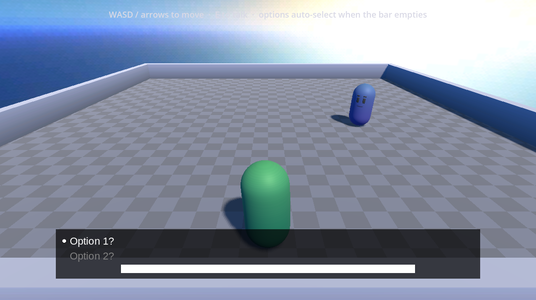
Running it
Open samples/options_that_timeout/options_that_timeout.tscn and click Run Current Scene.
- Move with WASD or the arrow keys.
- Press E near Alice to talk to her.
- Press Enter or Space, or click, to show the whole line or go to the next one.
- Click an option to pick it, or move between options with the arrow keys and press Enter or Space to pick the selected one.
Alice’s second line has a link to the custom Presenter. Clicking it opens timeout_options_presenter.gd, using the LinkOpener node under the Line Presenter.
How it works
LinePresenter is an instance of the sample’s scenes/line_presenter.tscn, which uses the standard Line Presenter script. OptionsPresenter uses timeout_options_presenter.gd, a YarnDialoguePresenter that only handles options. Its Auto Select Duration is set to 5 seconds in the scene. To see how a Presenter like this fits together, read Building Your Own Presenter.
Tagging the options
In the Yarn Script, the options in FallbackExample and DefaultExample each have one option with a tag:
-> Option 1?
    Alice: option 1 was selected
-> Option 2?
    Alice: option 2 was selected
-> Option 3? #fallback
Alice: The hidden fallback option was selected-> Option 1? #default
Alice: option 1 was selected
Alice: this is the default.
-> Option 2?
Alice: option 2 was selectedThe LastHighlightExample node uses a Command instead of a tag:
<<auto_opt>>
-> Option 1?
    Alice: option 1 was selected
-> Option 2?
    Alice: option 2 was selected
===The Presenter registers <<auto_opt>> itself, the first time a dialogue starts, by calling dialogue_runner.add_command("auto_opt", _arm_last_highlighted). The Command sets a flag, and the Presenter clears it once the options are done. See Commands.
Choosing the mode
Each time the Presenter gets a group of options, it works out which mode to use from the Command flag and the options’ tags:
func _resolve_mode() -> TimeoutMode:
	if _auto_opt_armed:
		return TimeoutMode.LAST_HIGHLIGHTED
	for option in _options:
		if not option.is_available:
			continue
		for tag in _metadata_for(option):
			if tag == HIDDEN_FALLBACK:
				return TimeoutMode.HIDDEN_FALLBACK
			if tag == VISIBLE_DEFAULT:
				return TimeoutMode.VISIBLE_DEFAULT
return TimeoutMode.NONE<<auto_opt>> ran before these options._metadata_for() returns the option’s tags. If the option doesn’t have any, it looks them up by line ID in the compiled Yarn Project.HIDDEN_FALLBACK is "fallback" and VISIBLE_DEFAULT is "default".The Presenter then checks that the options make sense. A #default or #fallback group must have exactly one tagged option, and an <<auto_opt>> group must have none. If the check fails, it prints an error and returns -1, so it doesn’t show those options.
It makes each button from its Option Button Scene, which is set to the shared option_item.tscn in the Inspector. When it makes the buttons, it leaves out the option tagged #fallback, and connects each button’s focus_entered signal to track which option was selected last. It gives focus to the first button, so last highlighted mode always has an option to pick.
Running the countdown
After the options fade in, the Presenter starts the countdown. TimeoutBar shrinks its Fill child from full width to nothing over Auto Select Duration seconds. When it’s empty, the Presenter picks an option:
func _run_timeout(mode: TimeoutMode, default_index: int) -> void:
	await timeout_bar.shrink(auto_select_duration)
	# shrink() also returns when cancelled; bail if a click already won.
	if not _is_showing:
		return
	var index := default_index
	if mode == TimeoutMode.LAST_HIGHLIGHTED:
		index = _last_highlighted_index
		if index < 0:
			index = _first_available_index()
	if index < 0:
		return
_select(index)shrink() also returns early when the bar is stopped. If the player already picked an option, there’s nothing to do.When the player clicks an option before the bar runs out, the Presenter stops the bar, fades the options out, and returns the option’s index to the Dialogue Runner.
The Dialogue Runner has its own time limit for options, Option Timeout. When that runs out, the dialogue carries on after the options without picking one. This sample picks an option instead, so the dialogue goes down that option’s branch. See Time limits.
Things to try
- Select
OptionsPresenterand change Auto Select Duration from 5 to a larger number. The bar shrinks more slowly. - Remove the
<<auto_opt>>line fromLastHighlightExampleinTimeouts.yarn. Those options then have no countdown. - Add
#defaulttoOption 2?inDefaultExample, so two options have the tag. The Presenter prints an error and doesn’t show those options.