
This sample shows dialogue as a conversation in a messaging app. It doesn’t use the Line Presenter or the Options Presenter. One custom Presenter, ChatDialoguePresenter, handles both lines and options, and adds each one to a scrolling list of message bubbles.
When you run it, the conversation starts by itself. Each message first appears as a bubble with three pulsing dots, as if the sender were typing, and then the dots are replaced by the text. Messages from A are green and on the right. Messages from B are blue and on the left. Partway through, three replies appear at the bottom of the screen, and the conversation waits until you pick one.
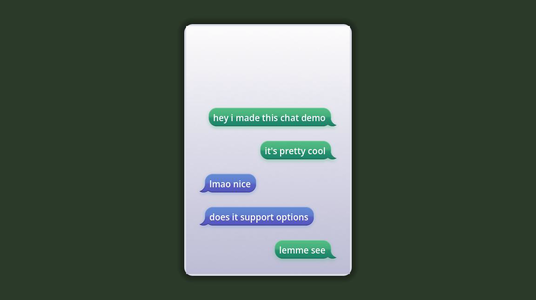
Running it
Open samples/phone_chat/phone_chat.tscn and click Run Current Scene.
The lines move on by themselves. When the replies appear, click one to send it.
How it works
On the Dialogue Runner, Auto Start is on, so the dialogue starts at the Start node when the scene loads. Show Selected Option as Line is on as well, so the reply you pick appears as a message. See Dialogue Runner.
The dialogue
title: Start
---
<<wait 0.5>>
A: hey i made this chat demo
A: it's pretty cool
B: lmao nice
B: does it support options
A: lemme see
-> A: yep
-> A: uh huh
-> A: think so
B: nice, i bet it also supports wrapping text over multiple lines
<<wait 3>>
A: show off
<<wait 1>>
System: Blue has left the chat
===<<wait>> Command pauses before the first message.A:. The one you pick is then shown as a line from A, because Show Selected Option as Line is on.Choosing a bubble for each character
ChatPresenter’s Bubble Scenes property is a dictionary from character names to scenes:
| Character | Scene |
|---|---|
A | message_bubble_a.tscn |
B | message_bubble_b.tscn |
System | message_bubble_system.tscn |
Lines from any other character, or with no character, use Default Bubble Scene, which is set to message_bubble_b.tscn.
Each bubble scene’s root uses chat_bubble.gd. In the A and B bubbles, a PanelContainer holds a Label for the text and a TypingDots row of three dots. The panel’s style is a StyleBoxTexture using bubble_green.png or bubble_blue_left.png, and the HBoxContainer around it pushes it to the right or left. The System bubble is a single centred Label, and has no typing indicator.
TypingDots has an AnimationPlayer child that plays a looping typing animation as soon as the bubble is added, set with its Autoplay on Load option. The animation fades each dot up and back down in turn, so the dots pulse one after another.
When a bubble shows its text, chat_bubble.gd measures the text and sets the label’s width to fit it, up to Max Text Width. That’s 300 pixels in the A and B bubbles. Short messages get small bubbles, and longer ones wrap.
Showing a line
ChatDialoguePresenter extends YarnDialoguePresenter and implements run_line() and run_options(). To see how these fit together, read Building Your Own Presenter.
func run_line(line: YarnLine, token: YarnCancellationToken = null) -> void:
	if bubble_container == null:
		push_warning("chat presenter: no bubble container")
		return

	var scene := default_bubble_scene
	if not line.character_name.is_empty() and bubble_scenes.has(line.character_name):
		scene = bubble_scenes[line.character_name]
	if scene == null:
		push_warning("chat presenter: no bubble scene for '%s'" % line.character_name)
		return

	var text := line.text_without_character_name

	if show_typing_indicators:
		var typing: ChatBubble = scene.instantiate()
		_add_to_list(typing)
		if typing.has_indicator():
			typing.show_typing()
			var typing_delay := clampf(text.length() * typing_delay_per_character,
				minimum_typing_delay, maximum_typing_delay)
			await _skippable_wait(typing_delay, token)
		typing.queue_free()

	var bubble: ChatBubble = scene.instantiate()
	_add_to_list(bubble)
	bubble.show_text(text)
	_scroll_to_latest(bubble)

await _skippable_wait(delay_after_line, token)For each line, the Presenter:
- Picks the bubble scene for the line’s character, or the default one.
- Adds a bubble showing the typing dots, if the scene has them. It waits 0.1 seconds for each character in the message, but never less than 1 second or more than 3. Then it removes that bubble.
- Adds a new bubble with the line’s text, without the character name, and scrolls down so it’s visible.
- Waits for Delay After Line, 1 second, and returns.
When run_line() returns, the Dialogue Runner goes on to the next line. That’s why the conversation moves on without any input.
The dots and delays are set in the Timing group: Delay After Line, Minimum Typing Delay, Maximum Typing Delay, Typing Delay per Character and Show Typing Indicators.
Keeping the replies at the bottom
Scroll’s Vertical Scroll Mode is set to Never Show, so the list can scroll without showing a scroll bar.
The Options container is the last child of Messages, the list of bubbles. Every new bubble is moved to the position directly above it, so the replies always appear below the newest message.
run_options() clears Options, then adds a ChatOptionButton for each option the player can pick, with the option’s text without the character name. Pressing a button settles a YarnPromise with that option’s index. The Presenter waits for the promise, clears the buttons, and returns the index to the Dialogue Runner.
The picked option then runs as a line from A, because Show Selected Option as Line is on, so it appears in the conversation as a green bubble.
Things to try
- Select
ChatPresenterand turn off Show Typing Indicators. Each message appears without the typing dots first. - Select
YarnDialogueRunnerand turn off Show Selected Option as Line. The reply you pick no longer appears as a bubble. - Add a line from a new character, such as
C: hello, toPhoneChat.yarn. It isn’t in Bubble Scenes, so it uses the default blue bubble on the left.