
Yarn Basics is a tour of the Yarn language. A character called Guide talks you through lines, variables, if statements, options, Commands, Functions, markup, jumps, detours and once, showing each one as it goes. It’s about writing Yarn, so it has little GDScript, and the scene is plain 2D UI. If you haven’t written Yarn before, start here, and read Basics.yarn alongside it.
When you run it, you see a title, Yarn Basics Sample, and a Start Tour button. After a few opening lines, Guide asks which topic you’d like to learn about. Each topic ends at a menu where you can pick another topic, review one you’ve seen, or finish.
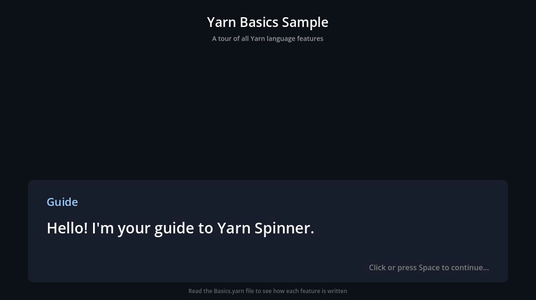
Running it
Open samples/yarn_basics/scenes/yarn_basics_sample.tscn and click Run Current Scene. It’s the project’s main scene, so it’s what runs when you run the whole project.
- Click Start Tour to start.
- Press Enter or Space, or click, to show the whole line or go to the next one.
- Click an option, or move between options with the arrow keys and press Enter or Space to pick one.
- When the dialogue ends, click Restart Tour to go through it again from the start.
How it works
LinePresenter and OptionsPresenter use the standard Line Presenter and Options Presenter scripts. Their labels are set in the Inspector. On LinePresenter, Text Label is TextLabel, Character Label and Character Container are both CharacterLabel, and Continue Indicator is the ContinueIndicator label, which says “Click or press Space to continue…”. On OptionsPresenter, Options Container is OptionsContainer, where the option buttons go.
On YarnDialogueRunner, Presenters lists LinePresenter and OptionsPresenter. Auto Start is off, because the Start Tour button starts the dialogue. Show Selected Option as Line is on, so the option you pick is shown as a line before the dialogue goes on.
The script on the root node
yarn_basics_sample.gd has no _ready() function. Everything it needs is set in the scene:
- Its exported variables, Dialogue Runner, UI Layer, Background, Start Button and Restart Button, are set in the Inspector on
YarnBasicsSample. - The buttons’
pressedsignals and the Dialogue Runner’sdialogue_completedsignal are connected to the script in the Node dock. - The
<<shake>>Command is connected byYarnBindingLoader. Its Bindings list has one binding resource,samples/yarn_basics/bindings/shake.tres, with Yarn Nameshake, Target Node..(the root node) and Method Nameshake_camera. See the Commands and Functions sample for more about the Binding Loader.
func _on_start_pressed() -> void:
	start_button.visible = false
	dialogue_runner.start_dialogue("Start")


func _on_restart_pressed() -> void:
	restart_button.visible = false
	# Reset variable storage to start fresh
	dialogue_runner.variable_storage.clear()
	dialogue_runner.start_dialogue("Start")


func _on_dialogue_complete() -> void:
restart_button.visible = trueStartButton’s pressed signal.Start node.dialogue_completed signal. When the dialogue ends, it shows the Restart Tour button.shake_camera() flashes Background white, then shakes the whole UILayer back and forth for a moment by tweening its offset, and fades the background back to its colour. Its intensity parameter is typed as a float, so the 0.8 in <<shake 0.8>> arrives as a number. Each step of the shake is multiplied by it, so a bigger number shakes the screen further.
For more about adding Commands, see Commands. For starting and ending dialogue, see Dialogue Runner.
Basics.yarn
Each topic is its own node in Basics.yarn, and the comments in the file say which feature each part shows.
| Node | What it shows |
|---|---|
Start | Comments, lines with and without a character name, <<declare>>, <<set>>, variables in lines with {$coins}, and options that <<jump>> to each topic. |
Variables | Adding, subtracting, multiplying, dividing and %, and setting variables to the result of a comparison or and. |
Conditionals | <<if>>, <<else>> and <<elseif>>, nested if statements, the comparison operators, and and, or and not. |
Commands | The built-in <<wait>> and <<stop>> Commands, and the custom <<shake>> Command. |
Functions | The built-in visited(), visited_count() and floor() Functions, in conditions and in a line. |
Advanced | Line conditions, hashtags, [b], [i] and [color] markup, escaping {, [ and \ with a backslash, and a <<detour>>. |
DetourExample | The node the detour in Advanced runs, before going back. |
OnceFeatures | <<once>> blocks, with and without <<else>>, and <<once>> and <<once if>> on lines and options. |
Menu | Options with conditions. Each topic is offered as “Learn about” until you’ve visited it, then as “Review”. |
Goodbye | Counts how many topics you visited with visited(), and says something different depending on the count. |
The Commands node shows all three kinds of Command:
title: Commands
position: 292,377
tags: tutorial commands
---
Guide: Commands let you trigger game actions!

// --- BUILT-IN COMMANDS ---
Guide: The wait command pauses dialogue.
<<wait 1>>
Guide: One second has passed!

// --- CUSTOM COMMANDS ---
// Commands are defined in GDScript and called from Yarn
Guide: Custom commands can do anything in your game.
Guide: Watch this - I'll shake the screen!
<<shake 0.8>>
Guide: See? Commands connect Yarn to your game code.

// --- STOP COMMAND ---
Guide: The stop command ends dialogue immediately.
Guide: Want me to demonstrate?

-> Yes, stop now!
    <<stop>>
-> No, keep going
    Guide: Okay, let's continue!

<<jump Menu>>
===position is used by editors that show nodes as a graph, and tags are the node’s tags.YarnBindingLoader. The number is passed to shake_camera() as its intensity.Menu node.The Menu node uses visited() in option conditions, so each topic only appears once in the list, either to learn or to review:
-> Learn about Variables <<if not visited("Variables")>>
    <<jump Variables>>
-> Learn about Conditionals <<if not visited("Conditionals")>>
<<jump Conditionals>>Options whose condition is false are left out of the list, because the Options Presenter’s Hide Unavailable is on by default.
For everything the Yarn language can do, see Writing Yarn Scripts. For Functions you write yourself in GDScript, see Functions.
Things to try
- In the
Startnode, change<<declare $coins = 100>>to<<declare $coins = 10>>, then pick Conditionals first. Guide says you have some coins at least, and that you’re armed but poor. - In the
Commandsnode, change<<shake 0.8>>to<<shake 3>>. The screen shakes much further. - Select
YarnDialogueRunnerand turn off Show Selected Option as Line. The option you pick is no longer repeated as a line. - Select
LinePresenterand change Characters per Second. It’s 60 by default. A lower number makes the text appear more slowly.