
Yarn variables, like $trust or $visitor_name, hold values that your dialogue can check and change. They’re kept in a Variable Storage, which your Yarn Scripts and your GDScript share. Yarn Scripts set variables with <<set>>, check them in <<if>>, and show them in lines with {$visitor_name}. Your game’s GDScript reads and changes the same variables, and can be told when they change.
A variable set by one side is seen by the other. Your game can set $visitor_name before a conversation, and the dialogue uses it. The dialogue can set $lamp_fixed, and your game lights the lamp.
flowchart LR
  yarn["Your Yarn Scripts<br>#60;#60;set#62;#62;, #60;#60;if#62;#62;, {$variable}"]
  storage[("Variable Storage<br>$trust = 2<br>$visitor_name = Sam")]
  game["Your GDScript<br>set_value, get_float,<br>subscribe"]
  save["Save file<br>in user://"]
  yarn <-->|read and change| storage
  game <-->|read and change| storage
storage <-.->|save and load| save<<declare $trust = 0>>
<<declare $lamp_fixed = false>>
<<declare $visitor_name = "stranger">>
Rosa: Hello, {$visitor_name}.
<<set $trust to $trust + 2>>
<<if $trust >= 2>>
Rosa: Thanks for the help.
<<endif>>Where variables are kept
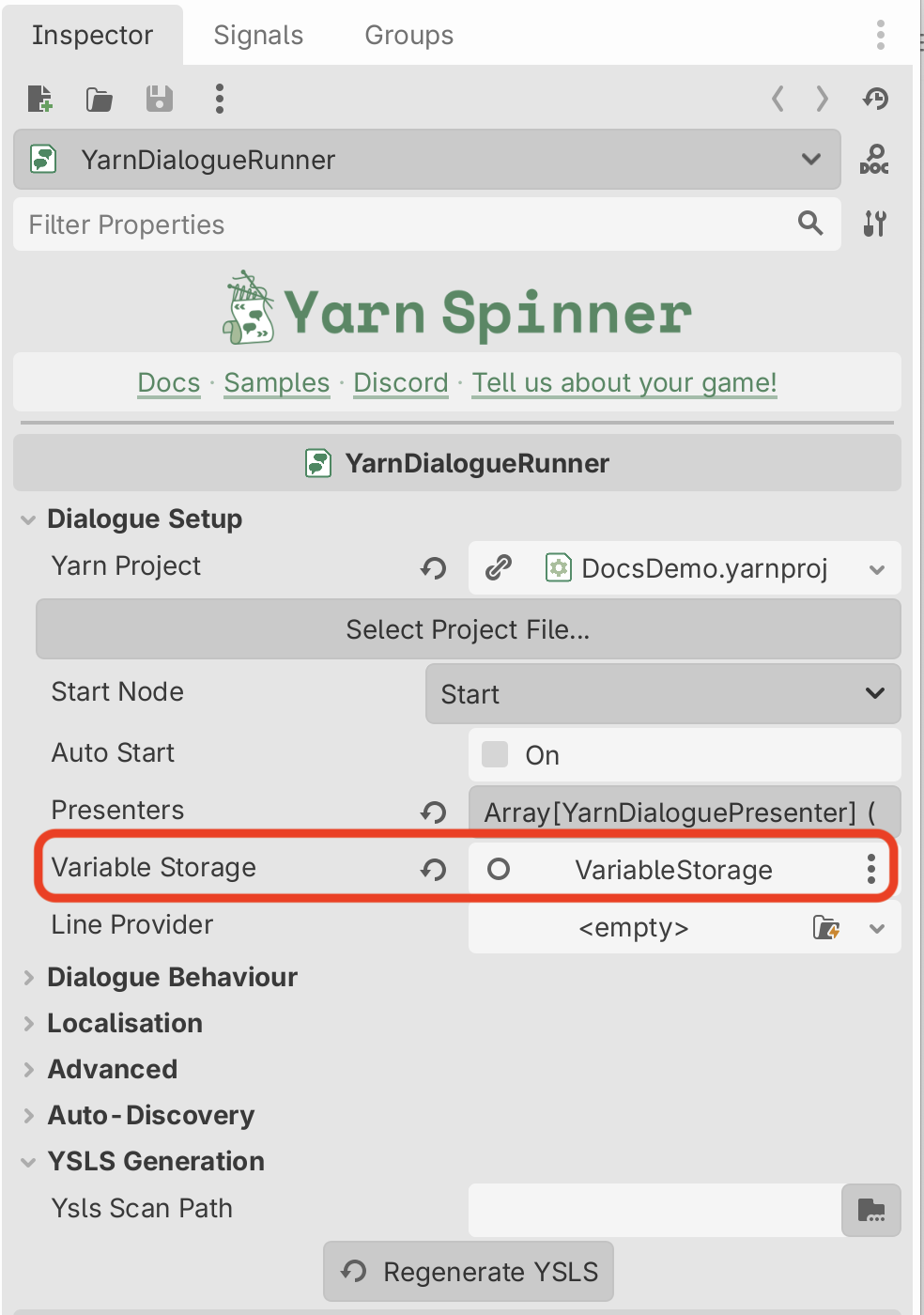
Each Dialogue Runner has a Variable Storage. If you leave that setting empty, the Dialogue Runner makes a YarnInMemoryVariableStorage, which keeps variables in memory while the game runs. They’re lost when the game closes, unless you save them.
To choose the Variable Storage yourself, add one as a node in your scene, and set the Dialogue Runner’s Variable Storage to it:
When something asks for a variable’s value, the Variable Storage looks in three places, in this order:
- the value it’s storing, if the variable has been set,
- the variable’s expression, if it’s a smart variable,
- the default value from the variable’s
<<declare>>in Yarn.
Reading a variable before it’s been set gives you its declared default.
Reading and changing variables from GDScript
Get the Variable Storage from the Dialogue Runner, and use the variable’s name, including the $:
var storage := dialogue_runner.variable_storage

storage.set_value("$visitor_name", "Sam")

var trust := storage.get_float("$trust")
var fixed := storage.get_bool("$lamp_fixed")
var visitor := storage.get_string("$visitor_name")$.float, bool or String. A variable that hasn’t been set gives its default from <<declare>>.get_float(), get_bool() and get_string() return the value as that type. Each takes a second argument, the value to return if the variable doesn’t exist or has a different type: storage.get_float("$trust", 0.0). get_value() returns the value as it is.
Yarn variables can only hold numbers, text, and true or false. If you try to store anything else, like a Vector2 or a node, the Variable Storage logs an error and doesn’t store it. The built-in Variable Storage keeps every number as a float, so a whole number you set comes back as a float.
To give a variable a value the dialogue can use from its first line, set it before you start the dialogue. With the Dialogue Runner’s Auto Start on, the dialogue can start before your script’s _ready() runs, so turn Auto Start off and call dialogue_runner.start_dialogue() yourself.
Reacting when a variable changes
There are three ways to find out when a variable changes. Each one reports changes made by <<set>> in Yarn and changes made by your own code.
To keep something on screen up to date, like a counter, use subscribe_float(), subscribe_int(), subscribe_bool() or subscribe_string(). Your method gets the new value, as that type:
func _ready():
	var storage := dialogue_runner.variable_storage
	storage.subscribe_float(self, "$trust", _on_trust_changed)
	_on_trust_changed(storage.get_float("$trust"))


func _on_trust_changed(value: float) -> void:
trust_label.text = "Trust: %d" % value_on_trust_changed with the new value whenever $trust changes. self is the listening node: when it leaves the scene tree, it’s unsubscribed.float.The first argument is the node that’s listening. When it leaves the scene tree, it’s unsubscribed. subscribe_float() returns a number you can pass to storage.unsubscribe() to stop listening sooner.
Subscribing doesn’t call your method until the value changes, so call it yourself once, as above, to show the starting value.
To react to one variable without the node tracking, use add_change_listener(). Your method gets the new value. It returns a Callable: call it to stop listening.
var _stop_listening: Callable


func _ready():
	var storage := dialogue_runner.variable_storage
	_stop_listening = storage.add_change_listener(
			"$lamp_fixed", _on_lamp_fixed_changed)


func _on_lamp_fixed_changed(value: bool) -> void:
	if value:
light_lamp()Callable that stops the listener. Call _stop_listening.call() when you want to stop._on_lamp_fixed_changed whenever $lamp_fixed changes.bool.To hear about every variable, connect to the Variable Storage’s variable_changed signal. It passes the variable’s name and its new value.
Smart variables don’t change by being set, so these don’t work for them. add_change_listener() logs an error if you try.
Saving and loading
The Dialogue Runner can save every variable in its Variable Storage to a file in Godot’s user:// folder, and load them back:
dialogue_runner.save_state_to_persistent_storage("dialogue_save.json")
dialogue_runner.load_state_from_persistent_storage("dialogue_save.json")Both return true if they worked. Loading replaces all the current variables with the ones in the file.
Only the variables are saved, not where the dialogue is up to. To pick a conversation up again, save the name of the node you want to start from, and pass it to start_dialogue() after loading.
To save Yarn variables as part of your game’s own save file, use storage.get_all_variables(), which returns a Dictionary of every variable that’s been set, and storage.set_all_variables() to put them back.
Seeing variables while you test
A YarnInMemoryVariableStorage can show every variable on screen while the game runs:
- Add a
YarnInMemoryVariableStoragenode to your scene, and set it as the Dialogue Runner’s Variable Storage. - Add a
LabelorRichTextLabel, and set it as the Variable Storage’s Debug Text View. - Turn on the Variable Storage’s Show Debug.
The label shows one line per variable, like $trust = 2 (Single). It only lists variables that have been set, not ones still at their declared default.
Typed access with a generated class
Yarn Spinner can generate a Variable Storage class with a property for each variable, so you don’t have to type variable names as text. $trust becomes trust, $visitor_name becomes visitor_name, and each property has the matching GDScript type. See Generating a typed variables class.
Add a node of the generated class to your scene, and set it as the Dialogue Runner’s Variable Storage. Then:
var variables := dialogue_runner.variable_storage as YarnVariables
variables.visitor_name = "Sam"
if variables.trust >= 2:
open_the_door()Writing your own Variable Storage
To keep Yarn variables somewhere else, write a script that extends YarnVariableStorage. This one keeps them inside a Dictionary of save data, so they’re saved and loaded along with the rest of your game:
class_name SaveDataVariableStorage
extends YarnVariableStorage

## Your game's save data. Yarn variables are kept in it, so they're saved
## and loaded along with everything else.
var save_data: Dictionary = {"yarn": {}}


func set_value(variable_name: String, value: Variant) -> void:
	if not validate_value_type(variable_name, value):
		return
	var variables: Dictionary = save_data["yarn"]
	var old_value: Variant = variables.get(variable_name)
	variables[variable_name] = value
	_notify_listeners(variable_name, value, old_value)


func try_get_value(variable_name: String) -> Dictionary:
	var variables: Dictionary = save_data["yarn"]
	if variables.has(variable_name):
		return {found = true, value = variables[variable_name]}
	return {found = false, value = null}


func clear() -> void:
	save_data["yarn"].clear()


func get_all_variable_names() -> PackedStringArray:
	return PackedStringArray(save_data["yarn"].keys())


func get_all_variables() -> Dictionary:
return save_data["yarn"].duplicate()YarnVariableStorage, and give the class a name so you can add it as a node.Dictionary inside the rest of the game’s save data.set_value is called whenever a variable is set, from Yarn or from your code. validate_value_type logs an error and returns false if the value isn’t a number, text or true or false.variable_changed never fire.try_get_value returns whether the variable has been stored, and its value. If it hasn’t, the Variable Storage falls back to smart variables and declared defaults.clear removes every variable. Loading a save calls it before putting the saved values back.get_all_variables.To use it, add a SaveDataVariableStorage node to your scene and set it as the Dialogue Runner’s Variable Storage.
A Variable Storage needs only those five methods. get_float() and the other readers, subscriptions, and saving and loading are built on them.
The demo scene
Before the dialogue starts, the game sets $visitor_name to “Sam”. Rosa greets the player by name, and the player’s choice raises $trust, which a label in the top right shows. Setting $lamp_fixed lights the lamp, the debug view in the top left lists every variable, and the variables are saved when the dialogue ends.
title: VariablesDemo
---
<<declare $trust = 0>>
<<declare $lamp_fixed = false>>
<<declare $visitor_name = "stranger">>
Rosa: Hello, {$visitor_name}. What brings you here?
-> I can help with the lamp.
    <<set $trust to $trust + 2>>
    Rosa: That's kind of you.
-> Just looking around.
    <<set $trust to $trust + 1>>
    Rosa: Mind the stairs, then.
Rosa: Let me get the lamp going.
<<set $lamp_fixed to true>>
<<if $trust >= 2>>
    Rosa: Thanks for the help, {$visitor_name}.
<<else>>
    Rosa: See you around, {$visitor_name}.
<<endif>>
===extends Node2D
@export var dialogue_runner: YarnDialogueRunner
@export var trust_label: Label
@export var saved_label: Label
@export var lamp: ColorRect
@export var glow: ColorRect
func _ready():
var storage := dialogue_runner.variable_storage
# Set a Yarn variable from GDScript before the dialogue starts.
storage.set_value("$visitor_name", "Sam")
# Keep the trust counter up to date.
storage.subscribe_float(self, "$trust", _on_trust_changed)
_on_trust_changed(storage.get_float("$trust"))
# Light the lamp when the Yarn Script sets $lamp_fixed.
storage.add_change_listener("$lamp_fixed", _on_lamp_fixed_changed)
dialogue_runner.dialogue_completed.connect(_on_dialogue_completed)
dialogue_runner.start_dialogue("VariablesDemo")
func _on_trust_changed(value: float) -> void:
trust_label.text = "Trust: %d" % value
func _on_lamp_fixed_changed(value: bool) -> void:
if value:
var tween := create_tween()
tween.tween_property(lamp, "color", Color(1.0, 0.85, 0.35), 0.8)
tween.parallel().tween_property(glow, "modulate:a", 1.0, 0.8)
func _on_dialogue_completed() -> void:
if dialogue_runner.save_state_to_persistent_storage("variables_demo.json"):
saved_label.text = "Saved to user://variables_demo.json"$visitor_name before the dialogue starts, so Rosa’s first line uses it.$lamp_fixed changes.$visitor_name is set.$trust.$lamp_fixed, and fades the lamp on when it’s true.user://, and show where.