
The Line Presenter and Options Presenter cover most games. If you want dialogue to look or behave differently, like speech bubbles over characters’ heads, a chat log, or a phone screen, you can write your own Presenter.
A Presenter is a script that extends YarnDialoguePresenter. The Dialogue Runner gives it each line and each set of options, and it decides how to show them.
How the Dialogue Runner uses Presenters
For each line, the Dialogue Runner calls run_line on every Presenter in its Presenters list, all at the same time. It moves on to the next line once every one of them has returned.
For each set of options, it calls run_options on every Presenter. The first one to return an option’s index decides which option was picked. The Dialogue Runner then tells the others to stop, and they return -1.
sequenceDiagram
  participant R as Dialogue Runner
  participant L as Line Presenter
  participant O as Options Presenter
  R->>L: run_line(line)
  R->>O: run_line(line)
  O-->>R: returns immediately
  L-->>R: returns once the player continues
  Note over R: Both have returned,<br>so the options start
  R->>L: run_options(options)
  R->>O: run_options(options)
  L-->>R: returns -1, it doesn't show options
  O-->>R: returns 1, the option the player picked
  Note over R: The dialogue carries on<br>after option 1
A Presenter has two jobs:
- in
run_line, show the line, wait for as long as it needs to, then tidy up and return, - in
run_options, show the options, wait for the player to pick one, then return its index.
A simple Presenter
This Presenter shows each line in a Label, and each set of options as buttons. The player presses ui_accept, which is Enter, Space or a gamepad’s bottom face button, to move on to the next line.
class_name SimplePresenter
extends YarnDialoguePresenter

signal _option_chosen(index: int)

@export var label: Label
@export var options_box: VBoxContainer


func _unhandled_input(event: InputEvent) -> void:
	if event.is_action_pressed("ui_accept"):
		dialogue_runner.request_next_line()


func run_line(
		line: YarnLine,
		token: YarnCancellationToken = null
) -> void:
	label.text = line.text
	await token.wait_for_next_content()
	label.text = ""


func run_options(
		options: Array[YarnOption],
		token: YarnCancellationToken = null
) -> int:
	for i in options.size():
		if not options[i].is_available:
			continue
		var button := Button.new()
		button.text = options[i].text
		button.pressed.connect(_option_chosen.emit.bind(i))
		options_box.add_child(button)

	var give_up := _option_chosen.emit.bind(-1)
	token.next_content_requested.connect(give_up)
	var index: int = await _option_chosen
	token.next_content_requested.disconnect(give_up)

	for button in options_box.get_children():
		button.queue_free()
return indexYarnDialoguePresenter. The class_name lets you find the Presenter by name in the Create New Node window.run_options waits for it.Label for lines, and the container for option buttons. Set both in the Inspector.ui_accept, ask the Dialogue Runner to move on. dialogue_runner is set for you when the Presenter is in a Dialogue Runner’s Presenters list.run_line is called for each line. token tells you when the line should finish.line.text includes the speaker’s name, like Rosa: Oh, hello.ui_accept press on line 12.run_line returns, this Presenter is done with the line.run_options is called for each set of options, and returns the index of the one the player picked._option_chosen with that option’s index in the array.-1, meaning no choice.To use it:
- Build the nodes it needs: a
Controlwith aVBoxContainerinside it, holding aLabeland anotherVBoxContainerfor the options.
- Attach the script to the
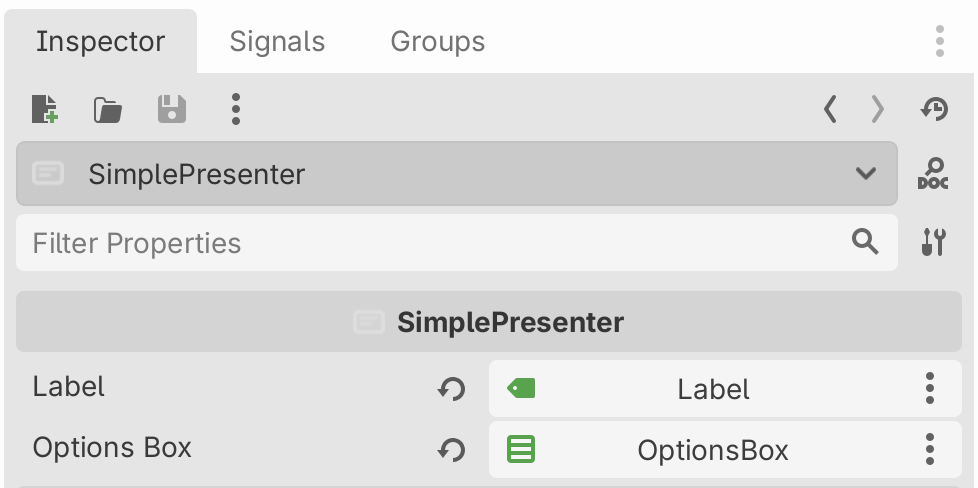
Control, and set its Label and Options Box in the Inspector.
- Add the
Controlto the Dialogue Runner’s Presenters list.
Showing lines
run_line gets the line as a YarnLine. The parts you’ll use most:
| Property or function | What it is |
|---|---|
line.text | The whole line, including the speaker’s name. |
line.character_name | The speaker’s name, or empty if the line has none. |
line.text_without_character_name | The line without the speaker’s name. |
line.get_bbcode_text() | The line without the speaker’s name, with its markup turned into BBCode, for a RichTextLabel. |
line.line_id | The line’s ID, like line:rosa-hello. |
line.metadata | The line’s hashtags. |
Follow these rules in run_line:
- Wait for whatever takes time before you return: a typewriter, an animation, audio, or
token.wait_for_next_content(). - Return as soon as you can once the token asks for the next line. The Dialogue Runner can’t move on until you do.
- If your Presenter has nothing to show for a line, return immediately.
- Don’t call
dialogue_runner.signal_content_complete(). The Dialogue Runner moves on by itself once every Presenter has returned.
The token
Each call to run_line and run_options gets a YarnCancellationToken. It tells your Presenter what the player or your game has requested:
| Part of the token | What it means |
|---|---|
token.is_hurry_up_requested | The player has asked for the line to finish showing now. Skip to the end of any typing or animation, but keep the line on screen. |
token.is_next_content_requested | The dialogue is moving on. Tidy up and return. |
await token.wait_for_next_content() | Waits until the dialogue moves on, or returns immediately if it already has. |
token.hurry_up_requested | A signal, emitted when a hurry is requested. |
token.next_content_requested | A signal, emitted when the dialogue moves on. |
These happen when:
- the Line Presenter or a Line Advancer gets the player’s input,
- your own code calls
dialogue_runner.request_hurry_up()ordialogue_runner.request_next_line(), - another Presenter’s option is picked, or the Dialogue Runner’s Option Timeout runs out.
Showing options
run_options gets an array of YarnOption. Each has text, text_without_character_name and is_available, which is false when the option’s condition failed.
Return the index in the array of the option the player picked. Return -1 if your Presenter doesn’t handle options, or when the token says the dialogue is moving on.
Other functions you can use
If your Presenter has any of these functions, the Dialogue Runner calls them:
| Function | When it’s called |
|---|---|
on_dialogue_started() | Dialogue has started. Set up your UI here. |
on_dialogue_completed() | Dialogue has ended. Hide or clear your UI here. |
on_node_started(node_name) | A node has started running. |
on_node_completed(node_name) | A node has finished running. |
prepare_for_lines(line_ids) | Lines are about to run, with their IDs. Load anything they’ll need here, such as audio or images. |
YarnDialoguePresenter provides two functions for showing and fading your Presenter:
_set_presenter_visible(visible)shows or hides the Presenter. If the Presenter is aControlor otherCanvasItem, it shows or hides itself. Otherwise, it shows or hides the nodes directly under it.await _fade_presenter_alpha(from, to, duration)fades the Presenter’s transparency from one value to another, from 0 to 1, overdurationseconds.
Without writing a Presenter
If you prefer connecting signals to writing a script, add a YarnSignalPresenter to your scene and add it to the Presenters list. It emits a signal for each line and each set of options, and waits until you tell it to continue.
| Signal | When it’s emitted |
|---|---|
line_received(line_data) | A line has arrived. line_data is a Dictionary with text, character_name, line_id, metadata and bbcode_text. |
options_received(options_data) | Options have arrived. Each item has text, option_index, is_available, line_id and metadata. |
presenter_dialogue_started | Dialogue has started. |
presenter_dialogue_completed | Dialogue has ended. |
presenter_node_started(node_name) | A node has started running. |
presenter_node_completed(node_name) | A node has finished running. |
After a line, call proceed() on the Signal Presenter to move on. After options, call choose_option(index) with the option the player picked.
line_data.text doesn’t include the speaker’s name. The name is in line_data.character_name, which is empty for a line with no speaker.
This script does the same job as the simple Presenter above, using a Signal Presenter. It goes on any node in the scene, here the root:
extends Node2D

@export var signal_presenter: YarnSignalPresenter
@export var label: Label
@export var options_box: VBoxContainer


func _ready():
	signal_presenter.line_received.connect(_on_line_received)
	signal_presenter.options_received.connect(_on_options)


func _unhandled_input(event: InputEvent) -> void:
	if event.is_action_pressed("ui_accept"):
		signal_presenter.proceed()


func _on_line_received(line_data: Dictionary) -> void:
	var speaker: String = line_data.character_name
	if speaker.is_empty():
		label.text = line_data.text
	else:
		label.text = speaker + ": " + line_data.text


func _on_options(options_data: Array) -> void:
	label.text = ""
	for option in options_data:
		if not option.is_available:
			continue
		var button := Button.new()
		button.text = option.text
		var index: int = option.option_index
		button.pressed.connect(_choose.bind(index))
		options_box.add_child(button)


func _choose(index: int) -> void:
	for button in options_box.get_children():
		button.queue_free()
signal_presenter.choose_option(index)Label for lines and the container for option buttons. Set all three in the Inspector.ui_accept, tell the Signal Presenter to move on to the next line.option_index.Samples
These samples each have their own Presenter. Open them from the samples browser in the Yarn Spinner tab:
- Welcome builds slides on a projector screen from lines of dialogue.
- Background Chatter shows lines above the characters speaking them, and moves on without the player pressing anything.
- Phone Chat shows lines and options as chat bubbles in a messaging app.
- Options That Timeout shows a countdown bar under the options, and picks one when it runs out.
- Themed Line Presenter extends the Line Presenter, with its own styles and fonts.