
The Voice-Over Presenter (YarnVoiceOverPresenter) plays a recorded audio clip for each line. It doesn’t show any text, so most games use it alongside a Line Presenter, which shows the line as a subtitle while the clip plays.
Adding a Voice-Over Presenter
- Add a
YarnVoiceOverPresenterto your scene. Search for it in Godot’s Create New Node window. - Select the Dialogue Runner, and add the Voice-Over Presenter to its Presenters list, next to your Line Presenter.
- Put your audio clips in a folder, named after each line’s ID. See Naming your audio files.
The Voice-Over Presenter plays clips through the AudioStreamPlayer in its Audio Player property. If you don’t set one, it makes its own, on the Master audio bus.
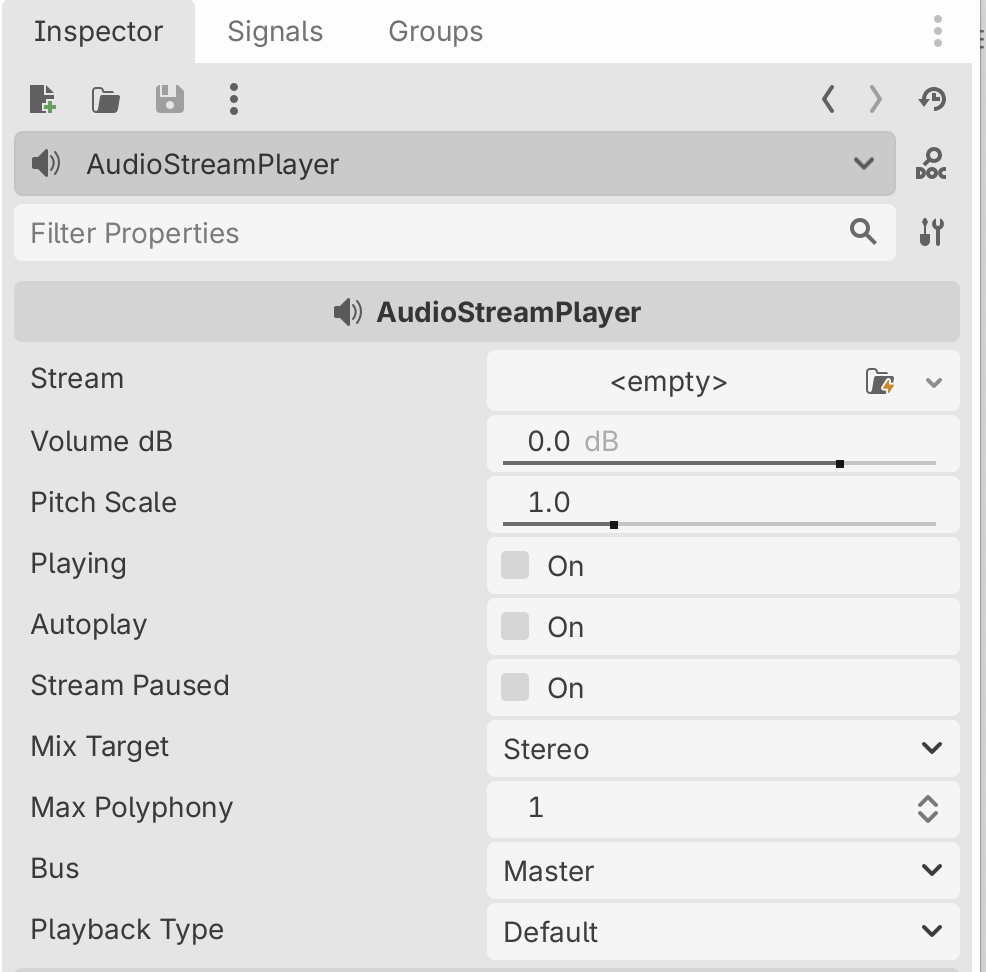
Using your own AudioStreamPlayer lets you choose its settings, such as Bus, to send voice-over to its own audio bus with its own volume.
For sound that comes from somewhere in your game world, set Audio Player 2D to an AudioStreamPlayer2D, or Audio Player 3D to an AudioStreamPlayer3D. The Voice-Over Presenter uses the first one that’s set, in the order Audio Player, Audio Player 2D, Audio Player 3D.
Naming your audio files
The Voice-Over Presenter finds each line’s clip by its line ID. Give every line an ID with a #line: tag:
Tom: Uh.. hello? #line:tutorial-tom-01
Tom: Is anyone there? #line:tutorial-tom-02
Anne: Hi there! #line:tutorial-anne-01To add IDs to every line that doesn’t have one, select your Yarn Project, and click Add Line Tags to Yarn Scripts in the Inspector. See Localising Your Game.
#line: tag still get an ID, but it’s made from the line’s position in the script, and changes when you edit the script. Tag your lines before you record or name any audio.Name each clip after its line ID, without the line: part, and put the clips in one folder. By default, the Voice-Over Presenter looks in res://audio/dialogue/ for .ogg files. The clips in the Voice Over sample are .wav files, so to use them, set Audio Extension to .wav:
res://audio/dialogue/tutorial-tom-01.wav
res://audio/dialogue/tutorial-tom-02.wav
res://audio/dialogue/tutorial-anne-01.wav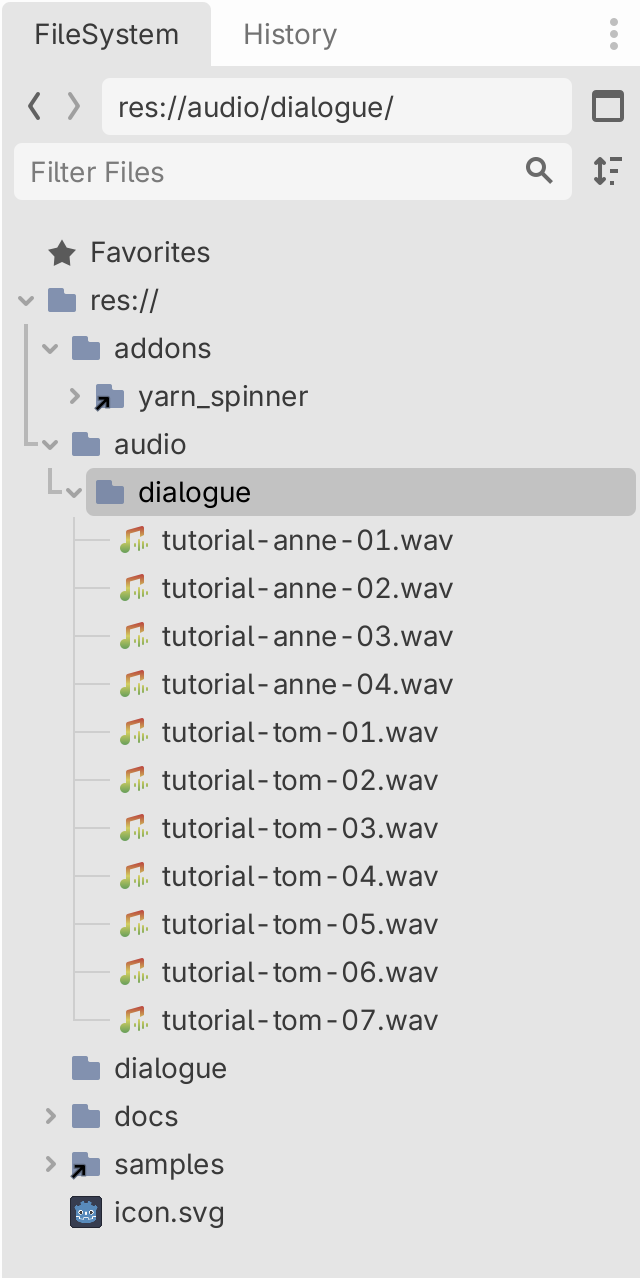
To use a different folder, change Audio Base Path. Audio Extension can be .ogg, .wav or .mp3.
If a line ID has a : or / in it after the line: part, replace it with _ in the file name.
Audio in more than one language
If your game has voice-over in more than one language, point the Dialogue Runner at the folder of clips in your game’s base language, instead of setting Audio Base Path:
@onready var dialogue_runner: YarnDialogueRunner = $YarnDialogueRunner

func _ready():
dialogue_runner.set_audio_base_path("res://audio/dialogue/en/")This looks for .ogg, .wav and .mp3 files. The clips for other languages come from Godot’s translation remaps, which you set up in . For each base-language clip, add the matching clip in each other language, such as res://audio/dialogue/de/tutorial-tom-01.wav for German.
When the game’s language changes with TranslationServer.set_locale(), the next line plays in the new language. When the Dialogue Runner has a folder set, it takes priority over the Voice-Over Presenter’s Audio Base Path. See Localising Your Game for the text side of translation.
When the line ends
By default, when a line’s clip finishes, the Voice-Over Presenter ends the line and the dialogue moves on without the player pressing anything.
To make the player continue each line themselves, turn off End Line When Voice Complete. The Line Presenter then waits for the player, as usual.
Either way, if the player continues before the clip has finished, the clip fades out over Fade Out Time on Interrupt seconds, 0.05 by default, and the next line starts.
To leave a gap around each clip, use Wait Time Before Start, the seconds to wait before the clip starts, and Wait Time After Complete, the seconds to wait after it finishes before ending the line.
Signals
| Signal | When it’s emitted |
|---|---|
voice_started(line, audio) | A line’s clip has started playing. |
voice_finished(line) | A line’s clip has finished, or was stopped because the player continued. |
For example, to animate a character’s mouth while they speak, start the animation on voice_started and stop it on voice_finished.
Settings
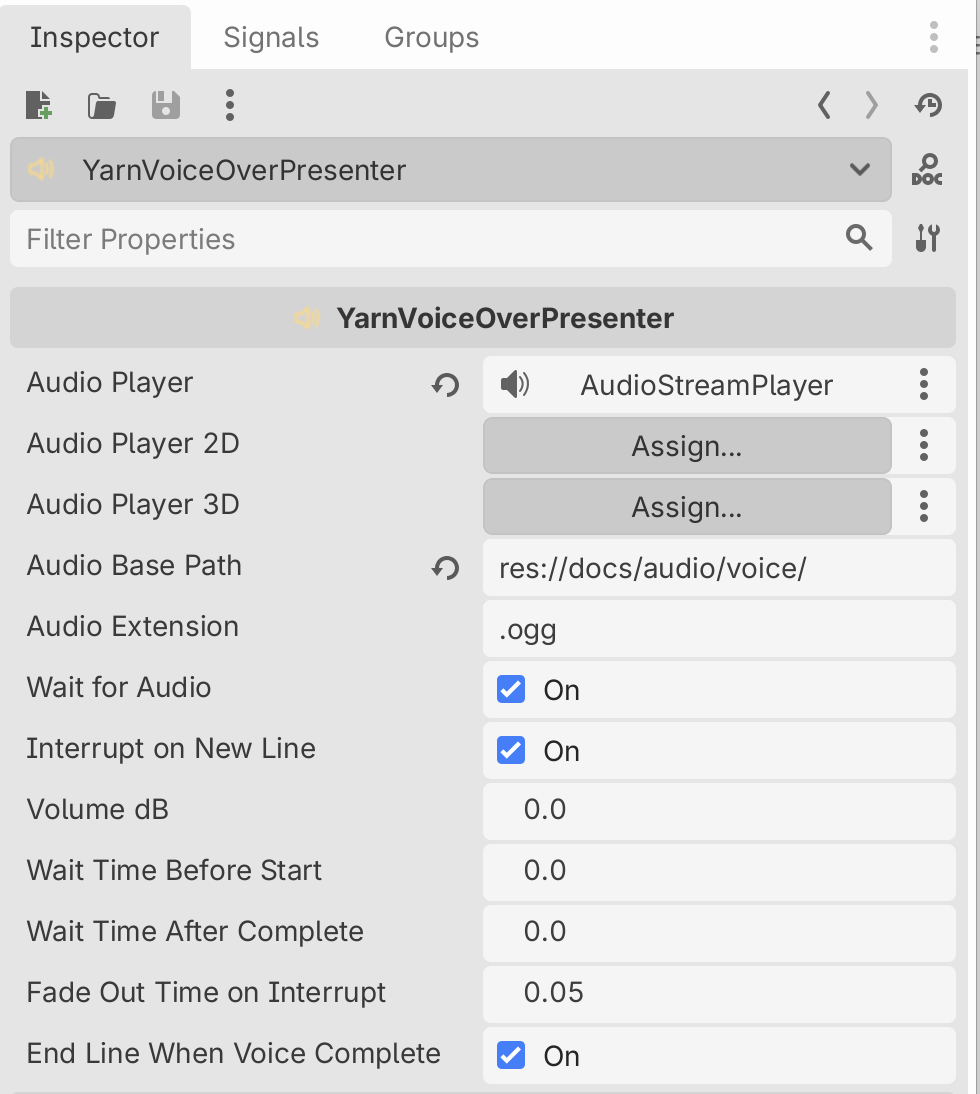
| Setting | Default | What it does |
|---|---|---|
| Audio Player | made for you | The AudioStreamPlayer that plays the clips. |
| Audio Player 2D | none | Plays the clips from a position in a 2D scene. |
| Audio Player 3D | none | Plays the clips from a position in a 3D scene. |
| Audio Base Path | res://audio/dialogue/ | The folder the clips are in. |
| Audio Extension | .ogg | The clips’ file extension. |
| Wait for Audio | On | The Dialogue Runner waits for the clip to stop before moving on. |
| Interrupt on New Line | On | Stops the previous clip when a new line starts. |
| Volume dB | 0 | The clips’ volume. |
| Wait Time Before Start | 0 | Seconds to wait before playing the clip. |
| Wait Time After Complete | 0 | Seconds to wait after the clip finishes before ending the line. |
| Fade Out Time on Interrupt | 0.05 | Seconds to fade the clip out when the player continues early. 0 stops it immediately. |
| End Line When Voice Complete | On | Ends the line when its clip finishes. |
Samples
The Voice Over sample has voice-over in four languages and text in five, which you can switch between. The Voice Over 3D sample adds characters whose mouths move as they speak. Open them from the samples browser in the Yarn Spinner tab.