
The Options Presenter (YarnOptionsPresenter) shows your options as buttons. When the player picks one, it tells the Dialogue Runner which option was picked, and the dialogue carries on from there.
If you followed Adding Presenters, you already have one.
Where the buttons go
The Options Presenter needs a container to put its buttons in. In the scene from the previous pages, that’s an empty VBoxContainer:
When the scene starts, the Options Presenter uses the first Container directly under it. Each time the dialogue reaches some options, it adds a button to that container for each one, and removes them all again once the player has picked. Leave the container empty in the editor.
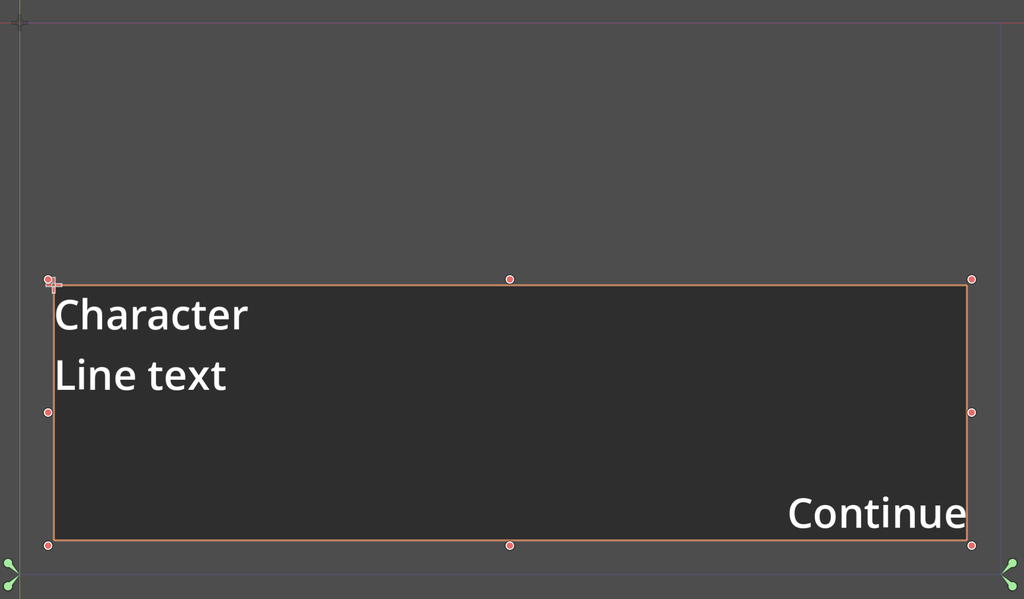
To use a container somewhere else in your scene, assign it to the Options Presenter’s Options Container property.
The Options Presenter shows and hides the nodes under it, so there’s no need to hide the container when the scene starts.
Picking an option
When the options appear, the first one the player can choose has focus. The player can:
- click an option,
- move between options with the arrow keys or a gamepad, and choose one with
ui_accept, - press a key you’ve set up for that option (see Keyboard shortcuts).
Hovering the mouse over an option also gives it focus. The focused option has a dot beside it.
While the options are showing, the Line Presenter ignores its Continue Action and clicks, so they go to the option buttons.
Use Fade Effect fades the options in when they appear and out once the player has picked. It’s on by default. Fade Up Duration and Fade Down Duration set how long each fade takes, in seconds.
Options the player can’t choose
An option with a condition is unavailable when the condition is false. In this example, the second option is only available if $has_key is true:
Rosa: Are you here about the lighthouse?
-> Yes. I heard the lamp went out.
-> I can open the door for you. <<if $has_key>>
-> No, I'm just passing through.By default, the Options Presenter doesn’t show unavailable options at all. Turn off Hide Unavailable to show them as buttons that can’t be pressed.
If every option is unavailable, the Options Presenter shows nothing. What happens next depends on the Dialogue Runner’s Allow Option Fallthrough setting. See Dialogue Behaviour.
Changing how the buttons look
The Options Presenter makes each button from the scene in Option Button Scene. By default that’s res://addons/yarn_spinner/ui/option_item.tscn:
To change how the buttons look, make your own scene and assign it to Option Button Scene. Don’t edit the default scene: it’s part of the addon, and updating the addon replaces it.
Start by duplicating option_item.tscn into your own project and chaning the copy. The root node’s script is YarnOptionItem, which has these properties:
| Property | What it does |
|---|---|
| Button | The Button the player presses. If it’s empty, the first Button in the scene is used. |
| Text Label | A Label or RichTextLabel for the option’s text, if you don’t want the text on the button itself. The button’s text is set too. |
| Unavailable Indicator | A node that’s shown only when the option is unavailable, such as a lock icon. |
| Show When Unavailable | Turn this off to hide unavailable options from this scene, even when Hide Unavailable is off. |
| Disabled Strike Through | Draws a line through the text of unavailable options. It only works when Text Label is a RichTextLabel. |
The root of your scene can also be a plain Button. The Options Presenter sets its text to the option’s text, and disables it when the option is unavailable.
The option’s text never includes the character’s name, and any markup is removed.
Keyboard shortcuts
To let the player pick options by pressing number keys, add an input action for each option in , named with a shared prefix and a number starting at 1: option_1, option_2, option_3, and so on. Then set the Options Presenter’s Option Action Prefix to option_.
The numbers match the order of the options in your Yarn Script, including unavailable options. In the example above, if the player doesn’t have the key, option_3 still picks “No, I’m just passing through”, even though it’s the second button on screen.
Option Action Prefix is empty by default, which turns shortcuts off.
Showing the last line
When options appear, the line before them usually disappears. To keep it on screen above the options, turn on Show Last Line and assign a Label or RichTextLabel to Last Line Text.
In this tree, you’d set:
- Last Line Text to
LastLineText, - Last Line Container to
LastLine, which is hidden when there’s no last line to show, - Last Line Character Name Text to
LastLineName, for the speaker’s name.
If you don’t set Last Line Character Name Text, the speaker’s name is left off. Set Last Line Character Name Container to hide something bigger than the name label, such as a name plate, when a line has no speaker.
OptionsContainer above any other container under the Options Presenter, or set Options Container yourself. Otherwise the Options Presenter uses the first container it finds, which might be the one meant for the last line.Shortening the last line
A long line can take up too much space above the options. Put [lastline/] in the line where you want the shortened version to start:
Rosa: I've been keeping this light for thirty years, and I've never once let it go out. [lastline/]So, will you help me fix it?
-> Yes.
-> No.The Line Presenter shows the whole line. Above the options, the Options Presenter shows only what comes after [lastline/], with “…” in front: “…So, will you help me fix it?”
Time limits
To give the player a limited time to choose, set Option Timeout on the Dialogue Runner, not the Options Presenter. When the time runs out, the Options Presenter removes the buttons, and the dialogue carries on after the options as if none had been picked. See Dialogue Behaviour.
To show the option the player picked as a line of dialogue, turn on Show Selected Option as Line on the Dialogue Runner.
Signals
| Signal | When it’s emitted |
|---|---|
options_shown(options) | The options have appeared. |
option_selected(index, option) | The player picked an option, after any fade. index is the option’s position in your Yarn Script, starting at 0. |
Settings
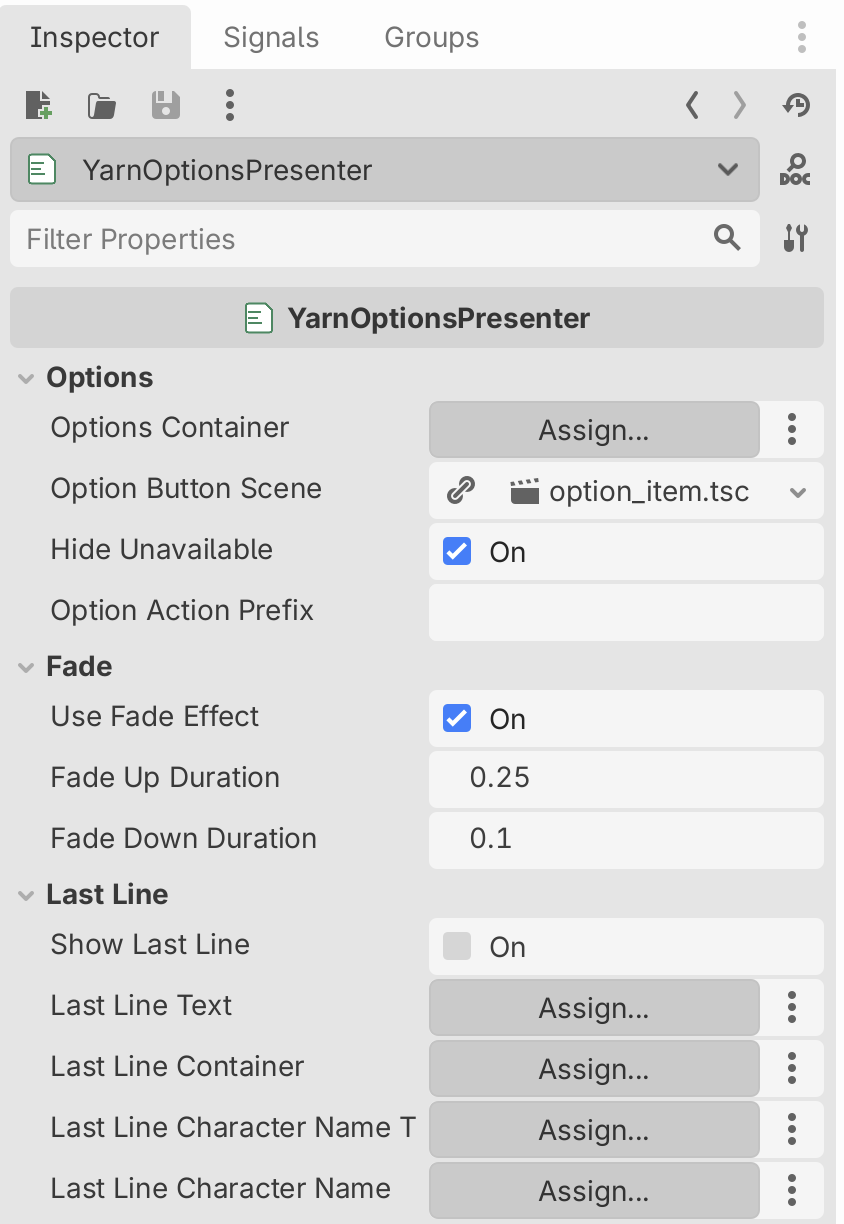
| Setting | Default | What it does |
|---|---|---|
| Options Container | found for you | The container the buttons are added to. |
| Option Button Scene | option_item.tscn | The scene each button is made from. |
| Hide Unavailable | On | Leaves out options the player can’t choose. |
| Option Action Prefix | empty | The start of the input action names for keyboard shortcuts. Empty turns them off. |
| Use Fade Effect | On | Fades the options in and out. |
| Fade Up Duration | 0.25 | Seconds to fade in. |
| Fade Down Duration | 0.1 | Seconds to fade out. |
| Show Last Line | Off | Shows the line before the options above them. |
| Last Line Text | none | The Label or RichTextLabel for the last line’s text. |
| Last Line Container | the last line text | Hidden when there’s no last line to show. |
| Last Line Character Name Text | none | The label for the last line’s speaker. |
| Last Line Character Name Container | the character name text | Hidden when the last line has no speaker. |