
The Line Presenter (YarnLinePresenter) shows your dialogue one line at a time. It puts the speaker’s name in one label and the line’s text in another, types the text out, and waits for the player to continue before handing control back to the Dialogue Runner.
If you followed Adding Presenters, you already have one.
The labels it uses
A Line Presenter needs somewhere to put the text. In the scene from the previous page, that’s three labels inside a panel:
When the scene starts, the Line Presenter looks through the nodes under it and uses:
- the first
RichTextLabelit finds for the line’s text, - a
Labelwith “character” in its name for the speaker’s name, - a node with “continue” or “indicator” in its name for the continue prompt.


To use labels with other names, or labels that aren’t under the Line Presenter, assign them in its Text Label, Character Label and Continue Indicator properties, in the Inspector or from code. Anything you assign takes priority over what the Line Presenter finds.
@onready var line_presenter: YarnLinePresenter = $CanvasLayer/YarnLinePresenter

func _ready():
	line_presenter.text_label = $CanvasLayer/DialogueBox/Body
	line_presenter.character_label = $CanvasLayer/DialogueBox/NamePlate/Name
	line_presenter.character_container = $CanvasLayer/DialogueBox/NamePlate
line_presenter.continue_indicator = $CanvasLayer/DialogueBox/NextArrowRichTextLabel for the line’s text.When you set the character label from code, set Character Container too. The Line Presenter only fills that in when the scene starts.
RichTextLabel. If the Line Presenter can only find a plain Label, it skips every line and logs an error.The Line Presenter shows and hides the nodes under it, so there’s no need to hide the panel when the scene starts.
Character names
Most lines in Yarn start with the speaker’s name, like Rosa: Are you here about the lamp?.
When the Line Presenter has a character label, it puts Rosa in the character label and Are you here about the lamp? in the text label. If a line has no speaker, the character label is hidden. To hide something bigger than the label itself, such as a name plate with a background, set Character Container to that node, and the whole node is hidden.
If there’s no character label at all, Show Character Name in Line decides whether the name stays at the start of the text. It’s on by default, so the player sees Rosa: Are you here about the lamp?.
How text appears
By default, the text types out one letter at a time. Typewriter Mode changes that:
| Mode | What it does |
|---|---|
| Instant | Shows the whole line at once. |
| Letter | Types the line out one character at a time, at Characters per Second (60 by default). |
| Word | Types the line out one word at a time, at Words per Second (10 by default). |
| Custom | Uses your own typewriter, set in Custom Typewriter. See Typewriter and Effects. |
With Use Markup on, which is the default, markup in your lines, such as [b]bold[/b], is shown as formatting. Turn it off to show every line as plain text. See Markup.
Justify Text stretches each line of text to fill the full width of the label. It’s off by default.
Use Fade Effect fades the panel in when a line starts and out when it ends. It’s on by default. Fade Up Duration and Fade Down Duration set how long each fade takes, in seconds.
Continuing to the next line
The continue prompt is shown while a line is on screen. When the player presses the Continue Action, ui_accept by default, which is Enter, Space or a gamepad’s bottom face button:
- If the line is still typing out, it finishes immediately.
- If the line is already complete, the Line Presenter moves on to the next one.
With Click Anywhere to Continue on, which is the default, a left click anywhere does the same. Clicking a link inside the line’s text doesn’t count. Turn this off if your game has other buttons the player can click during dialogue.
While options are showing, the Line Presenter ignores both, so the player’s clicks and key presses go to the option buttons.
To move on without the player pressing anything, turn on Auto Advance. Once a line has finished typing out, the Line Presenter waits Auto Advance Delay seconds, 1 by default, and then moves on.
Using a Line Advancer for input
If you want different controls, such as separate buttons for finishing a line and skipping it, or a button that ends the whole conversation, add a Line Advancer (YarnLineAdvancer) to your scene. It finds the Dialogue Runner by itself when they’re close together in the scene tree, or you can set its Dialogue Runner property.
Once a Line Advancer is in the scene, the Line Presenter stops handling input and leaves it to the Line Advancer. Its main settings:
| Setting | Default | What it does |
|---|---|---|
| Input Mode | Input Action | Whether it responds to Godot input actions, specific keys, or neither (so you call it from your own code). |
| Hurry Action | ui_accept | Finishes the current line immediately. |
| Advance Action | ui_cancel | Moves on to the next line. |
| Combine Hurry and Advance | On | Pressing Hurry Action a second time, once the line is complete, moves on. |
| Cancel Dialogue Action | none | Ends the whole conversation. |
In Key Code mode, it uses Hurry Key, Advance Key and the other key settings in place of input actions.
Signals
| Signal | When it’s emitted |
|---|---|
line_started(line) | A line has started to appear. |
line_finished(line) | A line has finished typing out. |
line_dismissed(line) | A line has left the screen, after any fade. |
continue_requested | The player pressed Continue Action or clicked to continue. |
Settings
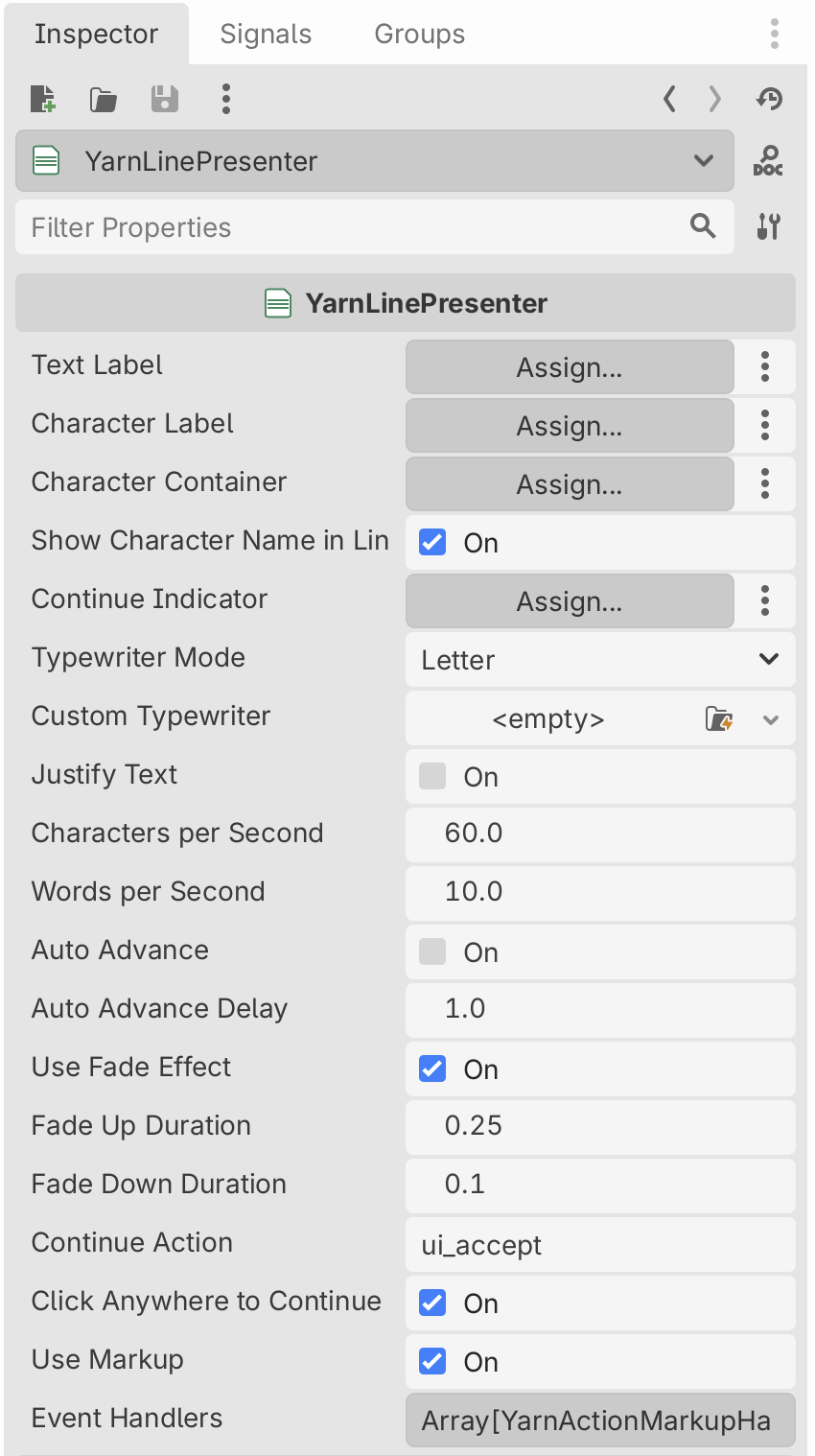
| Setting | Default | What it does |
|---|---|---|
| Text Label | found for you | The RichTextLabel that shows the line’s text. |
| Character Label | found for you | The Label that shows the speaker’s name. |
| Character Container | the character label | Hidden when a line has no speaker. |
| Show Character Name in Line | On | Only used when there’s no character label: keeps the speaker’s name at the start of the text. |
| Continue Indicator | found for you | Shown while a line is on screen. |
| Typewriter Mode | Letter | How the text appears. |
| Custom Typewriter | none | Your own typewriter, used in Custom mode. |
| Justify Text | Off | Stretches the text to fill the label’s width. |
| Characters per Second | 60 | Typing speed in Letter mode. 0 shows the line at once. |
| Words per Second | 10 | Typing speed in Word mode. |
| Auto Advance | Off | Moves on by itself once a line has finished typing. |
| Auto Advance Delay | 1 | Seconds to wait before moving on. |
| Use Fade Effect | On | Fades the panel in and out around each line. |
| Fade Up Duration | 0.25 | Seconds to fade in. |
| Fade Down Duration | 0.1 | Seconds to fade out. |
| Continue Action | ui_accept | The input action that continues. |
| Click Anywhere to Continue | On | Lets a left click continue. |
| Use Markup | On | Shows markup as formatting. |
| Event Handlers | empty | Nodes that run game code partway through a line. See Markup. |