
To show dialogue to the player, your scene needs a Dialogue Runner and at least one Dialogue Presenter.
The Dialogue Runner runs your Yarn Project. It works out what comes next, but doesn’t show anything. It hands each line, and each set of options, to your Dialogue Presenters, and each Presenter shows them in its own way, such as text in a box, buttons, or a voice clip.
A typical scene has a Dialogue Runner and two Presenters, one for lines and one for options:
The built-in Presenters
The addon includes four Presenters. Add them from Godot’s Create New Node dialog by searching for their names:
| Presenter | What it does |
|---|---|
Line Presenter (YarnLinePresenter) | Shows each line as text, with the speaker’s name, typing it out letter by letter or word by word. |
Options Presenter (YarnOptionsPresenter) | Shows each option as a button. |
Voice-Over Presenter (YarnVoiceOverPresenter) | Plays a recorded clip for each line. |
Signal Presenter (YarnSignalPresenter) | Shows nothing. It emits a signal for each line and set of options, so you can handle them in your own scripts without writing a Presenter. |
You can use several at once. The Dialogue Runner gives each line to every Presenter at the same time, and moves on when they’ve all finished with it.
If none of these fit your game, write your own Presenter.
A quicker start
To get dialogue on screen before you build your own UI, add a YarnDialogueView as a child of your Dialogue Runner. It has a Line Presenter and an Options Presenter already set up, and registers them with the Dialogue Runner.
YarnDialogueView only for trying things out and for prototypes. It isn’t designed to be customised. For your game’s real dialogue UI, use the Presenters directly.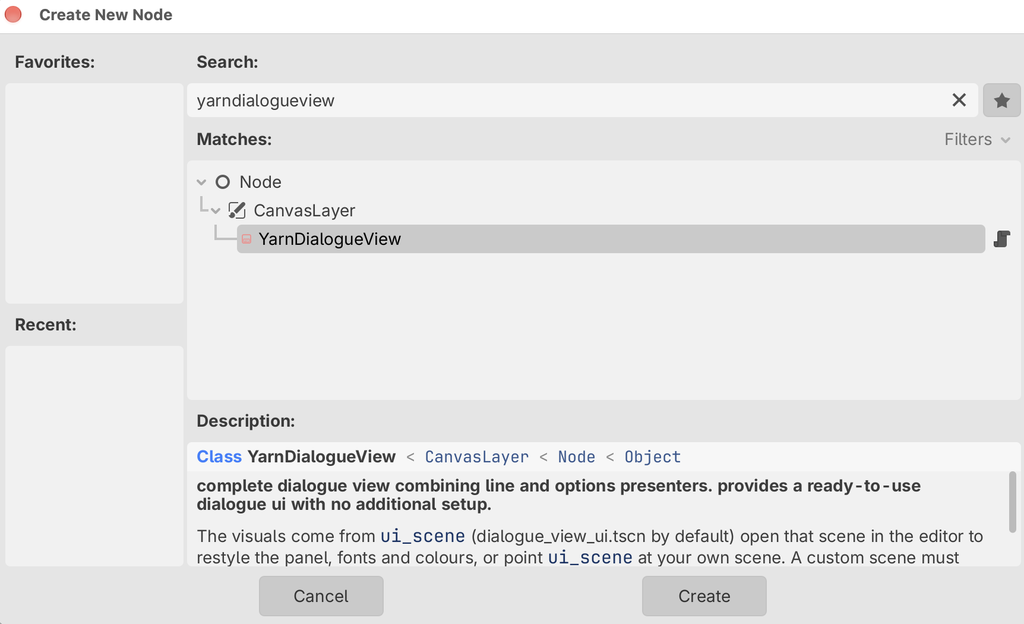
In this section
- Dialogue Runner: setting up the Dialogue Runner, starting and stopping dialogue, and its signals.
- Line Presenter: showing lines, character names, typing speed, and continuing to the next line.
- Options Presenter: showing options as buttons, and what happens to options the player can’t choose.
- Typewriter and Effects: how text appears, and helpers for fades and shakes.
- Markup: formatting text, and running game code partway through a line.
- Voice-Over: playing a recorded clip for each line.
- Building Your Own Presenter: writing a Presenter for anything the built-in ones don’t cover.
- A Different Kind of Presenter: a second custom Presenter, which keeps the whole conversation on screen and takes options from the number keys.