
The plugin adds a Yarn Spinner tab to the Godot editor, where you can read and edit scripts, look up your Commands and Functions, and browse the samples. It adds sections to the Inspector, and two project settings.
The Yarn Spinner tab
The plugin adds a Yarn Spinner tab to the top of the editor, next to 2D, 3D and Script.

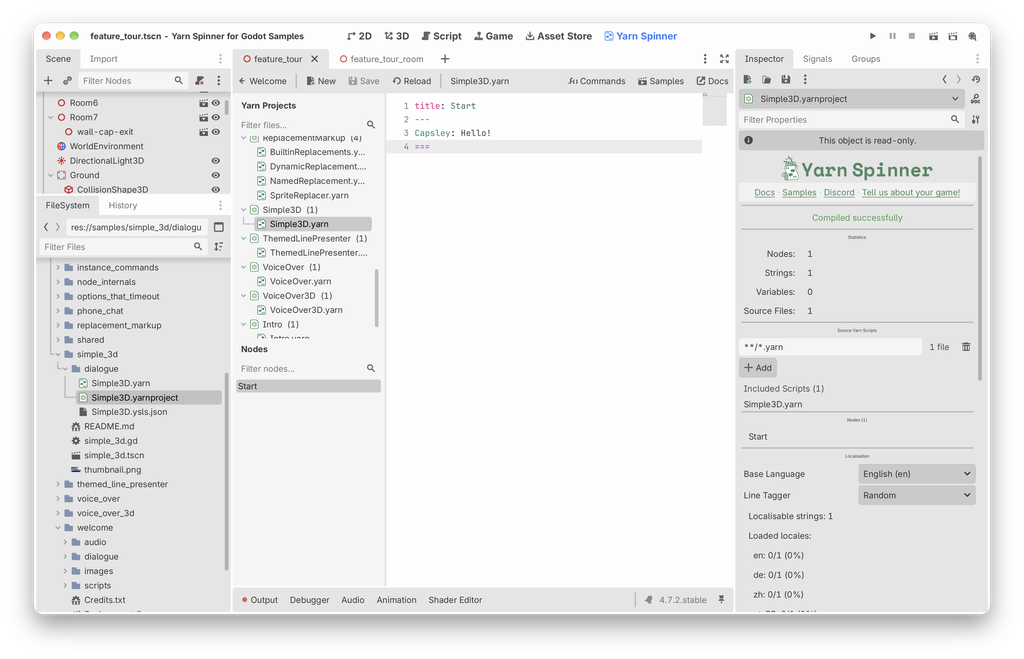
On the left:
- Yarn Projects lists your
.yarnfiles, grouped under the project that includes them. Files that no project includes are under (Unassociated). See Scripts that aren’t in a project. Type in Filter files… to narrow the list. - Nodes lists the nodes in the open file. Click one to jump to it. Type in Filter nodes… to narrow the list.
On the right is the script, with Yarn syntax highlighting.
The toolbar:
| Button | What it does |
|---|---|
| Welcome | Closes the open file and goes back to the welcome screen. |
| New | Creates a new .yarn file. |
| Save | Saves the open file (Ctrl+S). The project that includes it then recompiles. |
| Reload | Reloads the open file from disk, for when it’s been changed in another editor. |
| Commands | Shows or hides the Commands and Functions palette. |
| Samples | Shows the samples browser in place of the editor. |
| Docs | Opens the Yarn Spinner documentation in your browser. |
If you switch files or go back to the welcome screen with unsaved changes, Godot asks whether to save or discard them.
When no file is open, the tab shows a welcome screen with the addon’s version, and a button that opens help on the Yarn Spinner website.
The tab is for reading scripts and making small changes. For writing, use VS Code with the Yarn Spinner extension, or the standalone Yarn Spinner Editor. Both have autocomplete, error checking as you type, and a graph view of your nodes.
Commands and Functions palette
Click Commands in the Yarn Spinner tab’s toolbar to show a palette under the editor. It lists the Commands and Functions the plugin can find in your GDScript files: methods named _yarn_command_... or _yarn_function_....

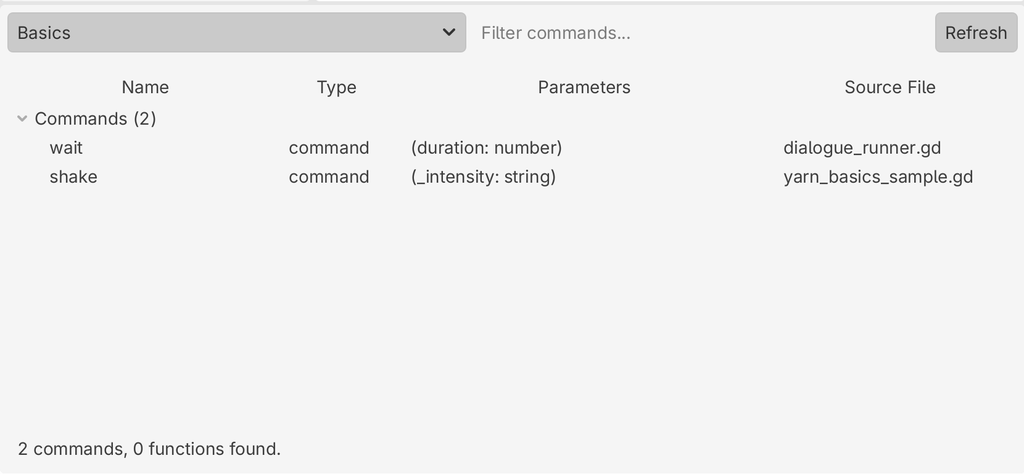
- Click Refresh to scan. The palette doesn’t scan on its own, so click it again after adding or changing commands.
- The dropdown on the left chooses what to scan: All Projects scans the whole Godot project, or pick a Yarn Project to scan the same files its
.ysls.jsonfile is written from. - Type in Filter commands… to narrow the list.
Each entry shows its name, whether it’s a command or a function, its parameters, and the script it’s defined in. See Commands and Functions for how to write them.
Samples browser
Click Samples in the Yarn Spinner tab’s toolbar to see a card for each sample, with a short description. Each card has buttons to Play the sample, Open its scene to see how it’s built, or read its Docs.
It looks for samples in res://samples/, so it’s most useful when you have the samples project open. In any other project it says it found no samples.
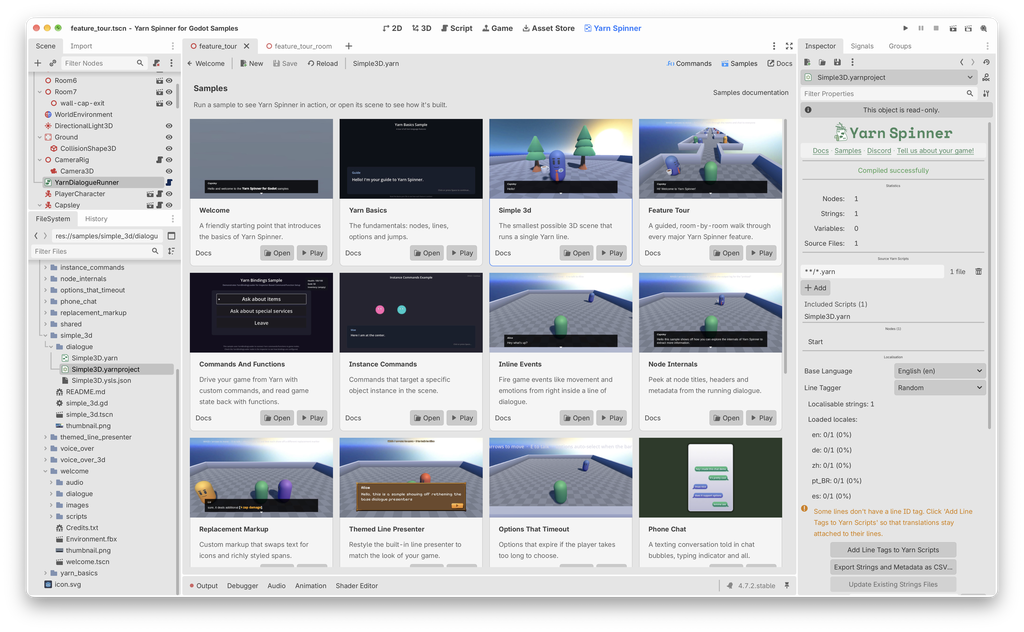
In the Inspector
The plugin adds to the Inspector for a few kinds of object:
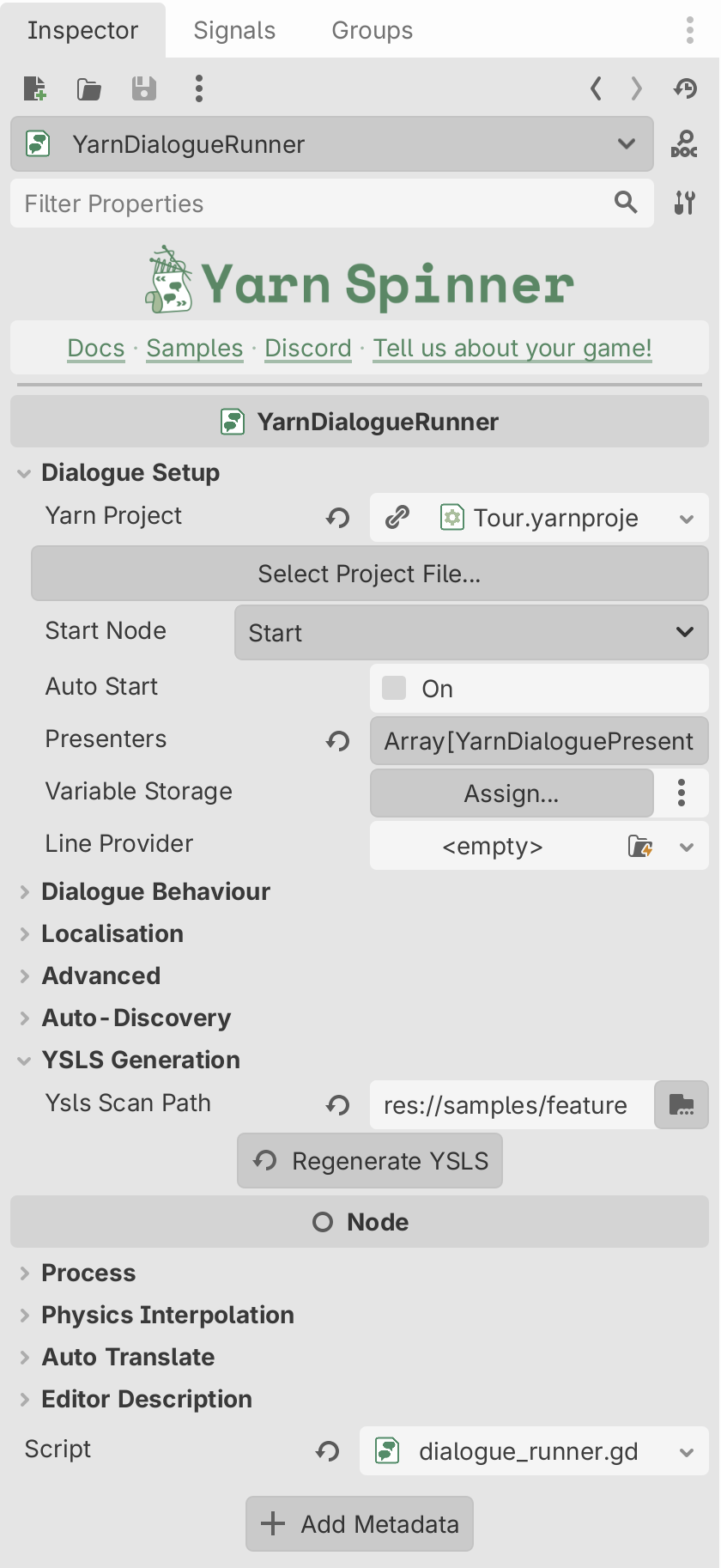
- Dialogue Runner (
YarnDialogueRunner): under Yarn Project, there’s a Select Project File… button that opens a file browser filtered to.yarnprojectfiles. Start Node becomes a dropdown of the nodes in the selected project, so you pick a node from a list. Under YSLS Generation, Regenerate YSLS rewrites the project’s.ysls.jsonfile immediately. - Yarn Projects: selecting a
.yarnprojectshows its compile status, errors, scripts, nodes, variables and localisation tools. See The Yarn Project Inspector. - Variable Storage nodes: a
YarnInMemoryVariableStorage, or any other Variable Storage, gets a Yarn Variable Storage section listing the variables it currently holds, each with its value and type. Click Refresh to update it.
Project settings
The plugin adds two project settings, under Yarn Spinner in . Turn on Advanced Settings if you don’t see them.
| Setting | Default | What it does |
|---|---|---|
yarn_spinner/compiler/ysc_path | empty | Where to find ysc, for when the bundled compiler isn’t available. |
yarn_spinner/ysls/auto_regenerate | On | Rewrites each project’s .ysls.json file when you save a script. |