
Godot imports each .yarn file as a Yarn Script. A Yarn Script holds the file’s text and its path, so the editor can open it. It isn’t compiled on its own, and it has no import options.
Compiling happens in the Yarn Project that includes the file, and errors are reported there. If a script has a mistake, the error shows in the project’s Inspector and in the Output panel, not on the .yarn file. See When a script has a mistake.
Adding a script
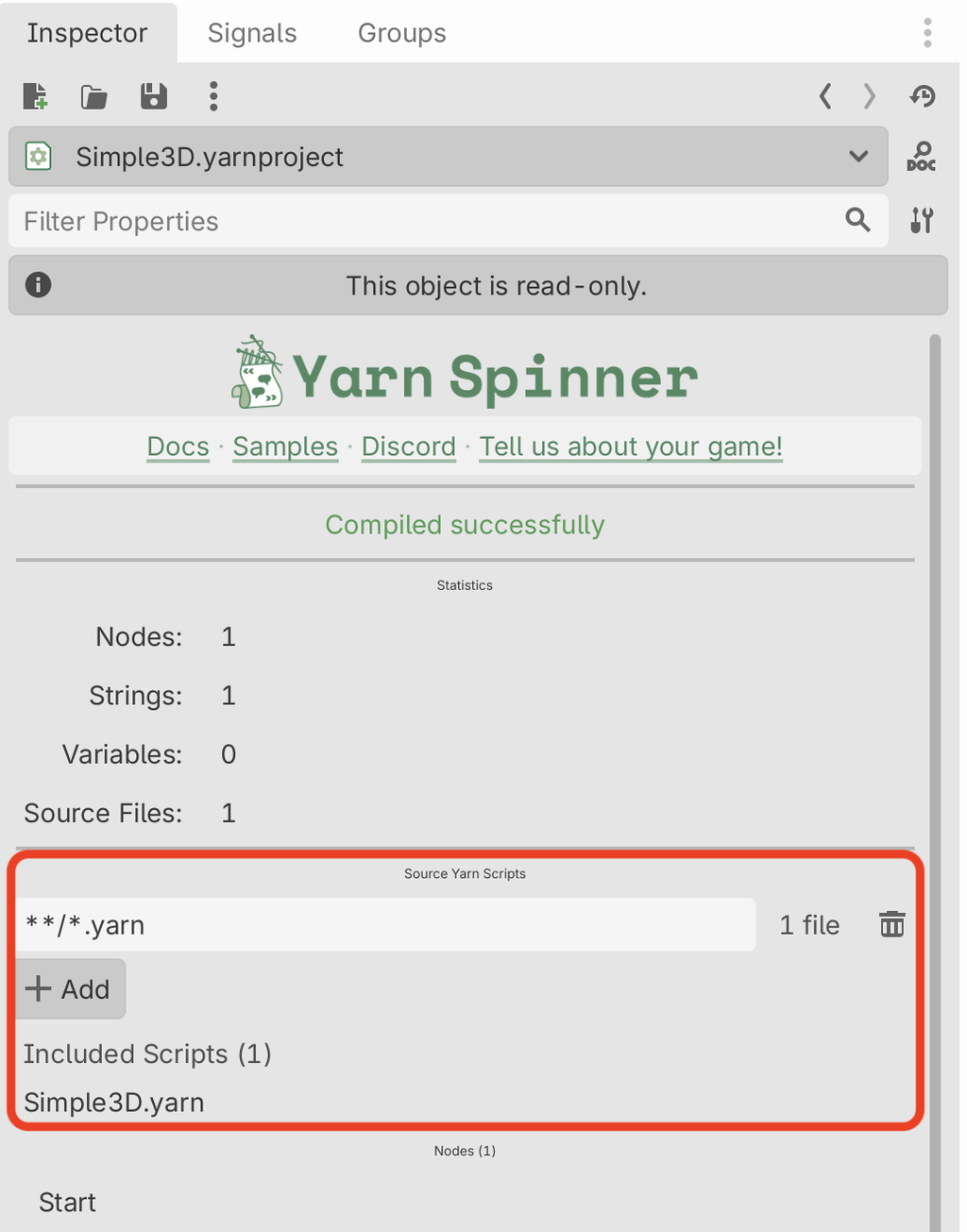
Put the .yarn file anywhere a Yarn Project’s sourceFiles patterns will match it. With the default pattern, **/*.yarn, that’s the project’s folder or any folder below it. The next time the project compiles, the script is part of it.
To check, select the .yarnproject and look under Included Scripts in the Inspector.
To create a new script, use New in the Yarn Spinner tab. See Editor Tools.
Changing a script
When you save a .yarn file, Godot reimports it. The plugin then finds every Yarn Project whose patterns include that file and recompiles them. If you save several files in quick succession, they’re recompiled together, half a second after the last save.
If you save in Godot’s Yarn Spinner tab, the project recompiles as soon as you save. If you save from VS Code or another editor, Godot picks up the change the next time it checks the file system, normally when you switch back to it. If Godot is closed when you save, any project older than its scripts is recompiled the next time you open the editor.
When a script has a mistake
If a script you’ve saved has an error, the Yarn Project that includes it doesn’t compile, and the error is reported on the project. The same example appears on the Yarn Projects page.
This script has two nodes with the same title, which isn’t allowed:
title: Start
---
Capsley: Hello!
===

title: Start
---
Capsley: Oh no!
===When you save it, select the Yarn Project to see one error for each of them:
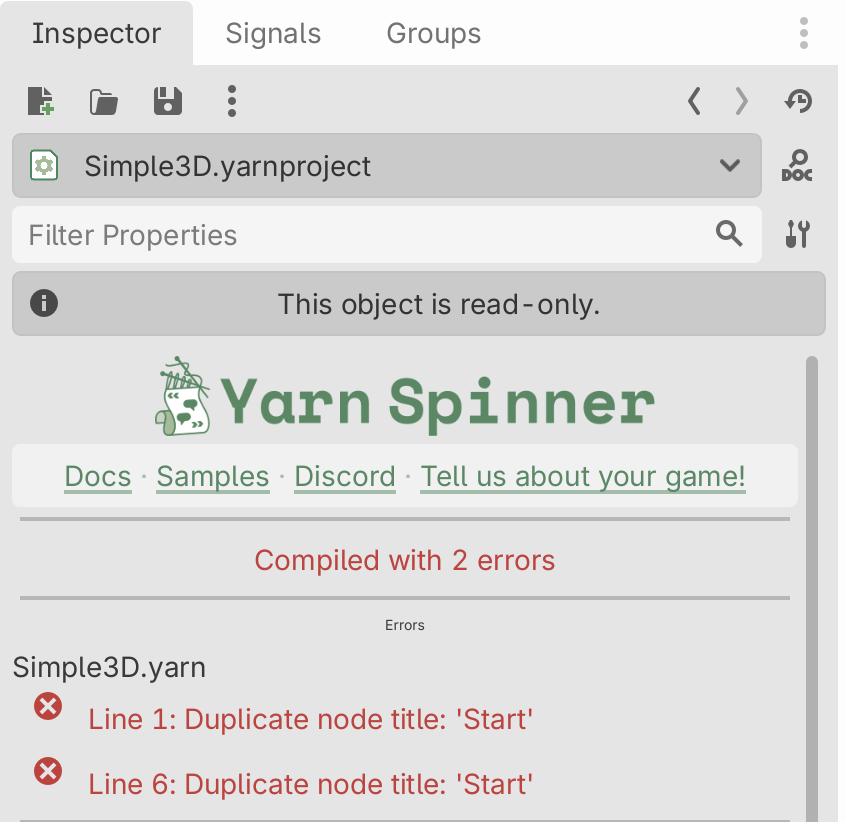
Rename one of the nodes and save again, and the project compiles.
Opening a script
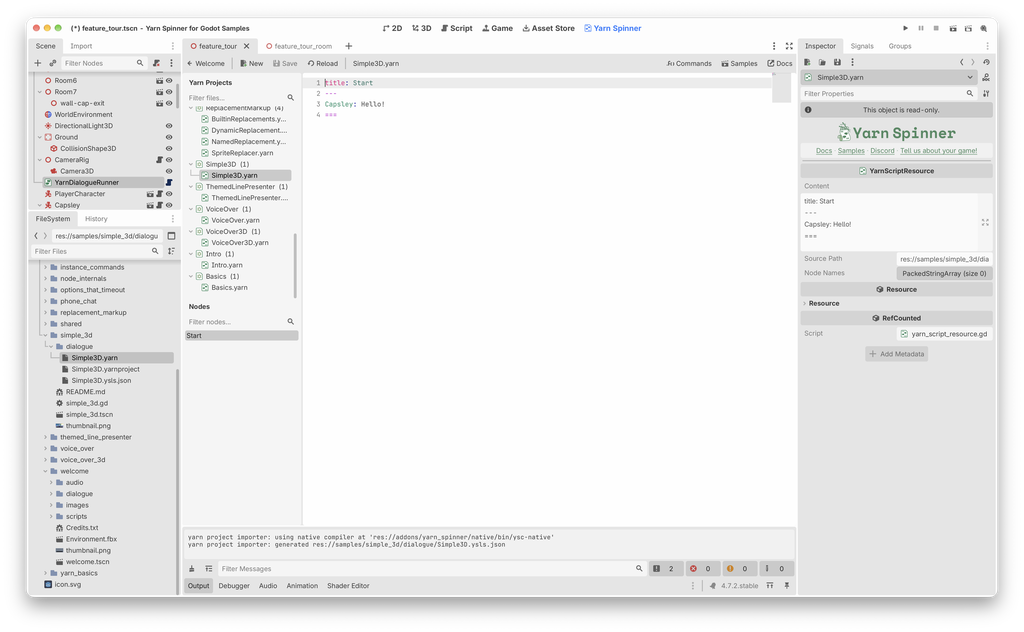
Double-click a .yarn file in the FileSystem dock to open it in the Yarn Spinner tab. Selecting it shows its text in the Inspector.
Scripts that aren’t in a project
The Yarn Spinner tab lists your scripts under the project that includes them. Scripts that no project includes are listed under (Unassociated) at the end.
An unassociated script is never compiled, so none of its nodes can run. To fix it, move the file somewhere a project’s patterns already match, or add a pattern for it under Source Yarn Scripts in the project’s Inspector and click Apply.
If a change doesn’t show up
- Select the
.yarnprojectand check its status. If it says Compiled with N errors, fix the errors listed under Errors. See When a script has a mistake. - Check the script is listed under Included Scripts.
- Check the Output panel for a line saying which compiler was used. If neither the bundled compiler nor
ysccould be found, the project can’t compile. See Compiling. - If you edited the file outside Godot, switch back to Godot so it picks up the change.