Yarn Projects
A Yarn Project is a .yarnproject file. It lists the .yarn files that make up one set of dialogue (or glob patterns that point to them, such as *.yarn), and holds a few settings. Yarn Spinner for Godot compiles the project when it imports it, and a YarnDialogueRunner runs the result.
Most games need one Yarn Project. You can have several, for example one for each part of your game. Each compiles separately, and a Dialogue Runner uses one project at a time.
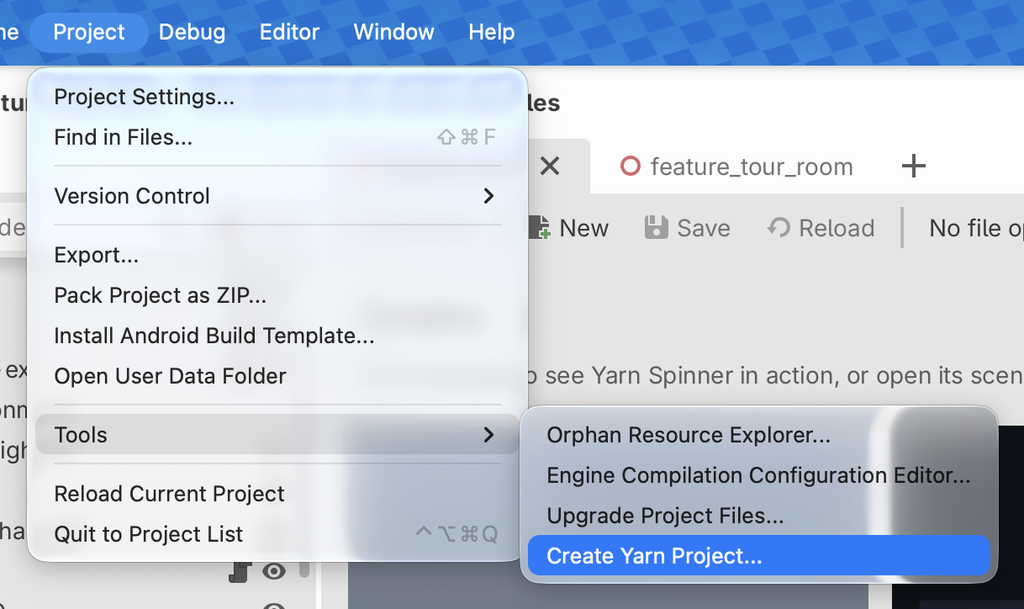
Creating a project
In Godot, choose and save the file where you want it. Yarn Projects created in VS Code with the Yarn Spinner extension are imported the same way.
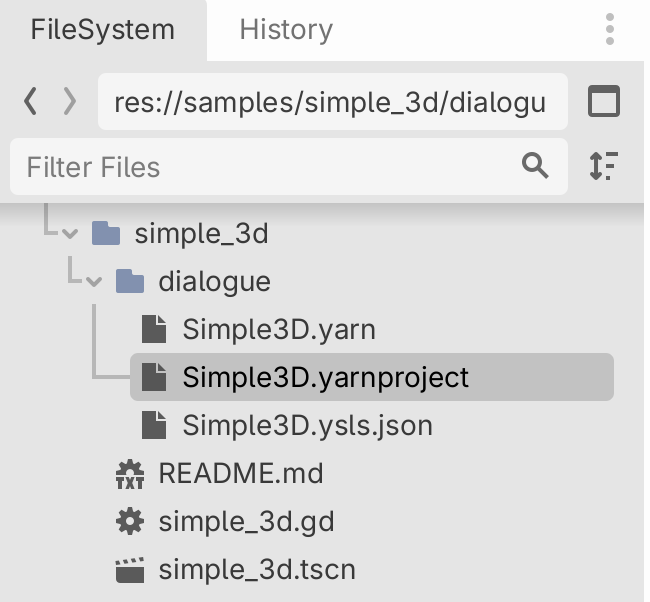
A .yarnproject file is a plain JSON file with a different extension. Godot creates it and the project’s Inspector edits it, so you’ll rarely open it yourself. A project created from Godot looks like this:
{
    "projectFileVersion": 4,
    "sourceFiles": ["**/*.yarn"],
    "baseLanguage": "en"
}If the folder you saved it in has no .yarn files yet, Godot creates one next to it, named after the project, with an empty Start node.
Which scripts are included
sourceFiles is a list of patterns, matched against paths relative to the folder the .yarnproject is in:
*matches any part of a file or folder name, and?matches one character.**matches any number of folders, so the default**/*.yarnincludes every.yarnfile in the project’s folder and all folders below it.- A pattern with no wildcards, like
intro/Start.yarn, includes that one file. - Folders whose names start with
.are skipped.
An optional excludeFiles list uses the same patterns to leave files out:
{
    "projectFileVersion": 4,
    "sourceFiles": ["**/*.yarn"],
    "excludeFiles": ["drafts/**/*.yarn"],
    "baseLanguage": "en"
}
A .yarn file can belong to more than one project. You can edit sourceFiles in the Inspector rather than by hand. See Source Yarn Scripts.
Compiling
Godot compiles a Yarn Project when it imports it: when you first add it, when you change the .yarnproject file, and when you save any .yarn file it includes. You never run the Yarn Spinner compiler yourself. Each compile writes a line to the Output panel.
The addon includes a compiler in addons/yarn_spinner/native/bin/, and uses it whenever it’s available for your platform. If it isn’t, Godot falls back to ysc, the Yarn Spinner command line compiler, which needs .NET.
ysc if the bundled compiler doesn’t work on your system.To install ysc:
dotnet tool install YarnSpinner.Console --global --version 3.2.2To find ysc, Godot checks, in order:
- The Ysc Path import option on the Yarn Project.
- The
yarn_spinner/compiler/ysc_pathproject setting. - The usual install locations, such as
~/.dotnet/tools/ysc. - Your
PATH.
When the editor opens, Godot recompiles any Yarn Project that’s older than its scripts, so changes made while Godot was closed are picked up.
When compiling fails
If a script has an error, the project still imports, with a list of errors instead of a compiled program. The errors appear in two places:
- The Output panel, one per error, each starting with
yarn project importer:and, where it’s known, the file and line. - The Yarn Project’s Inspector, under Errors, grouped by script.
For example, this script has two nodes with the same title, which isn’t allowed:
title: Start
---
Capsley: Hello!
===

title: Start
---
Capsley: Oh no!
===The Yarn Project reports one error for each of them:
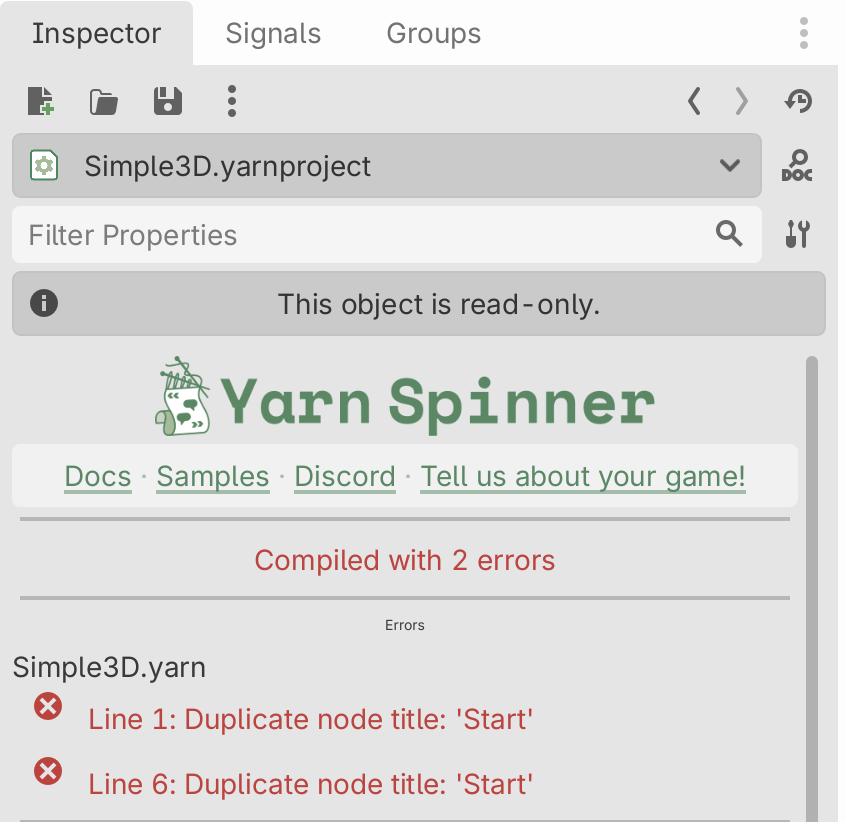
Fix the script and save it, and the project compiles again. In this example, rename one of the nodes.
The Yarn Project Inspector
Select a .yarnproject in the FileSystem dock to see its details in the Inspector.
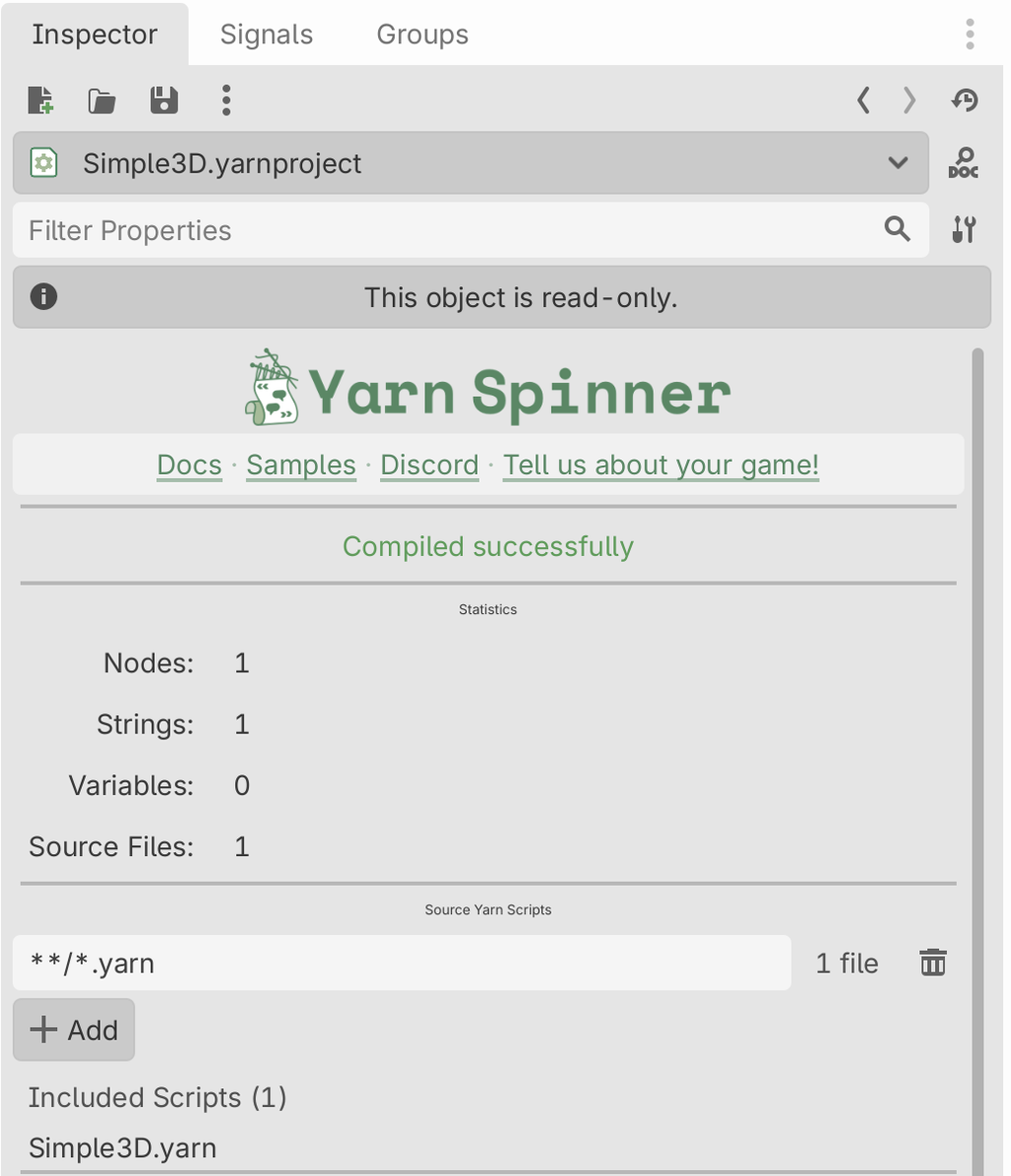
Godot shows This object is read-only at the top, because a Yarn Project is an imported file. This applies only to Godot’s own property list. You can edit everything in the Yarn Spinner sections below it, and save your changes with Apply.
At the top is the compile status: Compiled successfully, Compiled with N errors, or Not compiled. The sections below it are:
| Section | What it shows |
|---|---|
| Errors | Only shown when compiling failed. Each error is listed under the script it’s in, with its line number. Click a script’s name to open it. |
| Statistics | How many nodes, strings, variables and source files the project has. |
| Source Yarn Scripts | The project’s sourceFiles patterns, one per row, each with a count of the files it matches. Edit a pattern, remove it with the button beside it, or add another with Add. Under the patterns, Included Scripts lists every file the project currently includes. |
| Nodes | Every node in the project, with its tags. Nodes the compiler creates for its own use are hidden, with a count. |
| Declared Variables and Smart Variables | Every variable declared in your scripts, with its type and starting value, and every smart variable. |
| Localisation | The project’s base language, the line tagger, how many strings each loaded language has translated, and buttons to tag your lines and export or update strings files. See Localising Your Game. |
| Variable Storage | Settings for generating a typed variables class, described below. |
Applying changes
Changes you make in the Inspector aren’t saved until you click Apply, which writes them to the .yarnproject and its import settings and recompiles. Revert throws them away. If you select something else while there are unapplied changes, Godot asks which you want.
Tagging lines and exporting strings are turned off while there are unapplied changes.
Import options
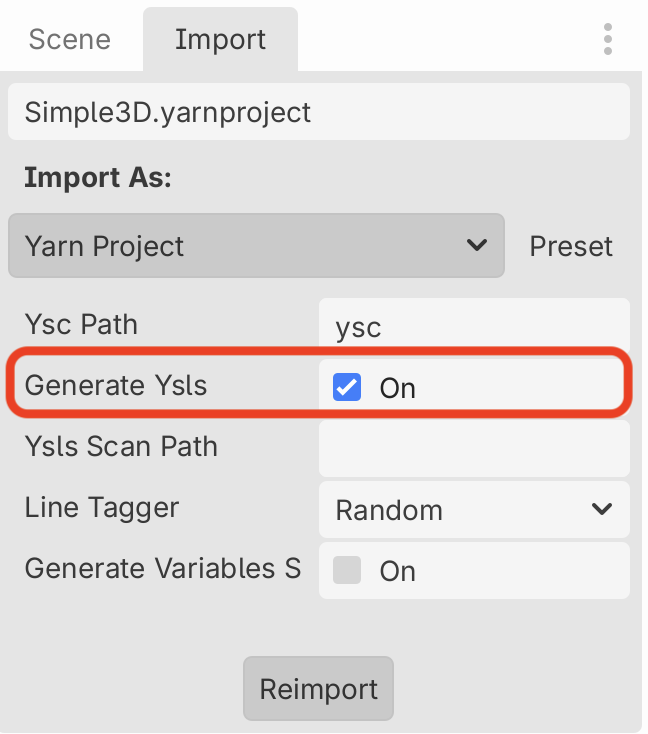
Some settings are import options rather than part of the .yarnproject file. To see them, select the project in the FileSystem dock, then open Godot’s Import dock. After changing any, click Reimport.
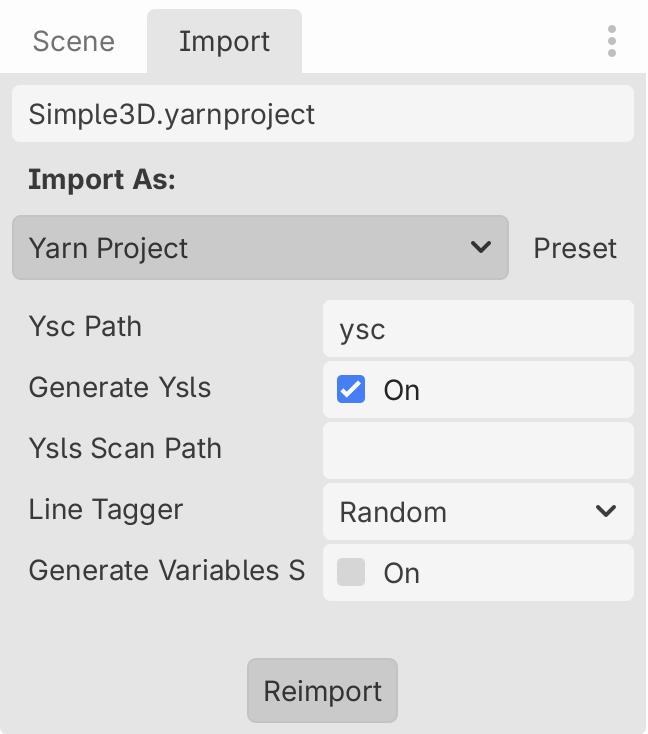
| Option | Default | What it does |
|---|---|---|
| Ysc Path | ysc | Where to find ysc if the bundled compiler isn’t available. |
| Generate Ysls | On | Writes a .ysls.json file next to the project on each import, so VS Code can autocomplete your Commands and Functions. |
| Ysls Scan Path | empty | Where to look for Commands and Functions when writing the .ysls.json file. Leave it empty and the plugin looks in the Yarn Project’s folder and in the scenes that use it (see The .ysls.json file). Set a folder to look only in that folder. Projects first imported with an older version of the addon have res:// here, the old default, which now works the same as empty. |
| Line Tagger | Random | How line IDs are made when you tag lines: random, like #line:0a1b2c3, or descriptive, like #line:Start_0200_Bob. |
| Generate Variables Source | Off | See the next section. |
| Variables Class Name | YarnVariables | Only shown when the option above is on. |
| Variables Class Parent | YarnInMemoryVariableStorage | Only shown when the option above is on. |
You can set Line Tagger and the three variables options in the project’s Inspector as well.
Generating a typed variables class
If you’d like to use typed properties in GDScript to access the variables from your Yarn Project, Yarn Spinner can generate a Variable Storage class from the variables your scripts declare.
Without the class, you get a variable by typing its name as text, like storage.get_float("$gold", 0.0). If you mistype the name, or the variable changes type, you only find out when the game runs.
With the class, you write variables.gold instead. Godot autocompletes it, knows it’s a number, and flags it in the script editor if you get the name wrong.
- Select the Yarn Project, and under Variable Storage in the Inspector, turn on Generate Variables Source File.
- Set Variables Class Name. The default is
YarnVariables. - Set Variables Parent Class. The default is
YarnInMemoryVariableStorage, and the list includes any Variable Storage classes of your own. - Click Apply.
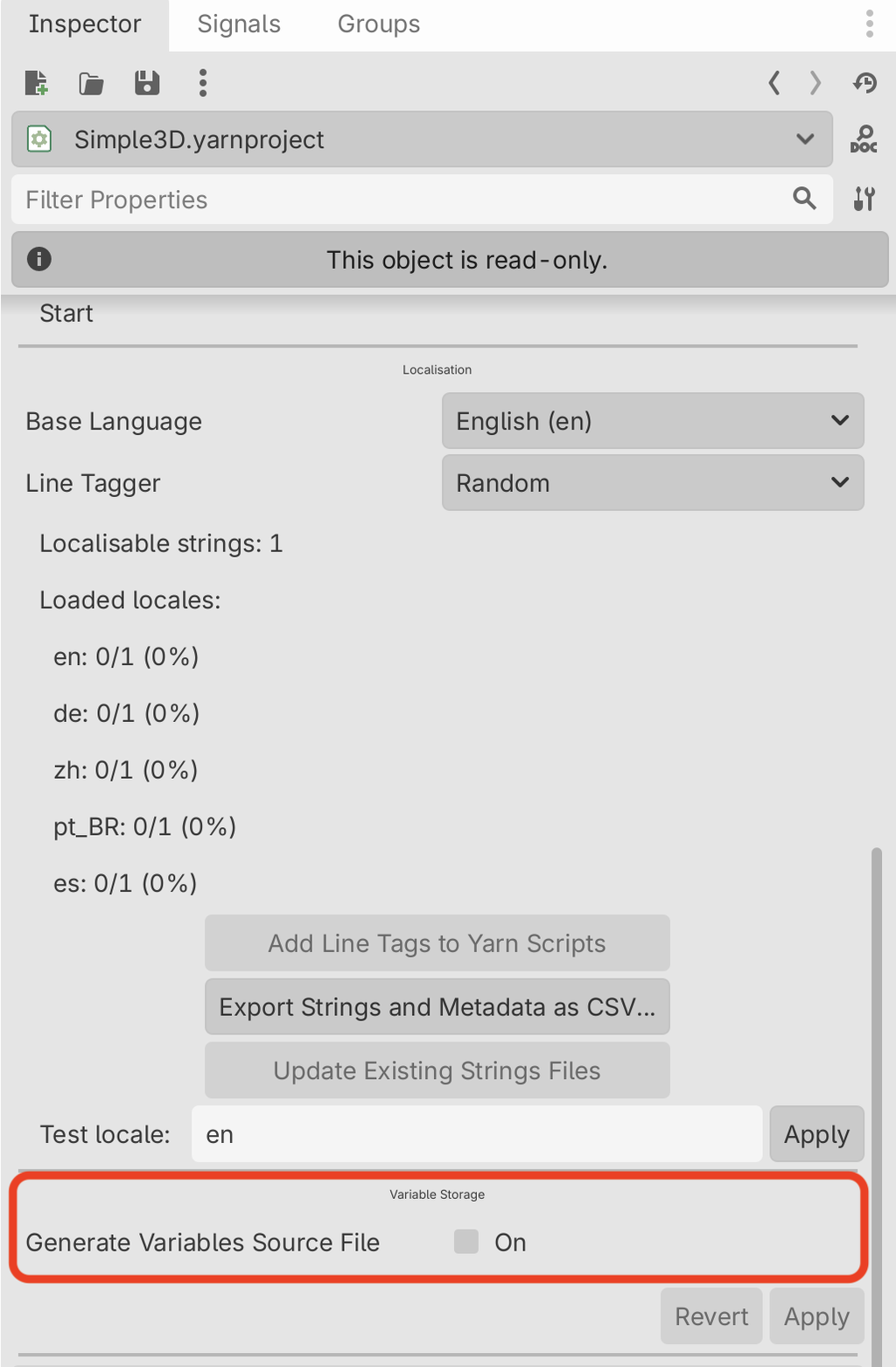
The Inspector shows where the file will be written: a .gd file named after the class in snake case, next to the .yarnproject, for example yarn_variables.gd. It’s rewritten every time the project compiles, so don’t edit it.
For each declared variable, the class has a property with the matching GDScript type, named without the $ and in snake case. $gold becomes gold, and $hasSword becomes has_sword. Enums declared in Yarn become GDScript enums.
To use the class, add a node of that type to your scene and set it as the Dialogue Runner’s Variable Storage. See Variables and Storage.
ysc, the file isn’t updated.The .ysls.json file
Each time a project imports, the plugin writes a .ysls.json file next to it, listing the Commands and Functions it found in your GDScript files, and in Command bindings saved as .tres files or set up in a scene’s Inspector. The Yarn Spinner extension for VS Code can read it to autocomplete and check your commands. It’s also rewritten when you save a .gd file.
When Ysls Scan Path is empty, the plugin works out which files to look in:
- Everything in the Yarn Project’s folder. If that folder has no scripts in it, the plugin uses the nearest folder above it that does, but never a folder that holds another Yarn Project.
- Every scene that uses the Yarn Project, on a Dialogue Runner in the scene itself or in a scene it instances. From those scenes it follows the scripts attached to their nodes, the scenes they instance and the scenes they inherit from, and then the scripts and scenes those scripts preload or refer to by class name, wherever they are in your project.
- Your autoloads.
It reads these files as text, so your scenes aren’t loaded or run, and it skips the addons folder. A scene that only uses a different Yarn Project is left out, so projects don’t pick up each other’s Commands. A Command in a script that several scenes share, like a character script, is listed for every Yarn Project whose scenes use it.
If a Command or Function is registered by a script the plugin doesn’t reach this way, set Ysls Scan Path to a folder that holds it and the rest of the scripts your dialogue uses.
Only the editor uses this file. Nothing reads it at runtime. To stop writing it for one project, turn off Generate Ysls in the Import dock. To stop it rewriting when scripts change, turn off yarn_spinner/ysls/auto_regenerate in Project Settings.